
Guides · Battery Life
Making your battery last in the backcountry.
It’s one of the most common questions I see: how do you keep a phone — and a watch — alive for a multi-day trip? Here’s exactly what I do.

First, the idea behind all of it
Understand what actually drains the battery.
Almost every tip below comes down to one idea. On both your phone and your watch, the two big drains are:
- The antennas — cellular, Wi-Fi, and GPS, all constantly reaching out for a signal.
- The screen.
Once you know that, the settings make sense: you’re either shutting down antennas you don’t need, or keeping the screen off. Do both well and you can get days out of a single charge. Topo Maps+ itself works fully offline, so you’re not giving anything up by going dark.
On your iPhone
Shut off what you’re not using.
- Turn on Airplane Mode. This is the big one — it shuts off the cellular and Wi-Fi antennas that quietly burn power hunting for a signal you don’t have out there. GPS still works in Airplane Mode, so your location and maps keep working.
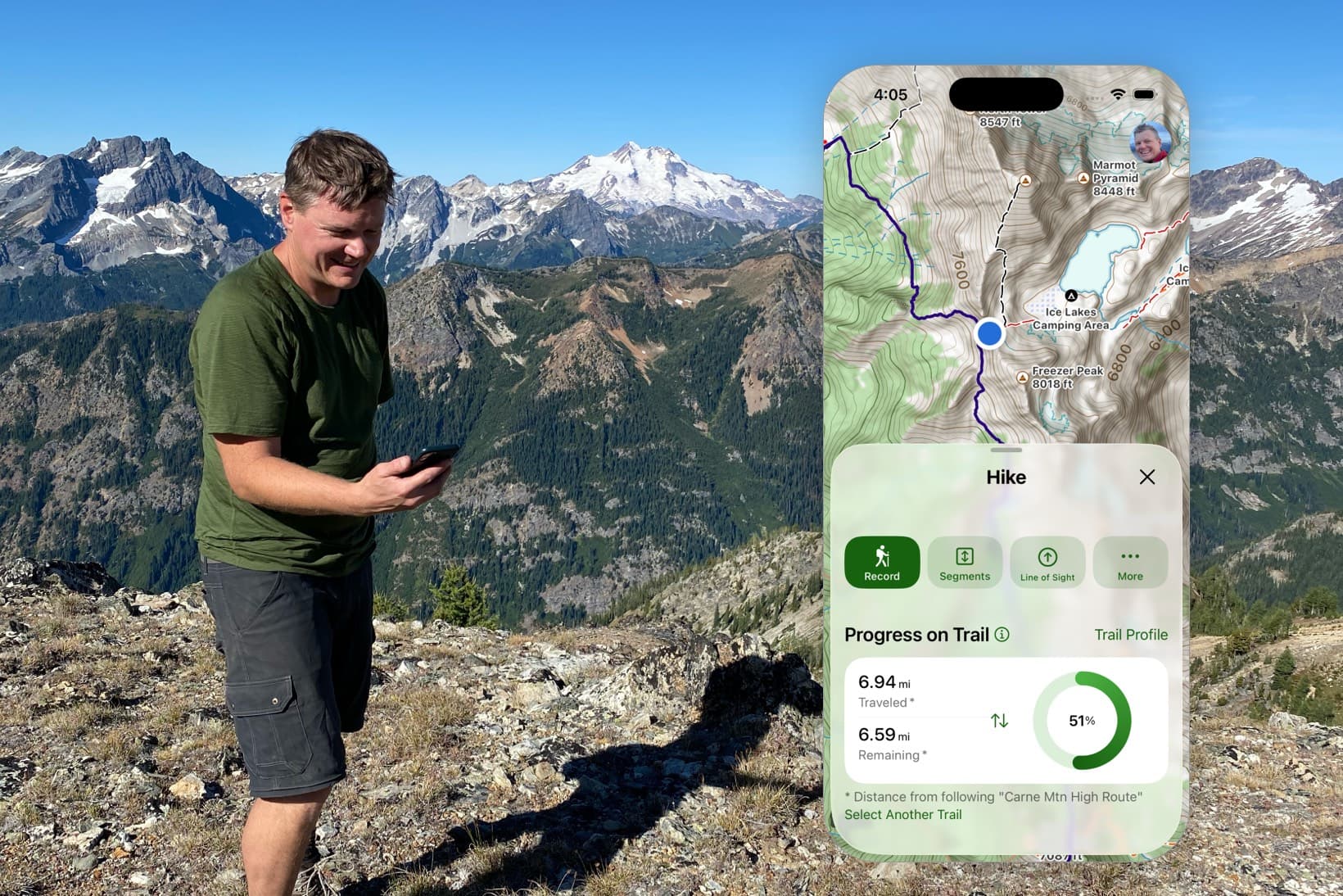
- Use “progress on trail” instead of recording. If you don’t need a recorded track, following your progress on the trail uses far less power than actively recording one.
- If you do record, pause for real when you stop — and turn off “auto-pause track recording.” Auto-pause still runs tracking in the background to decide when you’ve stopped; a real pause shuts tracking off completely. Just remember to resume when you start moving again.
- Turn your phone all the way off as soon as you reach camp. You’re done navigating for the day — give the battery the night off.
On your Apple Watch
Kill the antennas, keep the screen off.
I make a handful of changes to squeeze real battery life out of my Apple Watch Ultra:
- Airplane Mode, and turn off Bluetooth. Same idea as the phone — kill the antennas you don’t need.
- Turn off the always-on display, and turn on Theater Mode. Together these keep the screen off until you deliberately tap the watch — no more screen lighting up every time you move your wrist.
- Download your maps in Topo Maps+ before you leave. That way the watch isn’t using Bluetooth to pull map data from your iPhone in the field — the maps are already on the watch.
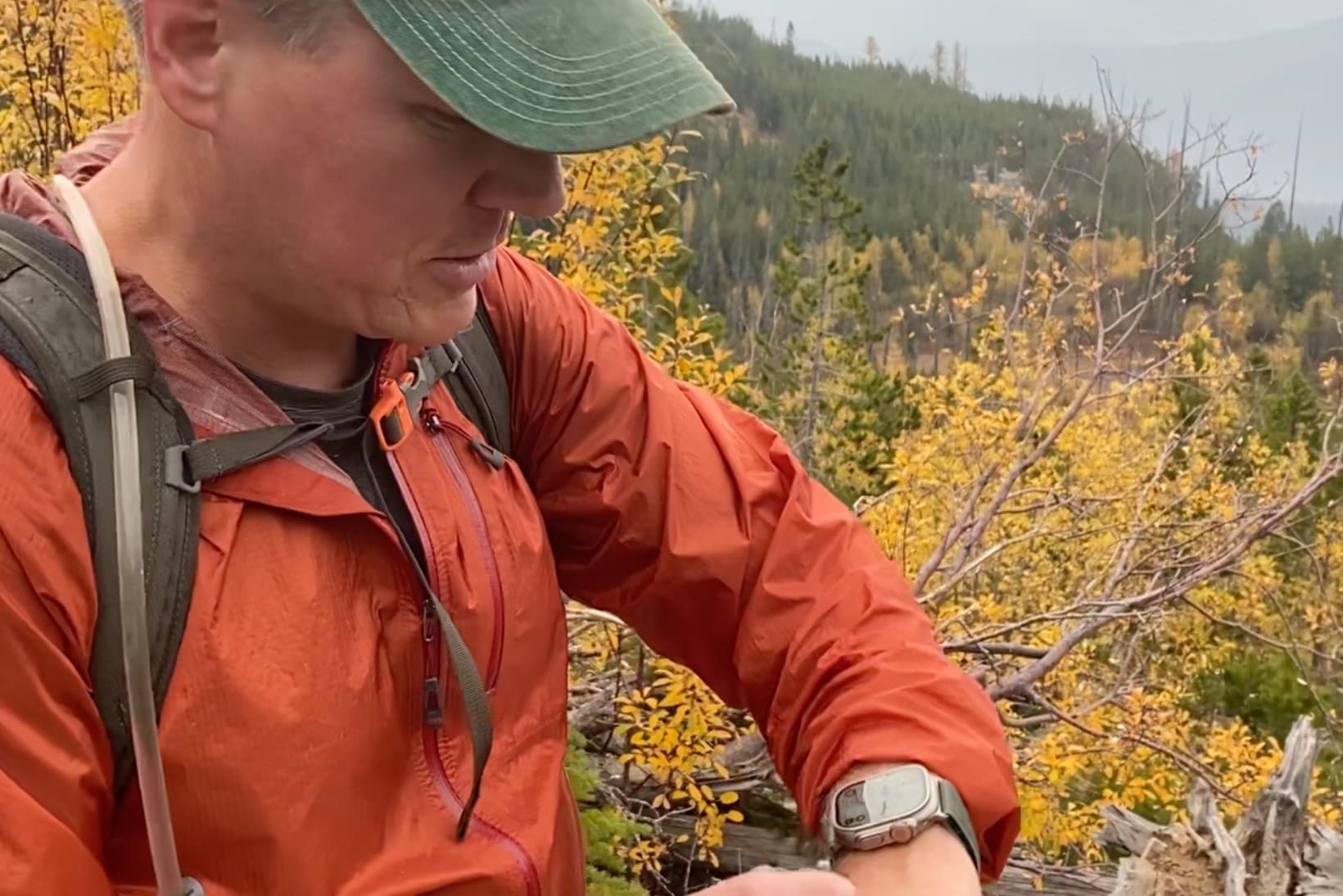
- Assign the Action button to Topo Maps+. This is my favorite. Mid-hike, I press the Action button to toggle between my stats and the map, and the Digital Crown zooms the map — so I never have to touch the screen. That matters more than you’d think: sweaty fingers, cold-weather gloves, or water lock while paddling all make the touchscreen unreliable, and the button just works every time. Combined with the settings above, my display stays off until I choose to look.
- Turn the watch off the moment you get to camp.
Even doing all this, I usually need to recharge the watch every other day — so I carry a small, lightweight battery pack for it. One little pack covers a long trip.
The short version
Don’t burn power on signal or a screen you’re not using.
None of this is complicated — it’s mostly about not letting your devices burn power looking for signal or lighting up a screen you’re not using. Set it up once at the trailhead and you’ll be surprised how many days you get.
Planning the trip those devices are carrying? See how I plan a trip in the web app →
Try it
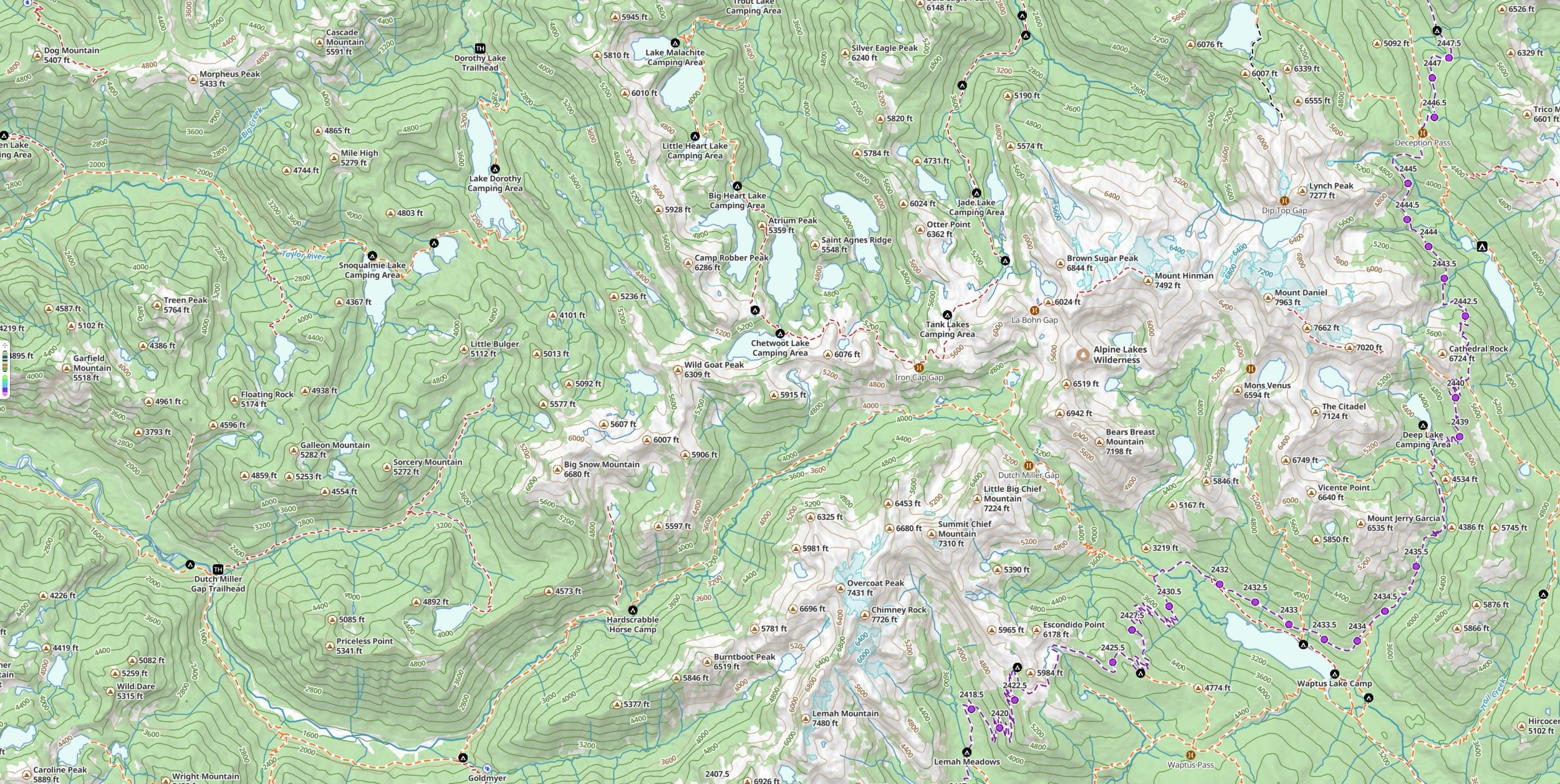
Built to work fully offline.
Download your maps, go dark, and Topo Maps+ keeps working — on your phone and your watch. Free to try, with a 7-day free trial that unlocks every feature.