
Downloading Elevation Data
It’s always a good idea to include elevation data in your offline maps. That way, if you need to create a route while you’re in the backcountry, you can still get elevations.
How to include elevation data in a download
-
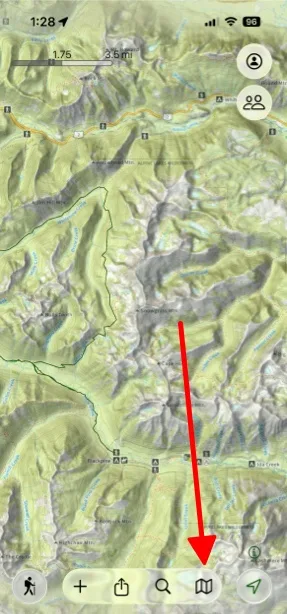
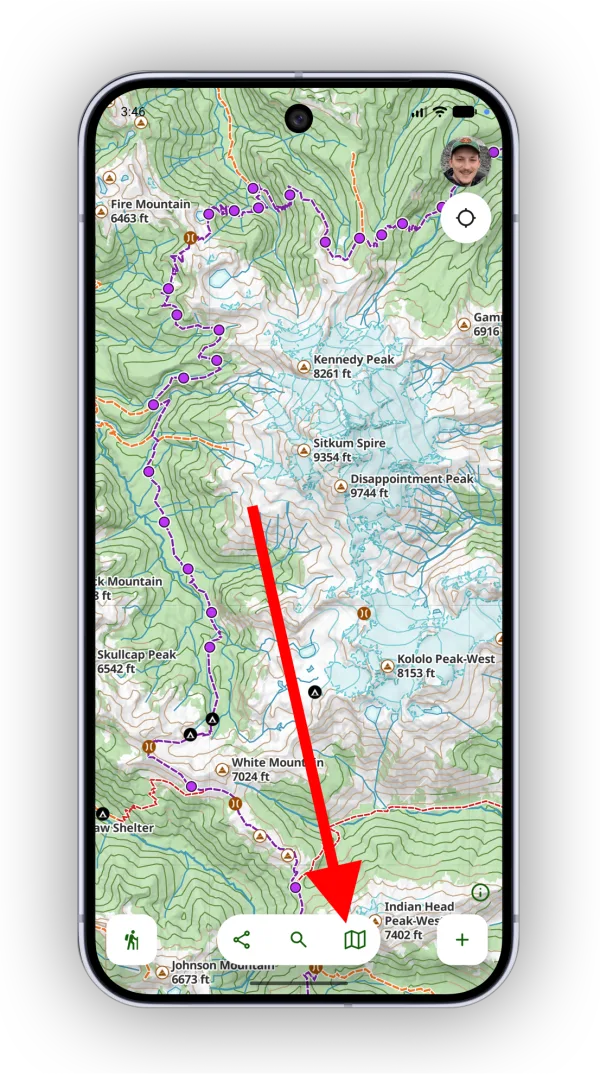
Tap the Map button in the toolbar.
-
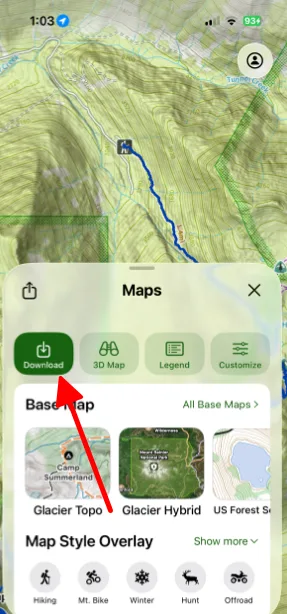
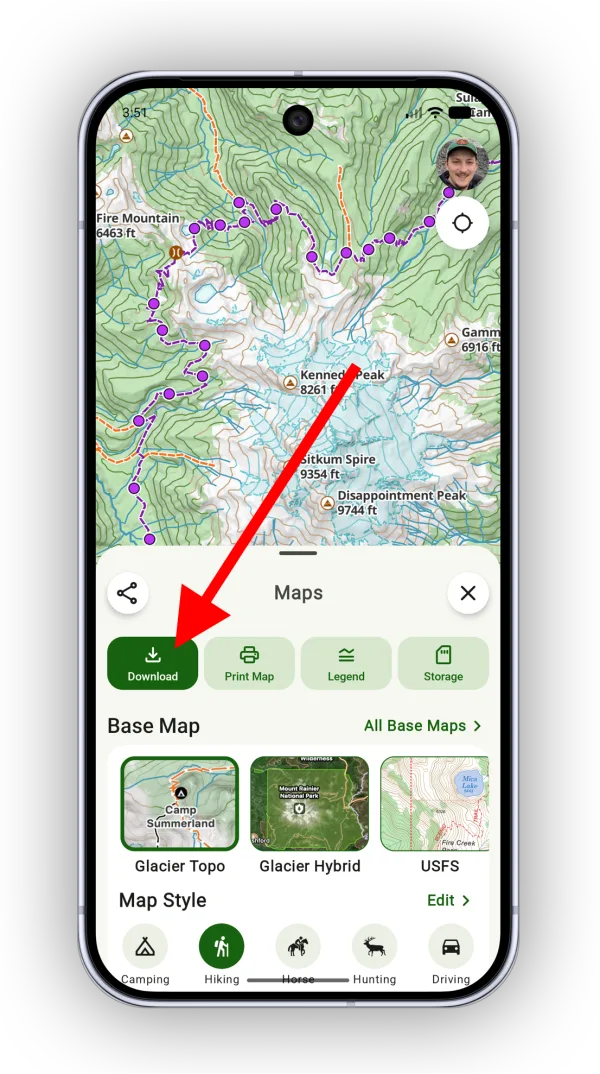
Tap Download.
-
Select the area you want to download, then tap Next.
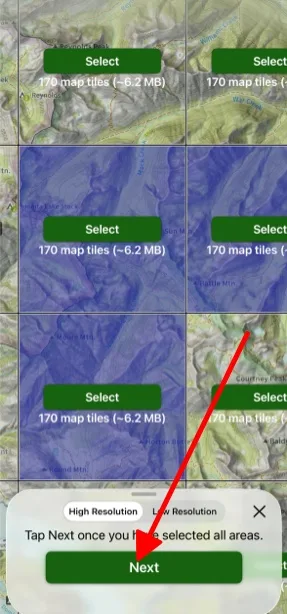
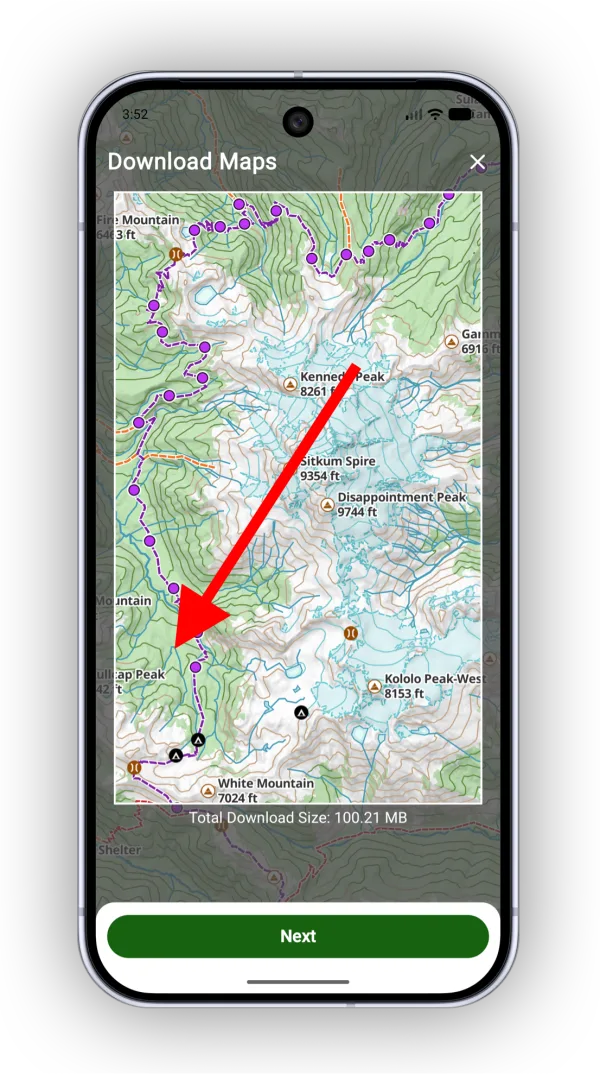
-
When selecting maps and overlays, make sure Elevation Data For Offline Route Creation is selected, then tap Next.
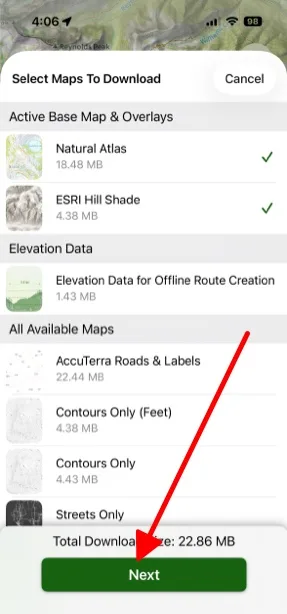
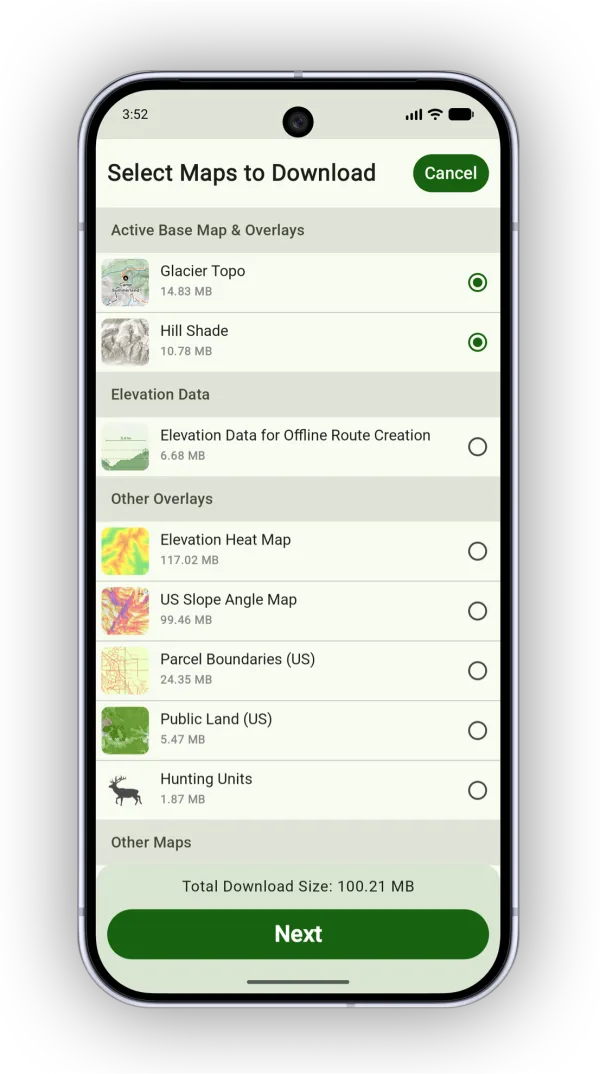
-
Wait for the download to complete, then tap Done.
For more on offline maps, see Downloading maps for offline.
Updated October 7, 2026
More in Offline & Battery
Still need help?
We’re a small team and we read every message. Email support@topomaps.co and tell us which device you’re on.