
Downloading Maps for Offline
On Apple Watch? Downloading Maps on Apple Watch
Download maps before you head out so Topo Maps+ keeps working when you lose cell service. You pick the area and the maps and overlays to include, and they’re saved on your phone.
How to download a map
-
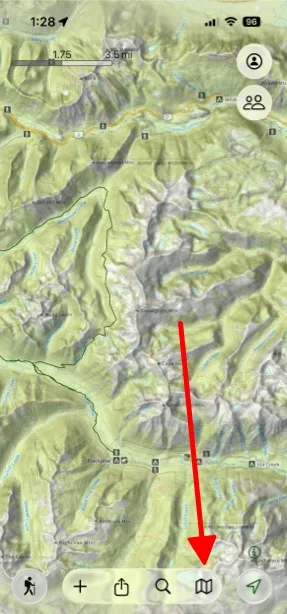
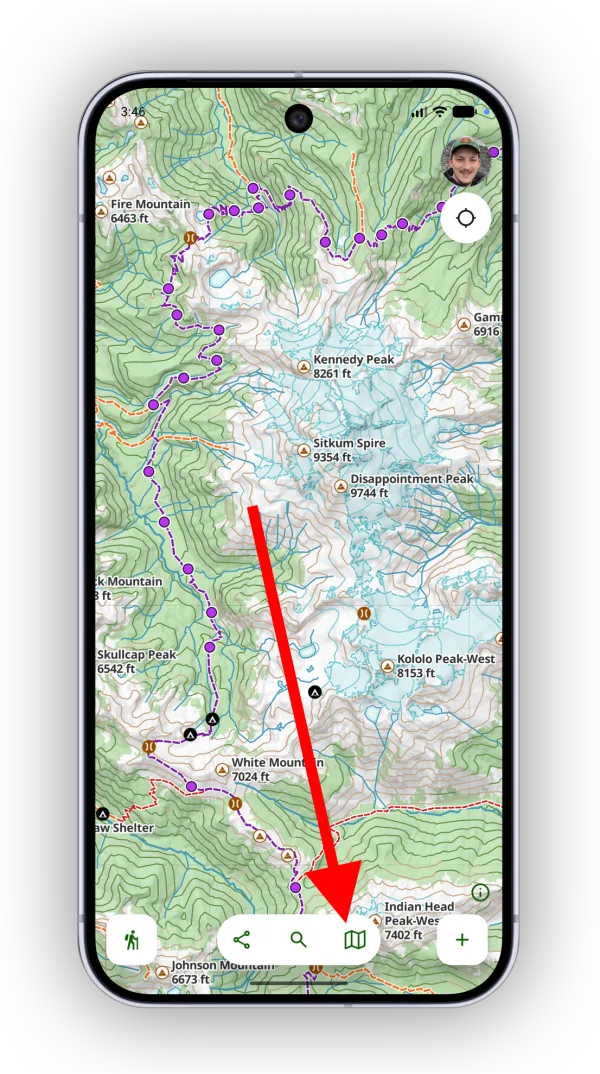
Tap the Map button in the toolbar.
-
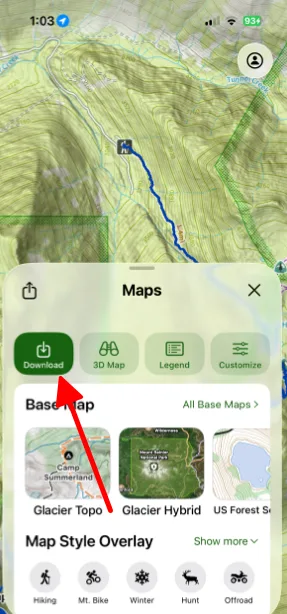
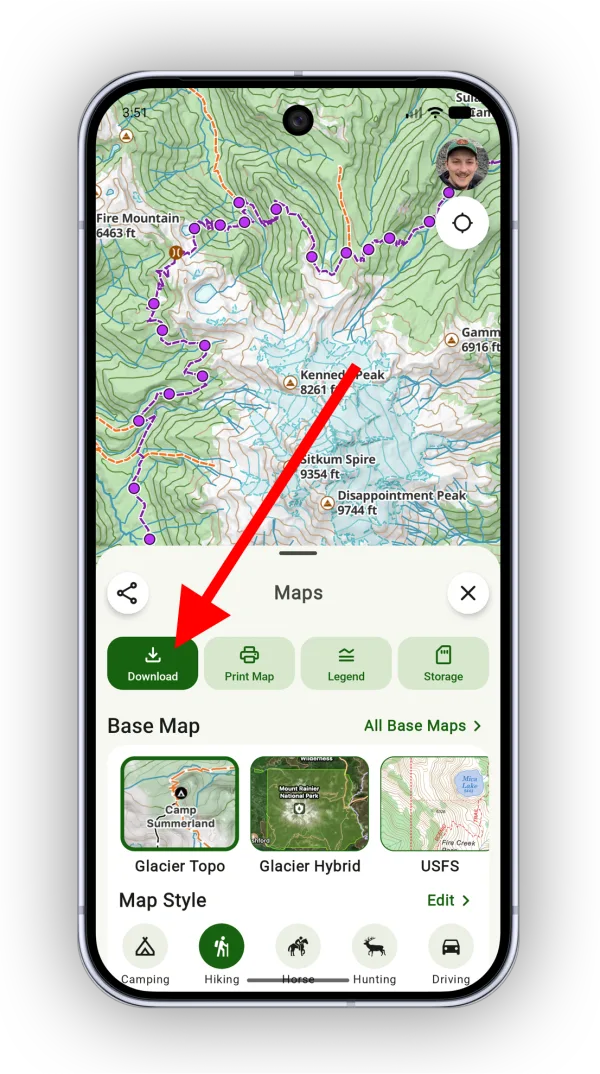
Tap Download.
-
Select the area you want to download, then tap Next.
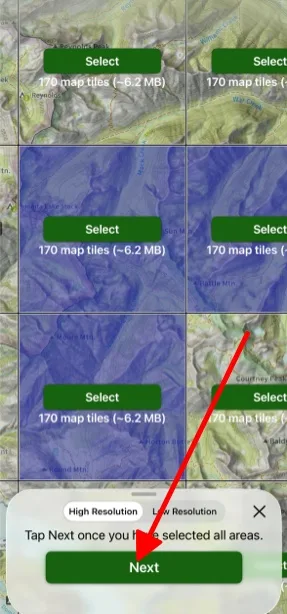
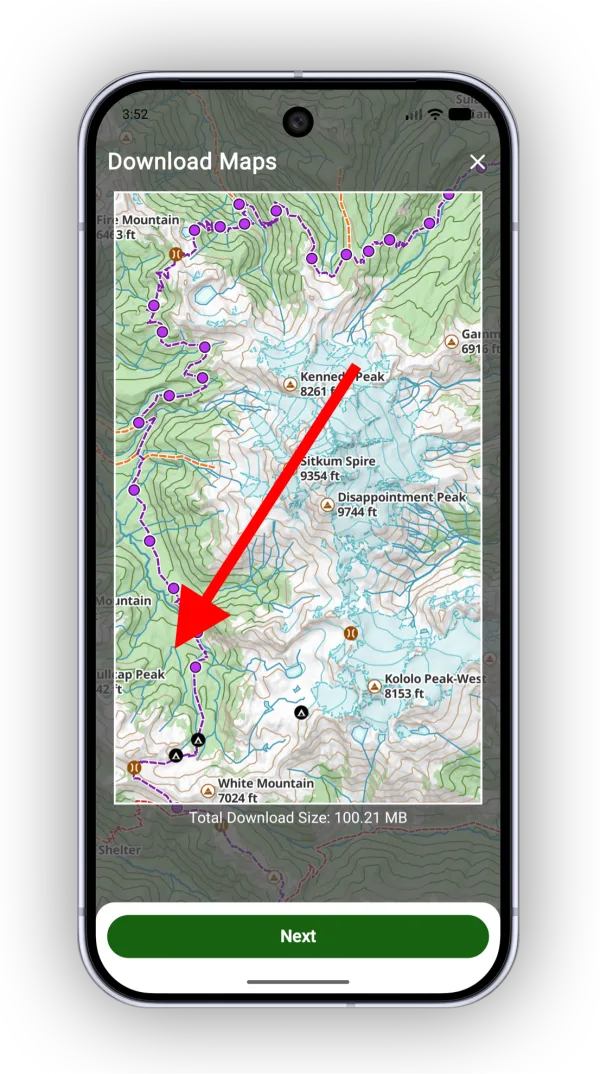
-
Select the maps and overlays you want to include in the download, then tap Next. The maps and overlays you’re currently using are selected for you.
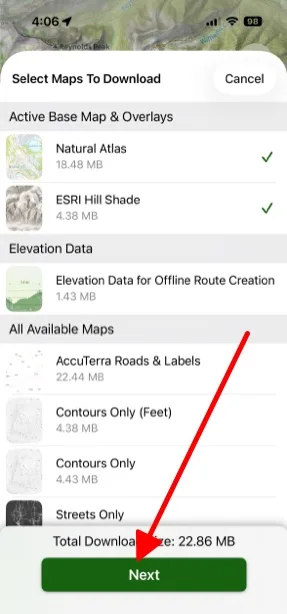
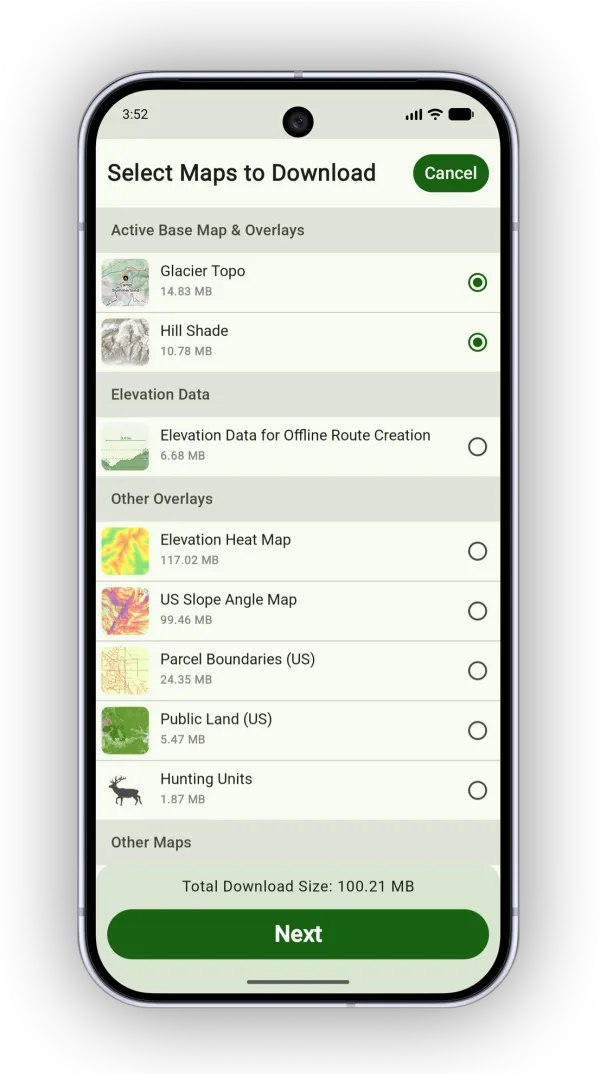
-
Wait for the download to complete, then tap Done.
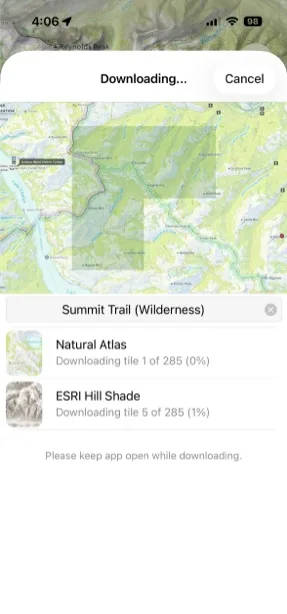
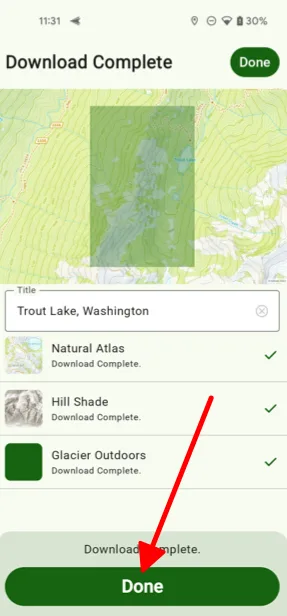
-
To view your downloads, tap Storage in the Maps panel.
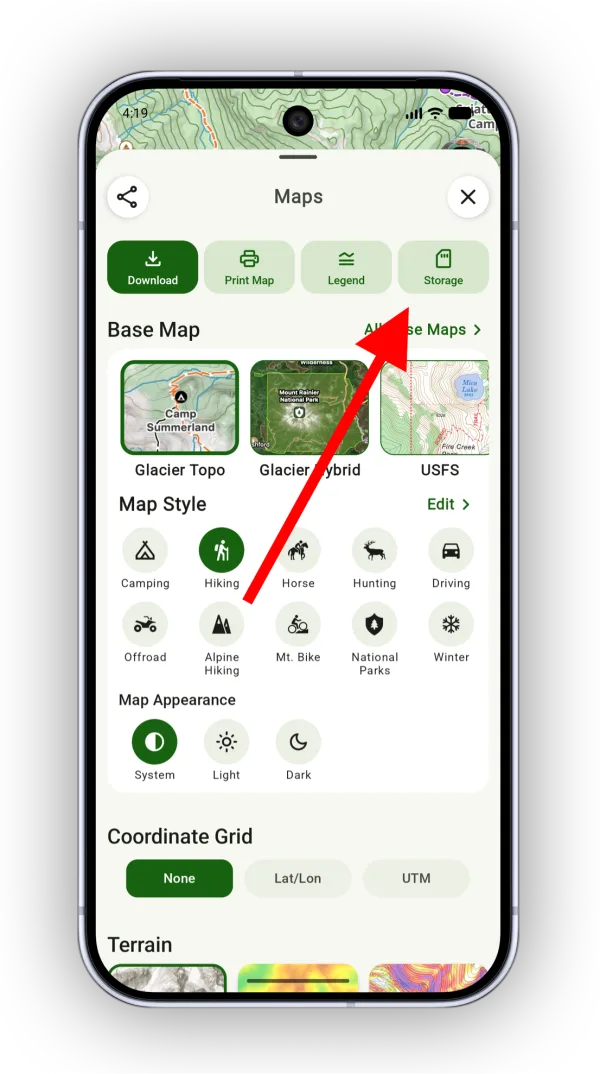
Shown on Android — iPhone looks slightly different.
Updated October 7, 2026
More in Offline & Battery
Still need help?
We’re a small team and we read every message. Email support@topomaps.co and tell us which device you’re on.