
Why Is My Bearing Inaccurate?
Topo Maps+ reads bearings from your phone’s magnetometer. Two main things can throw those readings off:
- The compass needs calibration.
- Magnetic interference.
To rule out interference, make sure your phone isn’t near large metal objects, magnets, or other electronic devices.
How to calibrate the compass
Move your phone in a figure-eight motion. You can also tilt it forward and back, side to side, and rotate it 360 degrees through all three axes to reset the magnetic sensors.
Turn on Compass Calibration
Make sure Location Services is allowed to calibrate your compass:
-
Open the Settings app on your iPhone.
-
Tap Privacy & Security.
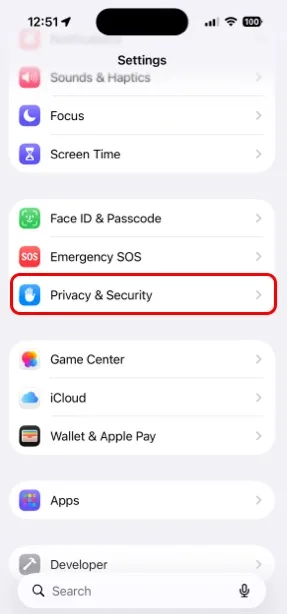
Shown on iPhone — Android looks slightly different. -
Tap Location Services.
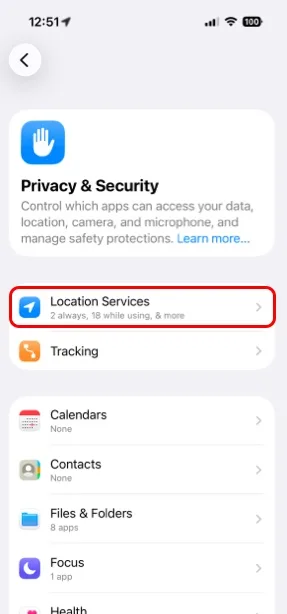
Shown on iPhone — Android looks slightly different. -
Scroll to the bottom and tap System Services.
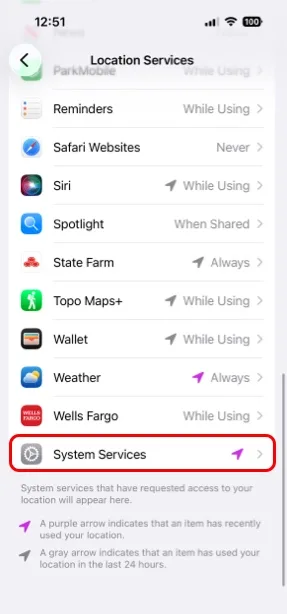
Shown on iPhone — Android looks slightly different. -
Turn on Compass Calibration.
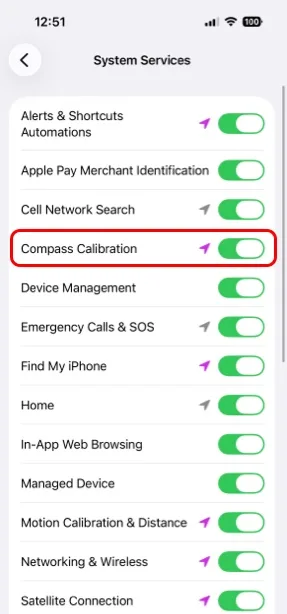
Shown on iPhone — Android looks slightly different.
Most of the time your iPhone calibrates the compass automatically using GPS.
Calibrate in the Compass app
You can also calibrate the compass in Apple’s Compass app and check its accuracy:
- Open the Compass app on your iPhone. If your iPhone needs manual calibration, a calibration screen appears automatically.
- Hold your phone out in front of you.
- Move it through the air in a large figure-eight pattern.
- Keep moving until calibration finishes and the compass dial appears.
Calibrate with Google Maps
You can calibrate the compass from the Google Maps app and check whether accuracy improves:
- Open the Google Maps app.
- Tap the blue dot that shows your current location.
- Tap Calibrate (or Calibrate blue dot compass).
- Move your phone in a figure-eight pattern, like drawing a sideways infinity sign, three to four times.
- When the compass accuracy changes to High, tap Done.
Updated October 7, 2026
More in Troubleshooting & FAQ
Still need help?
We’re a small team and we read every message. Email support@topomaps.co and tell us which device you’re on.