
Sending Diagnostics
When something isn't working, a diagnostics report shows us your app version, settings, and recent activity, so we can track down the problem much faster. The app uploads the report and then opens an email to us with a link to it. Just add a note about what happened and send it.
How to send diagnostics
-
Tap the account button in the top-right corner of the app.
-
Scroll down to Help & Settings and tap About.
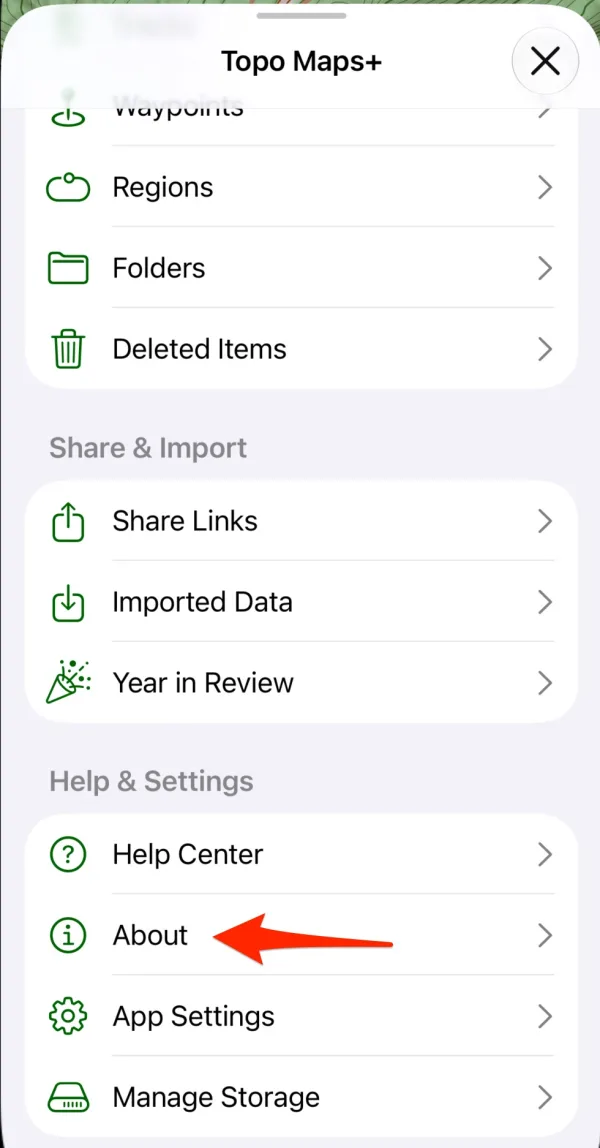
Shown on iPhone — Android looks slightly different. -
Tap Email Diagnostics.
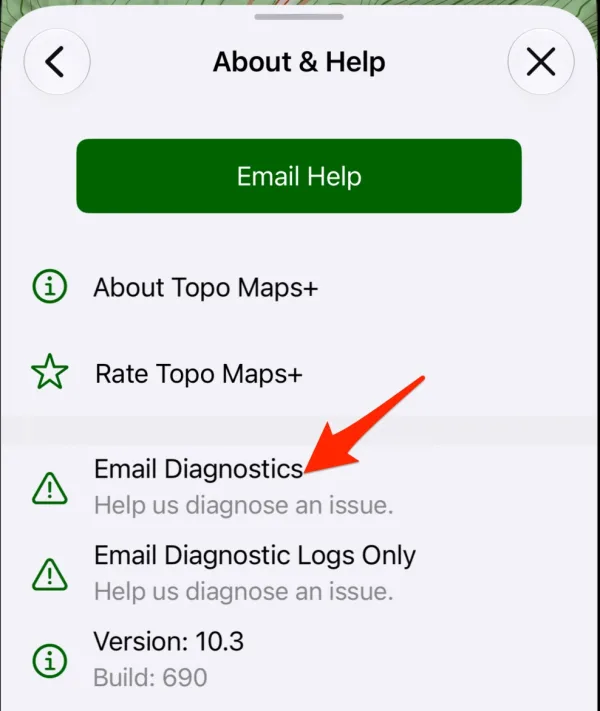
Shown on iPhone — Android looks slightly different. -
Wait while Topo Maps+ prepares and uploads your diagnostics.
-
An email to support@topomaps.co opens with the diagnostics link already in it. Add a short description of what happened, then send it.
If Mail isn't set up on your device, a share sheet opens instead. Choose the email app you use and send the message to support@topomaps.co.
On iPad and Mac
Open the sidebar, tap About under Help & Settings, then follow steps 3–5 above.
If the upload is slow or keeps failing
Tap Email Diagnostic Logs Only instead of Email Diagnostics. It leaves out your saved routes, waypoints, and tracks, so it's much smaller and uploads faster. Start with this if you're on a slow connection; we'll ask for the full report if we need it.
If Topo Maps+ won't open
You can tell the app to send diagnostics the next time it starts, before it loads anything else:
- Open your device's Settings app, then tap Topo Maps+ (under Apps on newer versions of iOS).
- Under Diagnostics, turn on Send Diagnostics at Startup.
- Open Topo Maps+. It prepares your diagnostics and opens a share sheet. Send it to support@topomaps.co.
The switch turns itself off after one use. This option is on iPhone and iPad only.
If you see "No email app found," install or set up an email app, then try again.
If the upload fails or times out, move to Wi-Fi or a stronger signal and try again.
How to send diagnostics from Apple Watch
Keep your iPhone nearby with Topo Maps+ installed. The watch sends its diagnostics to your iPhone, and your iPhone emails them to us.
-
Tap the menu button in the bottom-right corner.
-
Tap Settings & About.
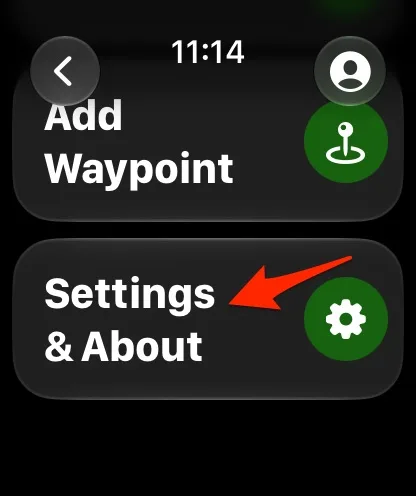
-
Tap About.
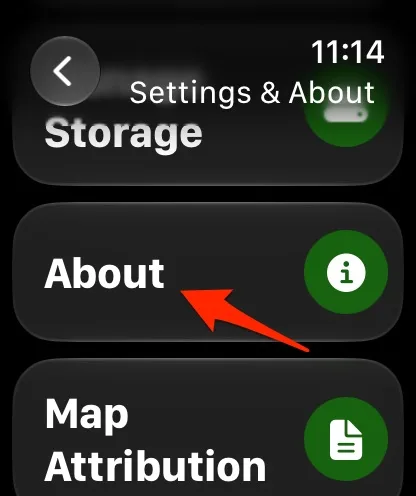
-
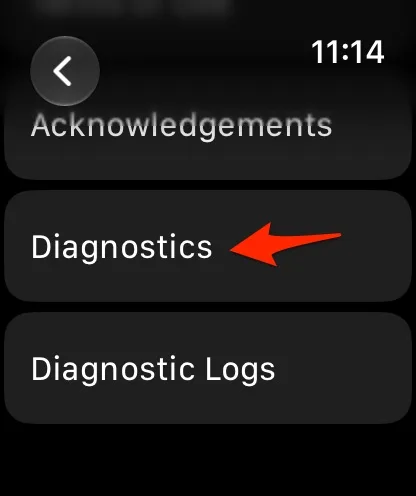
Scroll down and tap Diagnostics. If the transfer is slow, tap Diagnostic Logs instead. It's smaller.
-
When the watch says the transfer is done, open Topo Maps+ on your iPhone.
-
Your iPhone uploads the diagnostics and opens an email to support@topomaps.co. Add a note about what happened and send it.
If the watch says iPhone is not reachable, make sure Bluetooth is on and your iPhone is nearby and unlocked, then try again.
How to report an issue from the web app
The web app sends its report straight to us. There's no email step.
-
Sign in at maps.topomaps.co.
-
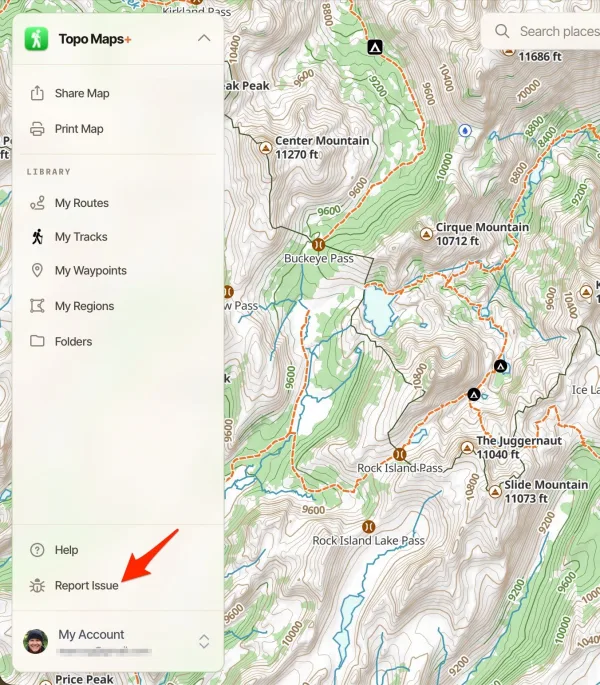
Click Report Issue at the bottom of the left sidebar. On a phone, open the menu first.
-
Under What happened?, describe the problem. Add what you were doing right before it, if you can.
-
Leave Include a screenshot of the current map and Include recent app activity logs checked. If you'd like us to look at your account as you see it, check Allow our support team to view my account to help fix this issue.
-
Click Submit Report.
We'll follow up by email if we need more details.
Updated October 8, 2026
More in Troubleshooting & FAQ
Still need help?
We’re a small team and we read every message. Email support@topomaps.co and tell us which device you’re on.