
iOS Shortcuts
With Apple’s Shortcuts app, you can set up custom ways of adding waypoints and moving the map in Topo Maps+. If you’ve never used Shortcuts before, start with Apple’s Shortcuts User Guide.
Topo Maps+ provides three Shortcuts actions: Add Waypoint, Mark My Location, and Set Map Center.
Add Waypoint
Add Waypoint creates a waypoint at coordinates you provide, as opposed to Mark My Location, which uses your current location.
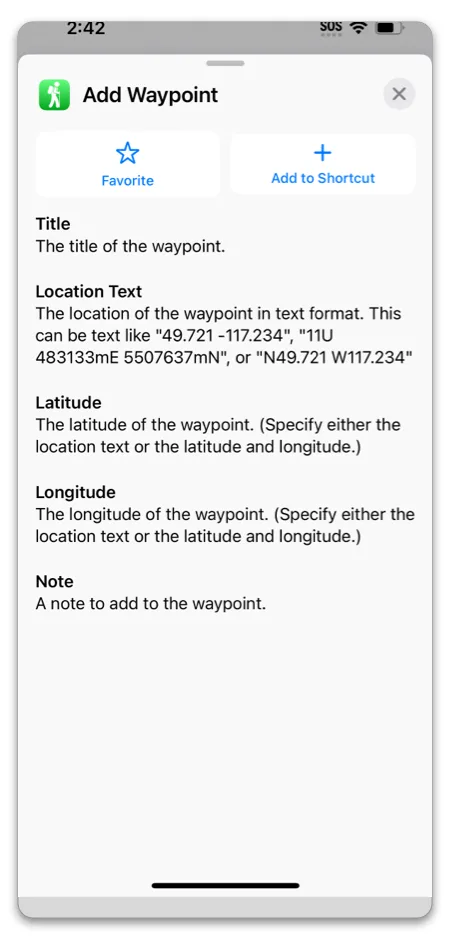
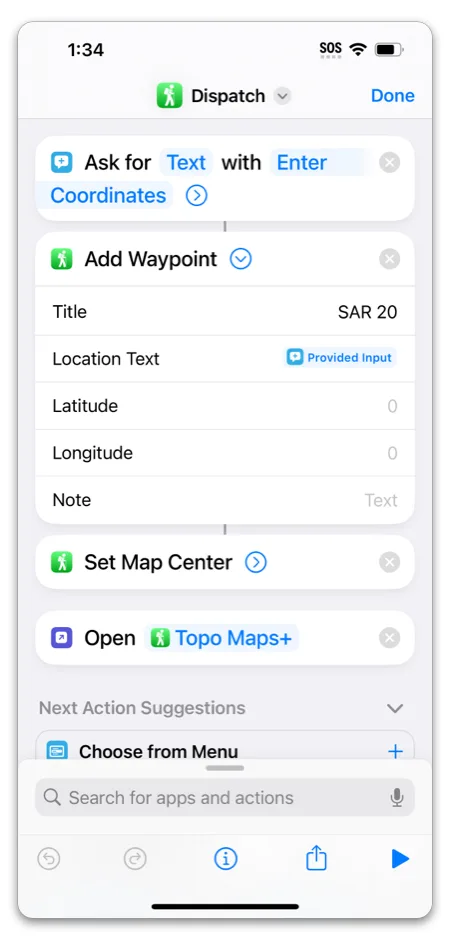
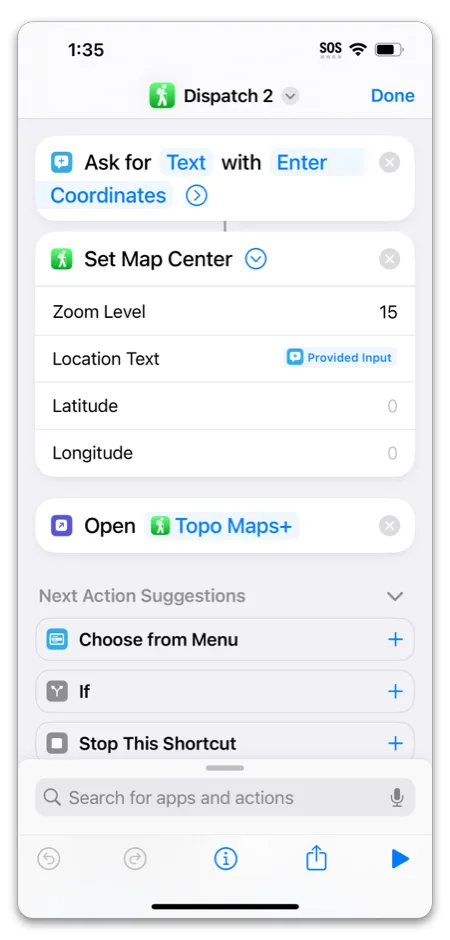
One use for this action is emergency teams taking down coordinates from a dispatcher. The Dispatch example below prompts you to enter coordinates, adds a waypoint there, and opens Topo Maps+ centered on the new waypoint. If you only want to look at the location, skip the waypoint step and use Set Map Center on its own.
Mark My Location
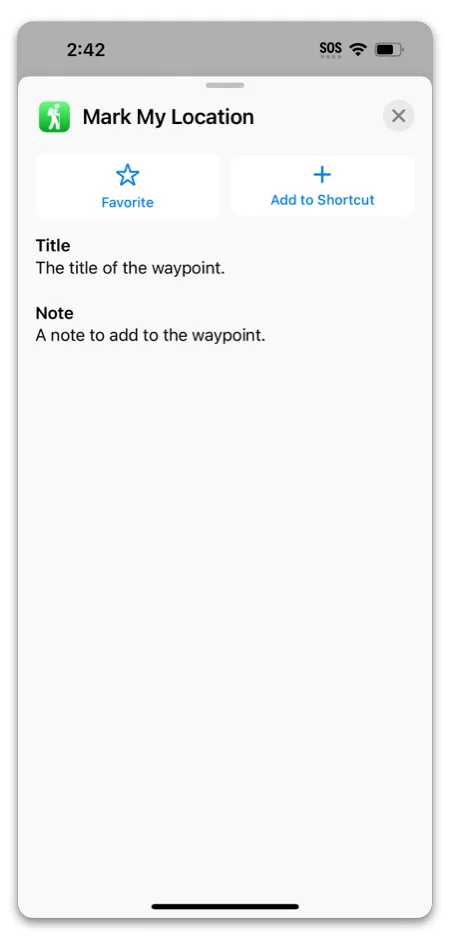
Mark My Location takes your current location and creates a waypoint there.
Example: dictate a waypoint title
Get the Dictate Waypoint Title shortcut
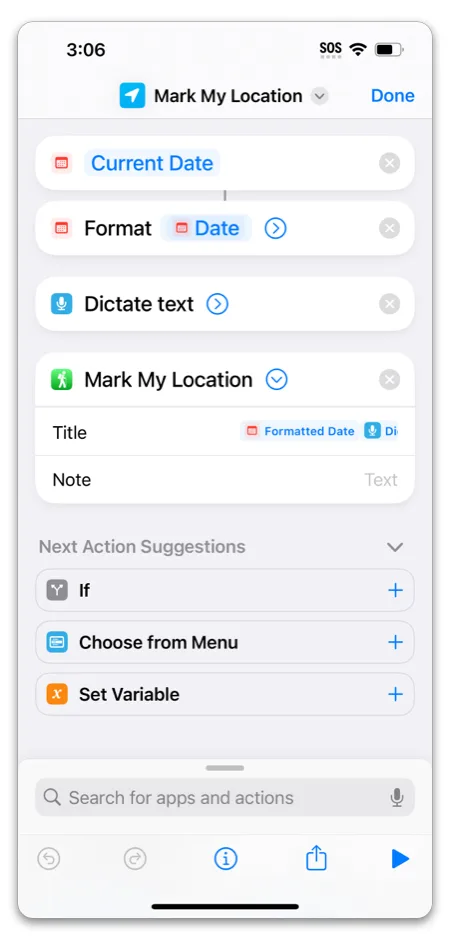
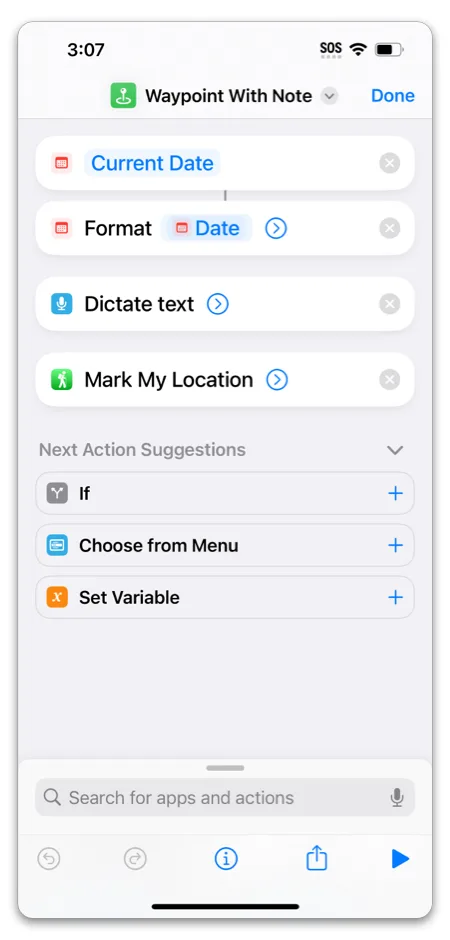
This shortcut adds the formatted date to the waypoint title, along with text you dictate when the shortcut runs.
Example: dictate a note
Get the Dictated Note shortcut
This one is similar, but it saves your dictated text as a note on the waypoint instead of in the title.
Set Map Center
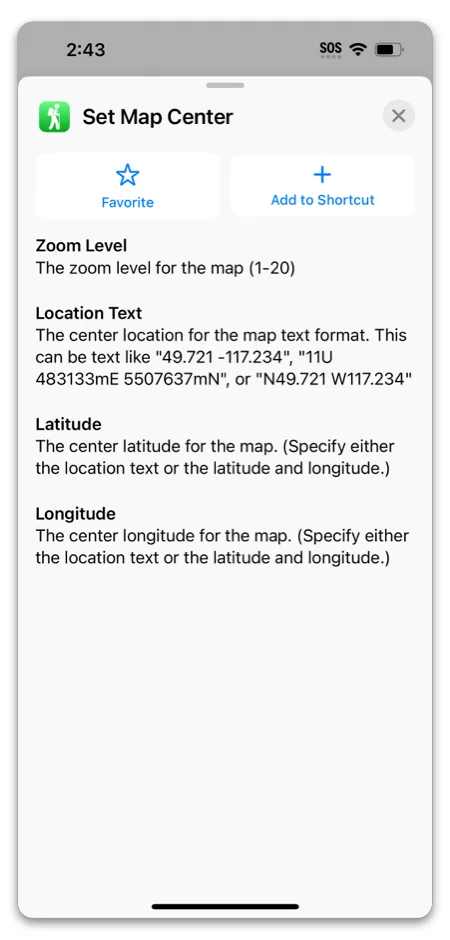
Set Map Center opens Topo Maps+ at a given location. It’s used in the Dispatch example above, but you can also use it by itself.
Just like Add Waypoint, pass in either a location text like “49.721 -117.234” or both latitude and longitude.
Example: Dispatch 2
Updated October 7, 2026
More in Integrations & Settings
Still need help?
We’re a small team and we read every message. Email support@topomaps.co and tell us which device you’re on.