
Additional Import Data Options
This feature isn’t available in the Android app yet.
When you import a file, you can organize and style its data as part of the import instead of editing everything afterward.
How to open the import options
When you import a GPX or KML file, tap Options on the import screen.
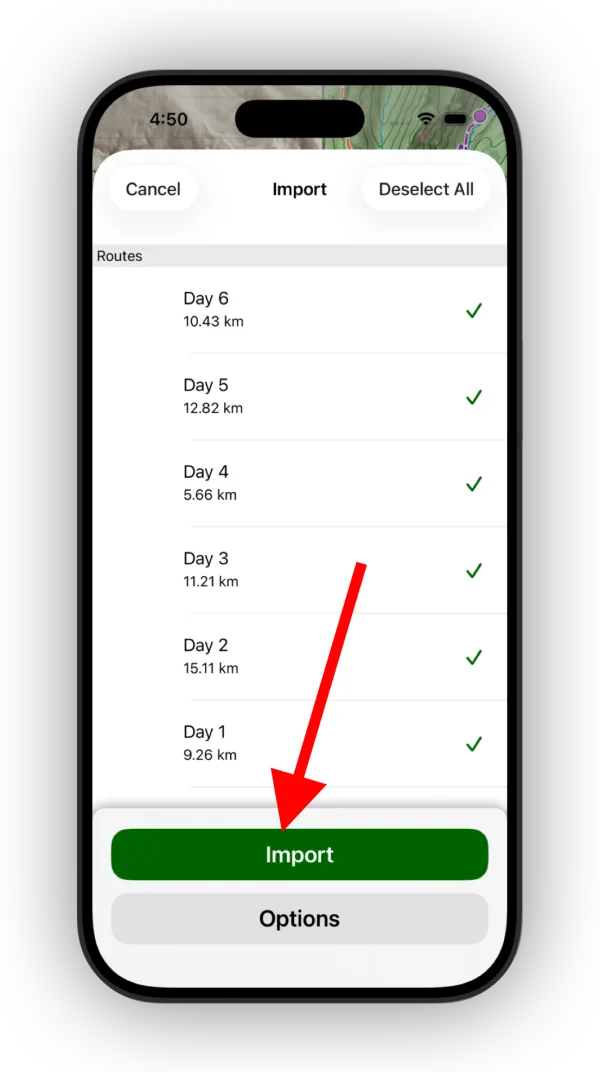
Available options
-
Add to Data Layer: Adds all of the imported data to a data layer instead of an import folder. This option only appears if you already have a data layer.
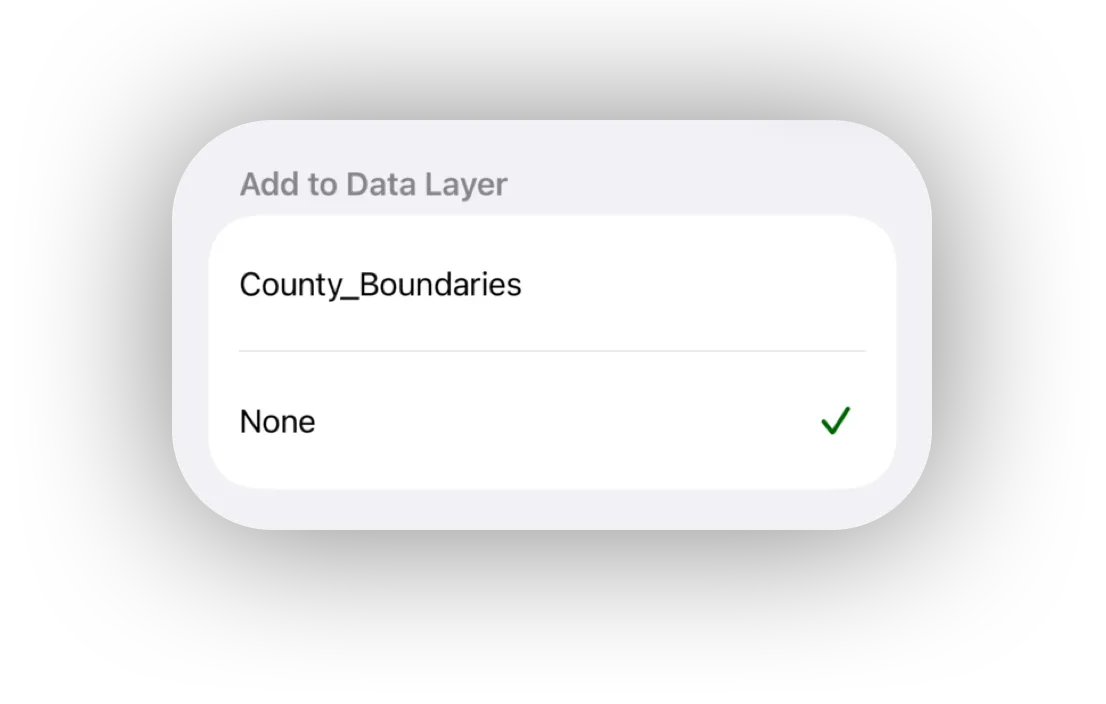
Shown on iPhone — Android looks slightly different. -
Set Waypoint Titles To: Changes what the file's waypoints use as their title, such as the titles in the file, the current date, a custom title, or the coordinate.
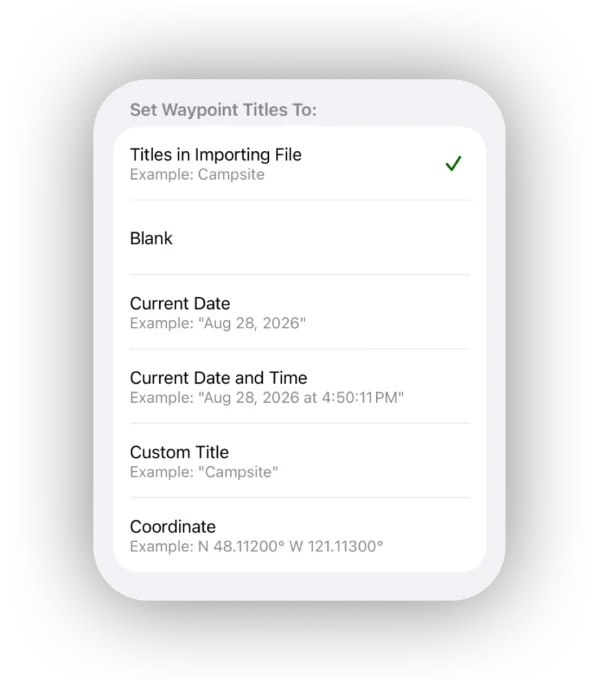
Shown on iPhone — Android looks slightly different. -
Set Waypoint Icons To: Replaces the icons defined in the file with one icon for every waypoint.
-
Set Route & Track Titles To: Changes what the file's routes and tracks use as their title.
-
Set Route & Track Colors To: Replaces the colors defined in the file with one color for every route and track.
-
Set Route & Track Line Styles To: Replaces the line styles defined in the file with one line style for every route and track.
-
Set Region Titles To: Changes what the file's regions use as their title.
-
Set Region Colors To: Replaces the colors defined in the file with one color for every region.
Updated October 7, 2026
More in Import, Export & Share
Still need help?
We’re a small team and we read every message. Email support@topomaps.co and tell us which device you’re on.