
Importing GPX & KML Files
Using the web app? Importing Data on the Web App
Topo Maps+ imports routes, tracks, waypoints, and regions (polygons) from GPX and KML files, so you can bring in a trip planned in another app or sent by a friend.
How to import a file
-
Tap the Add button in the toolbar.
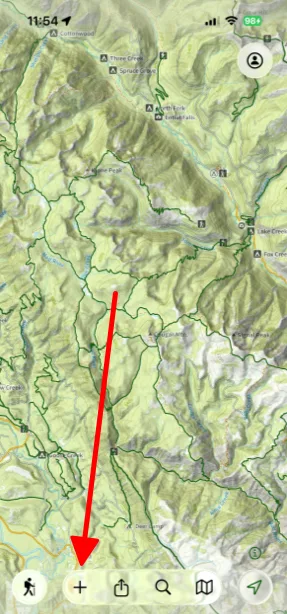
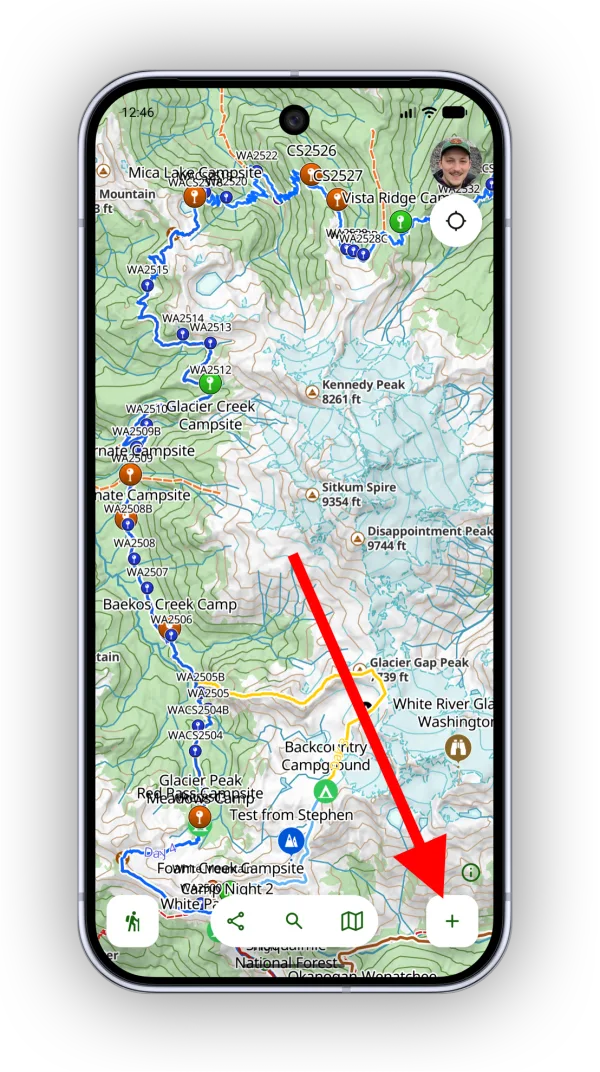
-
Tap Import Data, then select your file.
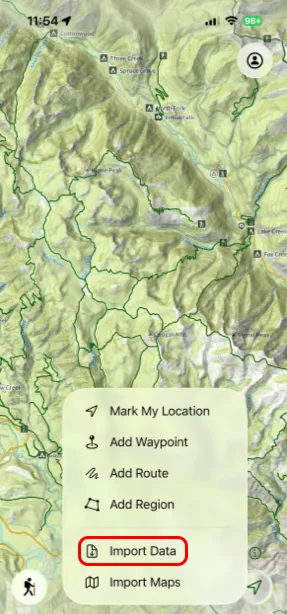
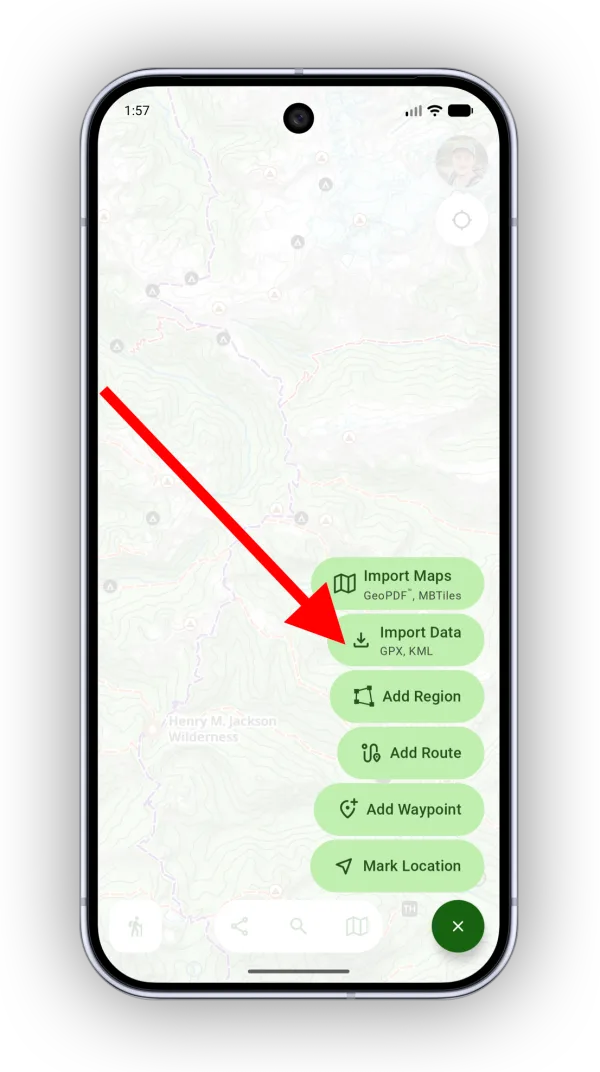
-
Configure the import, then tap Import.
- Import Title: Topo Maps+ uses the file name as the title for the import, but you can change it.
- Selected Data: Everything in the file is selected by default. Tap any item to leave it out.
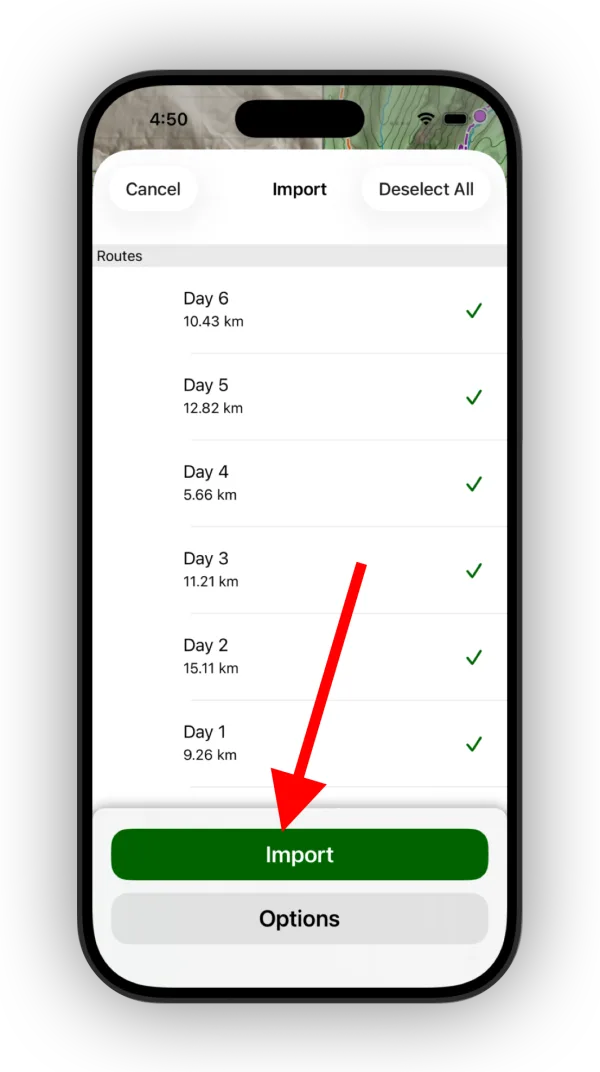
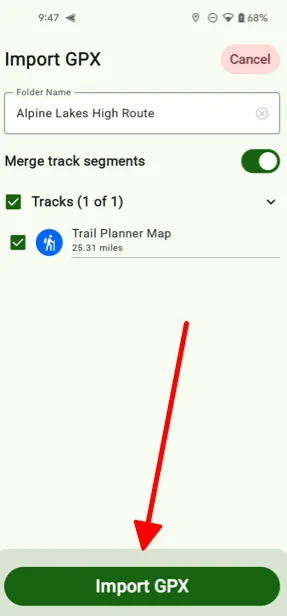
Open a file from another app
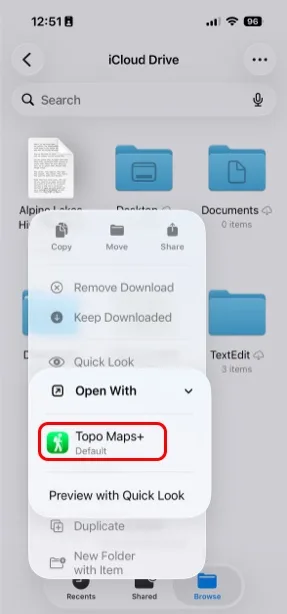
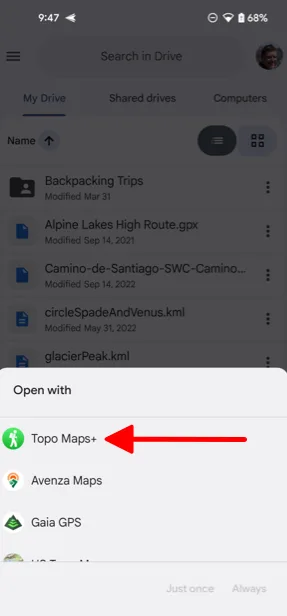
You can also send a file straight to Topo Maps+ from your Files appfile manager or Google Drive. An easy way to get a file onto your phone is to email it to yourself.
- Tap and hold the file, then tap Open With. Tap and hold the file and choose to open it with another app.
-
Choose Topo Maps+.
-
Topo Maps+ opens with the import screen. Configure the import as above.
Find your imported data
-
Tap your account button in the top-right corner of the map.
-
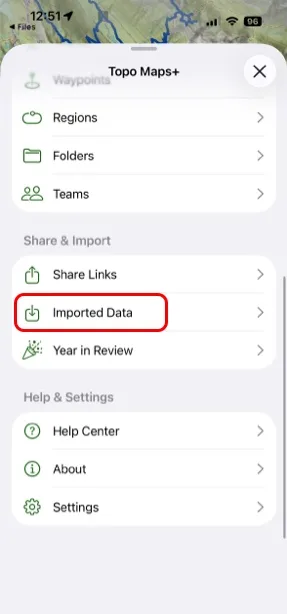
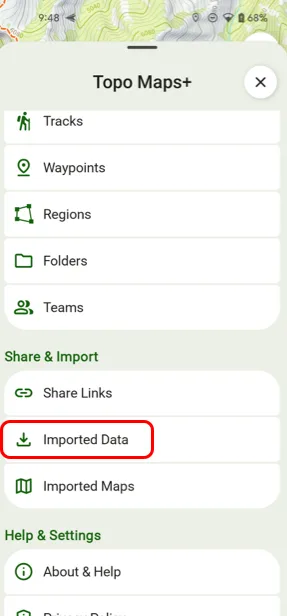
Scroll down and tap Imported Data. Each imported file is listed here, and you can open it to see what it contains.
Updated October 7, 2026
More in Import, Export & Share
Still need help?
We’re a small team and we read every message. Email support@topomaps.co and tell us which device you’re on.