
Sharing Topo Maps+ Data
Using the web app? Sharing Data on the Web App
Share links let you send map data to friends or colleagues, whether or not they use Topo Maps+. A link opens in the Topo Maps+ app if it's installed, and otherwise as an interactive map on the web.
Sharing uploads the data to Topo Maps+ and gives you a link to it. If you'd rather send a file someone can open in another mapping app, see Exporting GPX & KML Files.
How to share a trail or point of interest
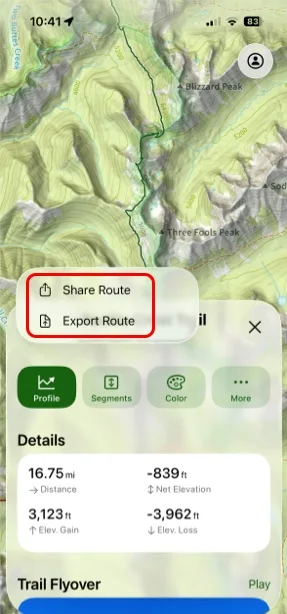
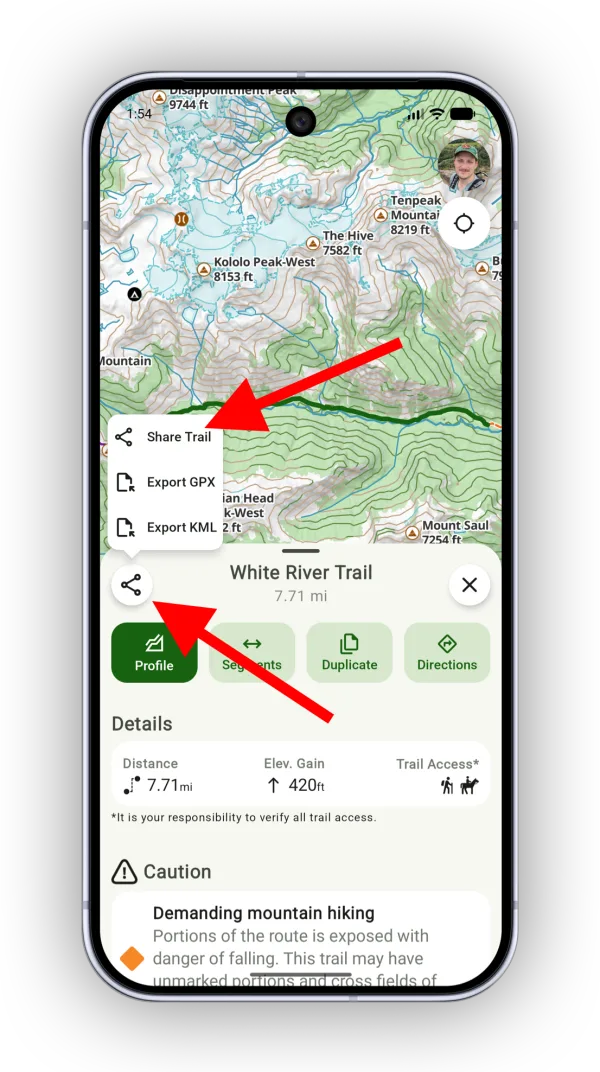
Tap a trail or point of interest on the map, tap the share icon on its details, then tap Share. Your own routes, waypoints, and regions work the same way.
How to share data on the map
You can share all of your saved data that's currently shown on the map, all of your data, or a team's data.
-
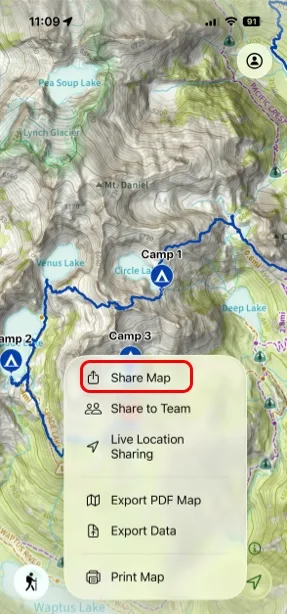
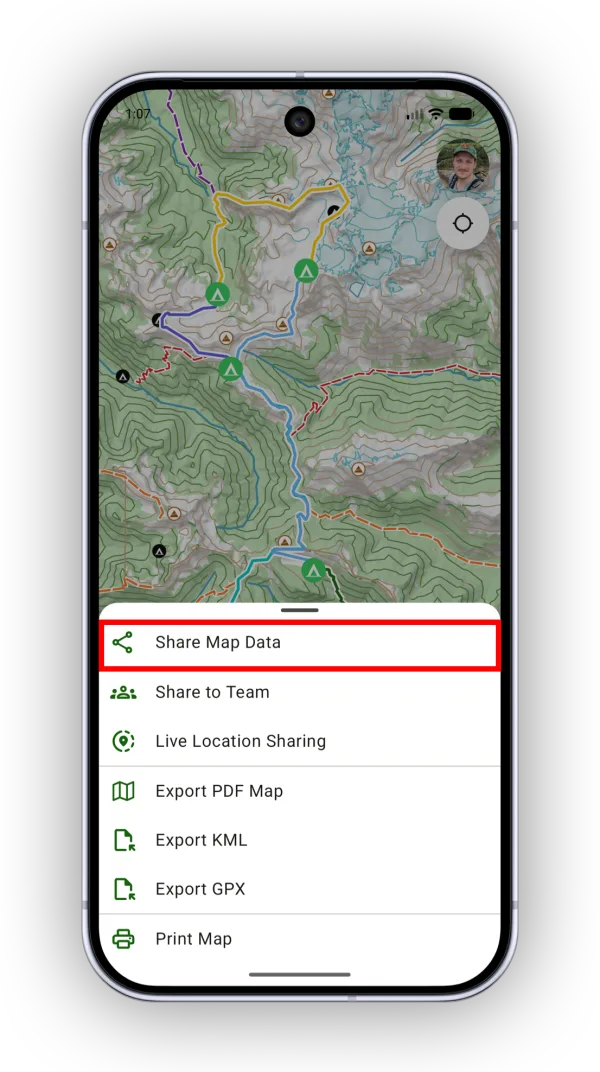
Tap the Share button in the toolbar, then tap Share Map Data.
-
Choose the data to include. By default, everything visible on screen is selected. Tap Visible Map on Screen to share from all of your data or from a team instead, and deselect anything you don't want in the link.
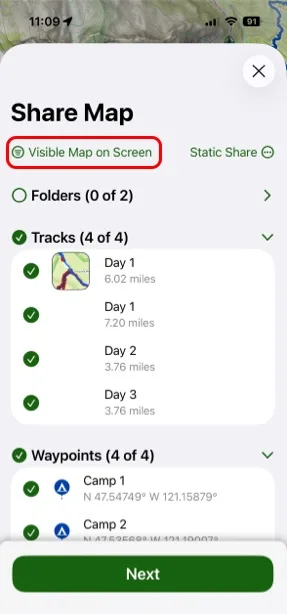
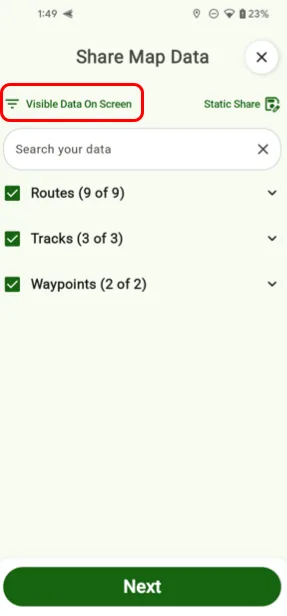
-
Tap the share type (Static Share by default) to choose the kind of link:
- Static Share: Shares a copy of the data. The link never changes, which is ideal for social media or trail review sites.
- Dynamic Share: Shares the data from your account, so the link updates whenever you change that data. This works well for an upcoming trip with friends.
- Instagram Share: Creates an image of the selected data, sized for Instagram.
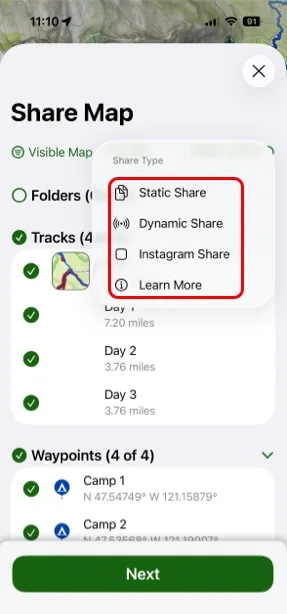
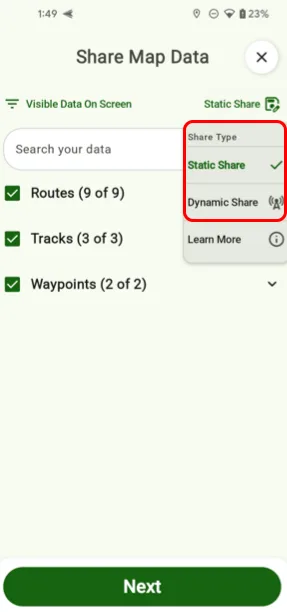
-
Tap Next.
-
Choose an image for the link and add a title. Topo Maps+ generates map images for the link and also offers photos you've taken along these trails. Then tap Create Share Link.
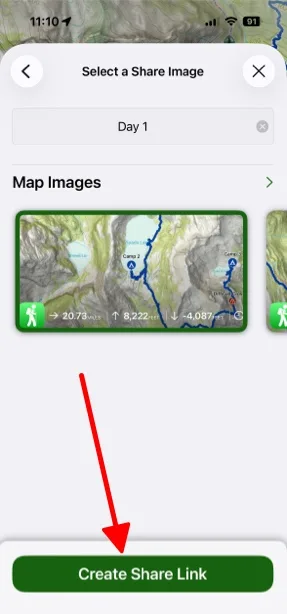
Shown on iPhone — Android looks slightly different. -
Give the link a title and tap Done. Topo Maps+ creates the link, ready to copy or send.
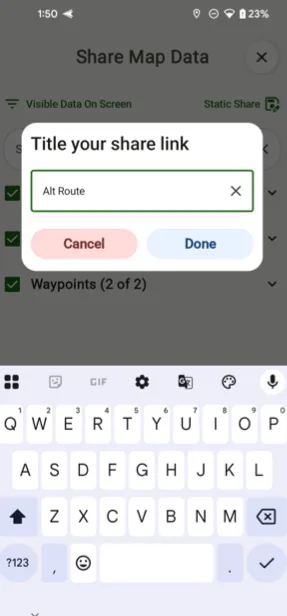
Shown on Android — iPhone looks slightly different.
How to share a folder or several items
-
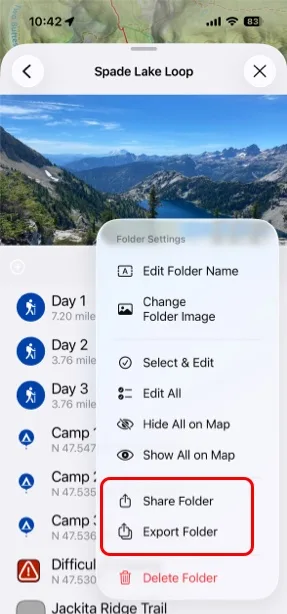
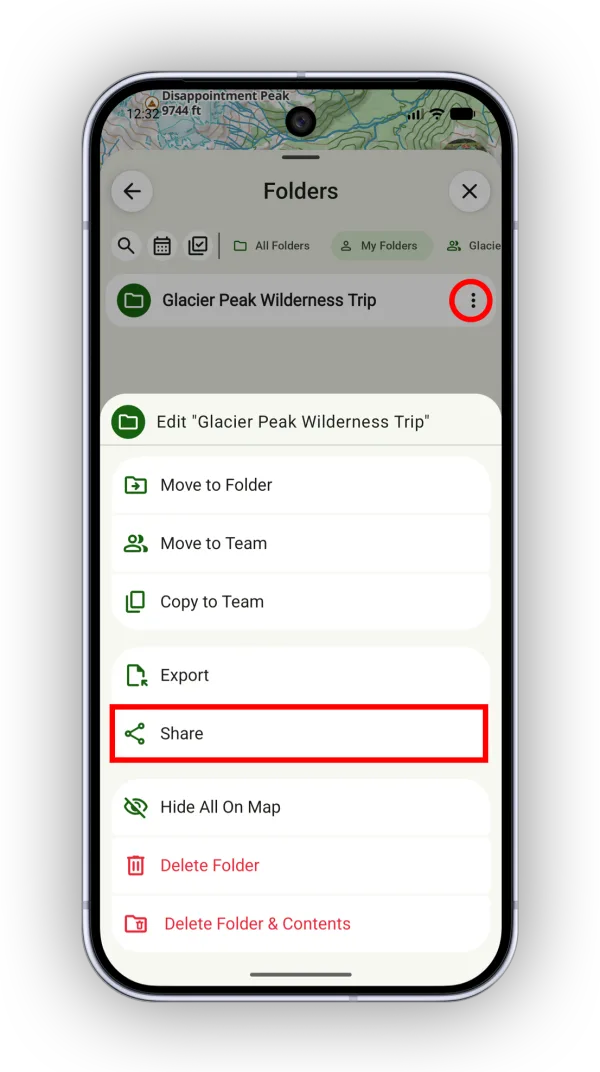
Share a folder: Tap your account button, then tap Folders.
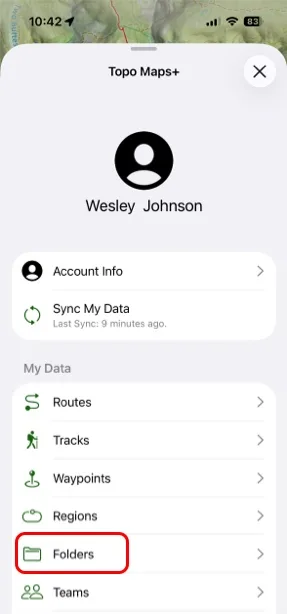
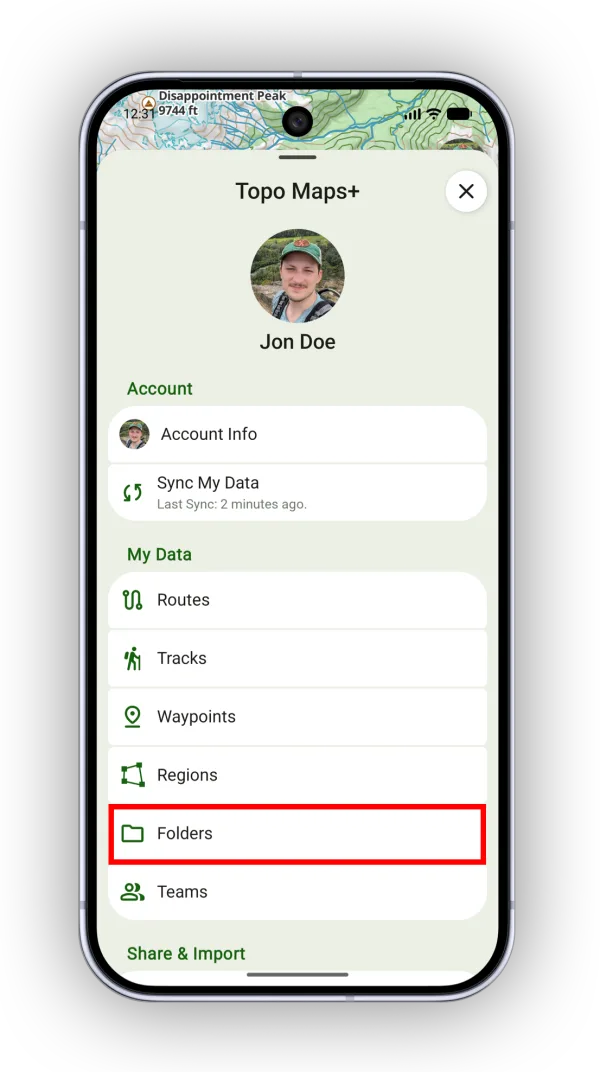
Tap the more icon on the folder you want (or tap and hold it), then tap Share.
-
Select multiple items: Tap your account button, tap a list such as Routes, tap the More/Checkmark icon, then tap Select & Edit. Select the items you want and share them all at once.
Updated October 7, 2026
More in Import, Export & Share
Still need help?
We’re a small team and we read every message. Email support@topomaps.co and tell us which device you’re on.