
Working in a Team
This feature isn’t available in the Android app yet.
Topo Maps+ works in one place at a time: your own data (My Data) or one team. The map, the menu, and the Maps panel show only the data for the place you're working in, and anything you add is saved there. That keeps a team's map free of your personal data, and keeps your own map free of every team's data.
How to tell where you're working
On iPhone, look at the account button in the top-right corner of the map. It shows your picture while you're in My Data, and the team's picture or initials while you're working in a team.
Tap the account button to see more. The first row of the menu shows your name and email while you're in My Data, or the team's name and your role (for example, Editor) while you're in a team.
On iPad or Mac with the sidebar showing, the card at the bottom of the sidebar shows the same thing: the team's name and your role, or your name and your plan.
How to switch on iPhone
-
Tap the account button in the top-right corner.
-
Tap the first row of the menu. It shows where you're working now, with a chevron next to it.
-
Tap where you want to work:
- Your name and email: Your own data (My Data). This row only appears while you're working in a team.
- A team: Work in that team. Each team shows your role under its name.
- Archived Teams: Opens a list of archived teams. This row only appears if you have any.
- New Team: Create a team. See Creating a Team.

Shown on iPhone — Android looks slightly different.
The map and menu switch right away. On iPad without the sidebar, the menu works the same way.
How to switch on iPad or Mac
-
Tap or click the card at the bottom of the sidebar.
-
In Select a Team or Account, choose your account under My Account, a team under Teams, or a team under Archived Teams.
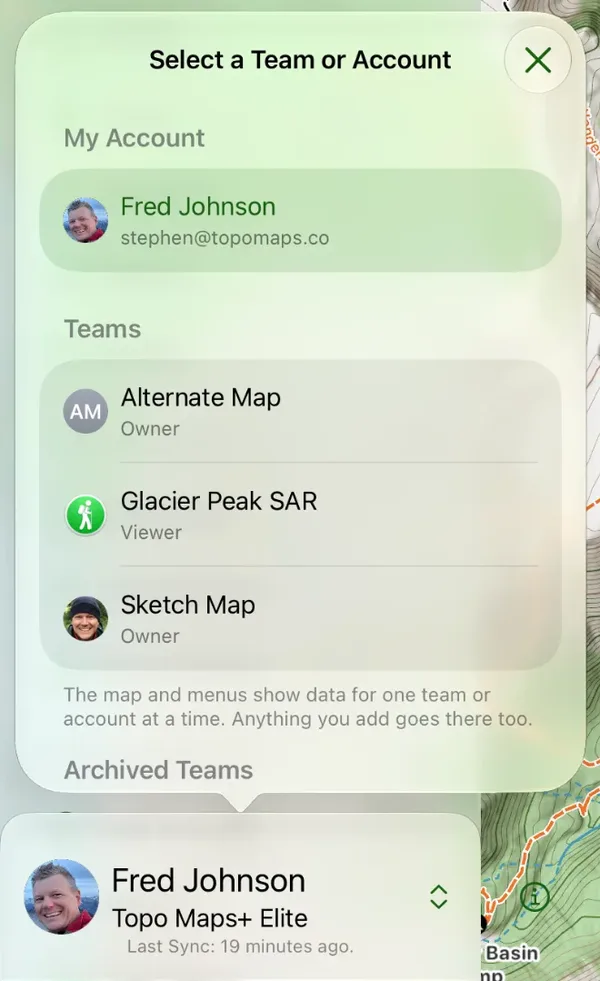
Shown on iPhone — Android looks slightly different.
The same popover also has New Team, Sync My Data, and Manage My Account.
Each device remembers where you're working on its own, so switching on your iPhone doesn't switch your iPad.
What changes while you're working in a team
- The map shows only the team's waypoints, routes, tracks, and regions. Your own photos still show.
- The menu shows a Team Data section with Team Routes, Team Tracks, Team Waypoints, Team Regions, and Team Folders. A Team section adds Team Maps, Team Members (for owners and admins), and Team Settings. The Share & Import section is hidden.
- Data layers and folders show only the team's.
- Search still searches everything. If you pick a result that's in My Data or a different team, Topo Maps+ asks whether to switch there.
Where new content goes
New waypoints, routes, and regions are saved to the place you're working in. While you're in a team, they go to the team and everyone on it can see them. To put data you already have on a team, see Moving Data to a Team.
Recording a track is the one exception. When you start recording in a team, Topo Maps+ asks Where should this track go?
- Save to Team: Everyone on the team can see the track.
- Save to My Data: The track stays yours. It won't be on the map after you stop recording until you switch back to My Data.
If you can't add data to the team, you're asked Record to My Data? instead, and the track is saved to My Data.
The Team Data section in the Maps panel
While you're working in a team, tap the Maps button in the toolbar to find a Team Data section. Use its Waypoints, Routes, Tracks, and Regions toggles to show or hide each type of the team's data. The My Data section only holds Photos while you're in a team.
While you're in My Data, people who belong to a team see a short Team Data note in the Maps panel that explains how to switch. You can dismiss it.
If you see "Can't Add to" a team
If you try to add a waypoint, route, or region and see Can't Add to followed by the team's name, the team doesn't accept new data from you. That happens when:
- Your role on the team is Viewer, which can only view data. See Team Member Permissions.
- The team is archived, so nobody can add to it.
Tap Switch to My Data to add it to your own data instead, or tap Cancel.

Archived teams
When a team's work is done, its owner can archive it. An archived team stops syncing and is read only for everyone, including its owner. Everyone keeps the data they already have.
Archived teams are listed under Archived Teams when you switch. Open one to look at its data. To archive or unarchive a team, see Creating a Team.
Updated October 7, 2026
More in Teams & Pro Tools
Still need help?
We’re a small team and we read every message. Email support@topomaps.co and tell us which device you’re on.