
Creating a Team
Using the web app? Creating a Team on the Web App
A team automatically shares routes, waypoints, recorded tracks, regions, and notes between Topo Maps+ users. Team members can also see each other's live location whenever they have cell service, even if it's occasional or spotty.
How to create a team
-
Tap your account button in the top-right corner.
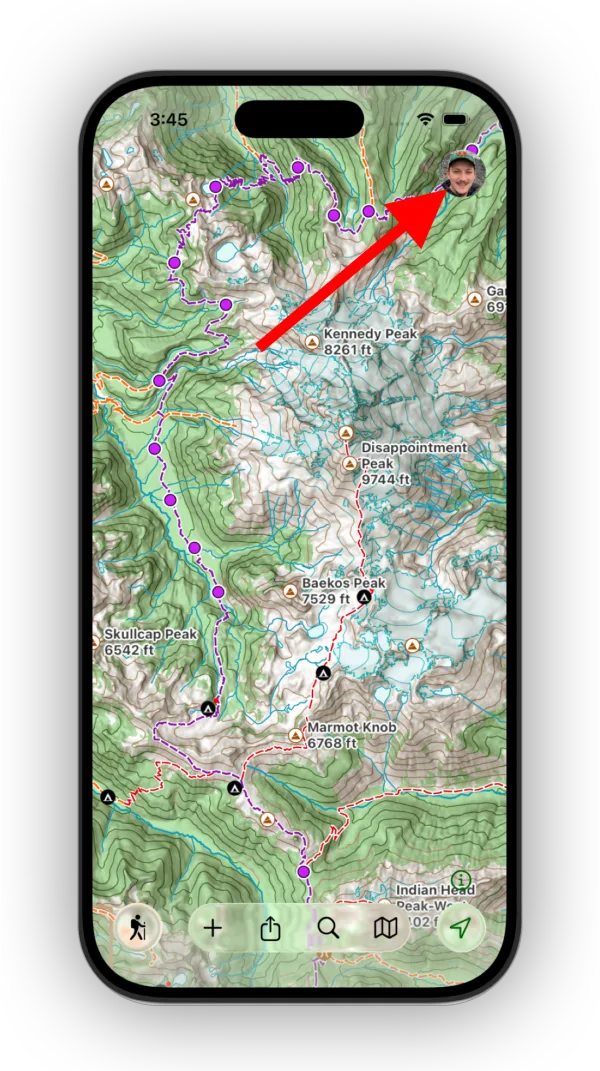
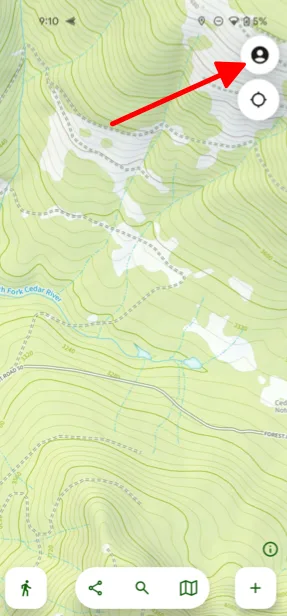
-
Tap Teams.
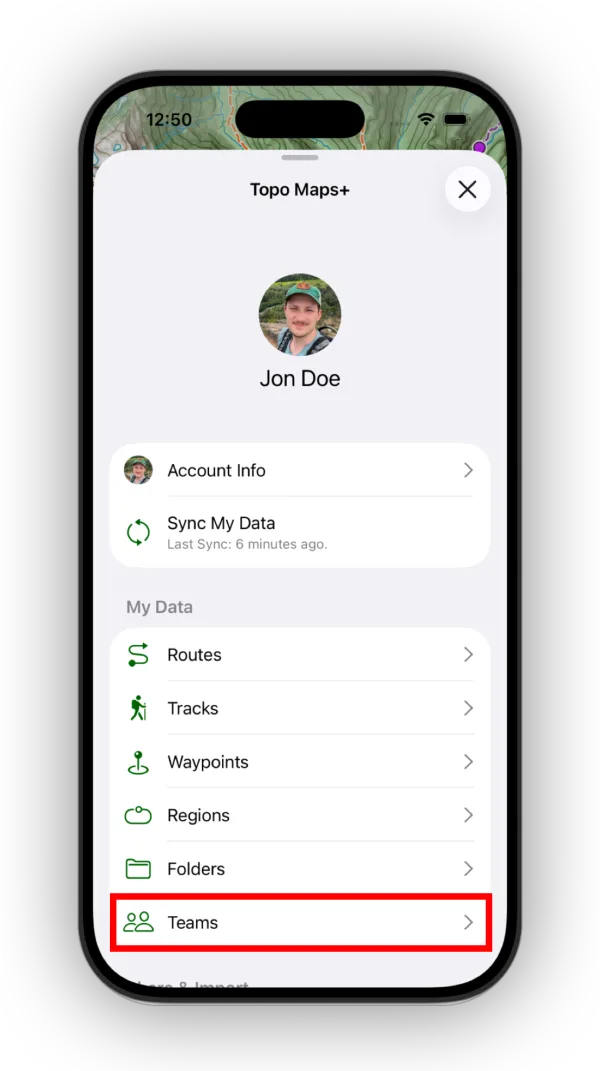
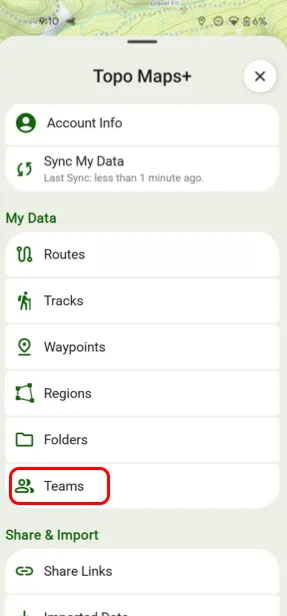
-
Tap Create New TeamCreate Team.
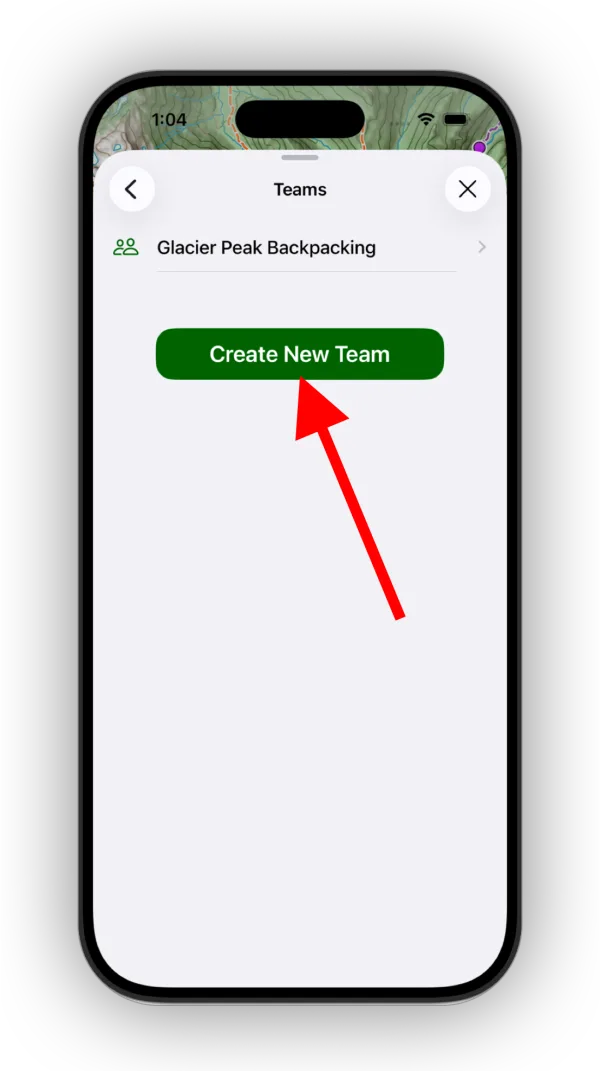
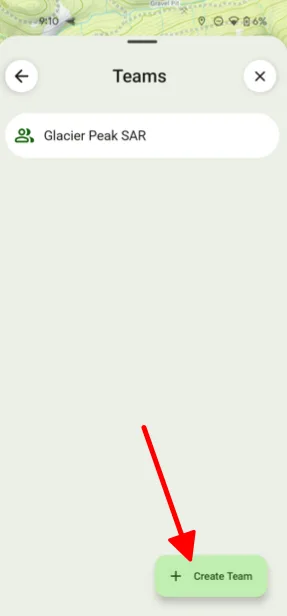
-
Enter a name for your team.
-
Tap the team you just created to open it.
How to invite team members
-
On your team's page, tap Team Members.
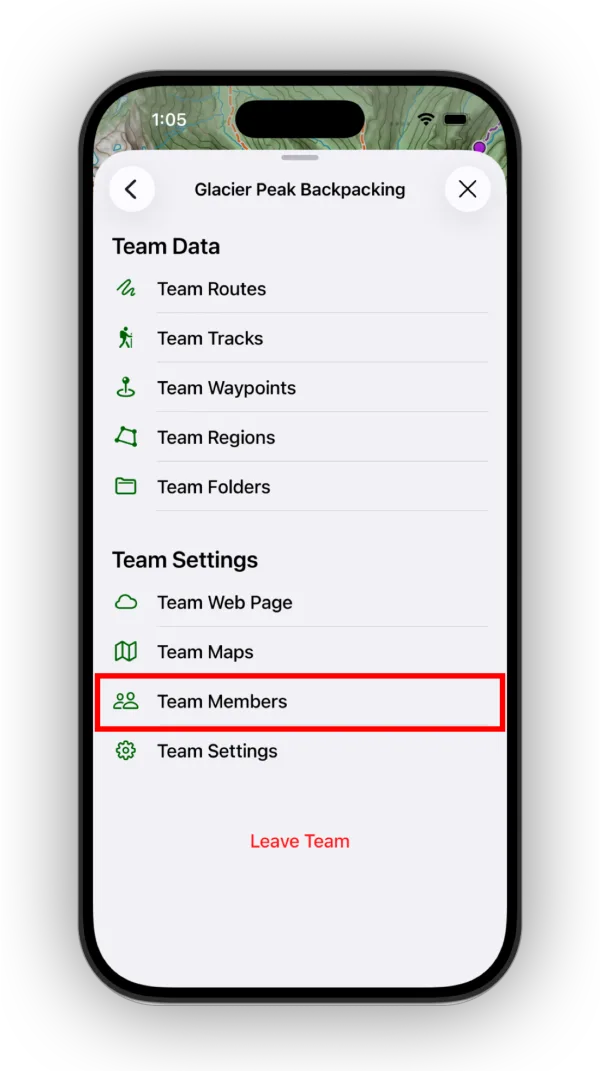
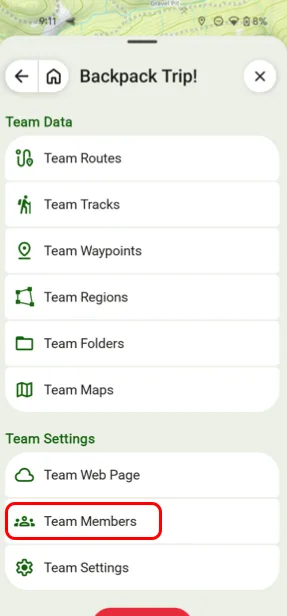
-
Choose the permission level for the people you're inviting:
- Editor: Add, edit, and delete any data.
- Contributor: Add data, and edit only their own data.
- Viewer: View only, with no data changes.
-
Send the invite with a link or a QR code. It opens in Topo Maps+ and lets the person accept the invite.
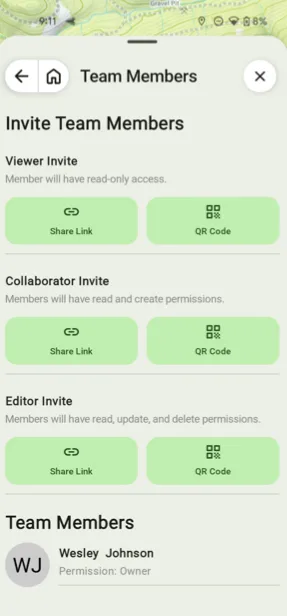
Shown on Android — iPhone looks slightly different.
Once someone is on the team, you can promote them to Admin, which adds the ability to change other members' permissions. Tap the settings icon on their row in Team Members and choose a different permission. See Team Member Permissions for details.
Save new content to the team automatically
To have everything you create go straight to the team, open your team's page, tap Team Settings, and turn on Save New Content to Team.
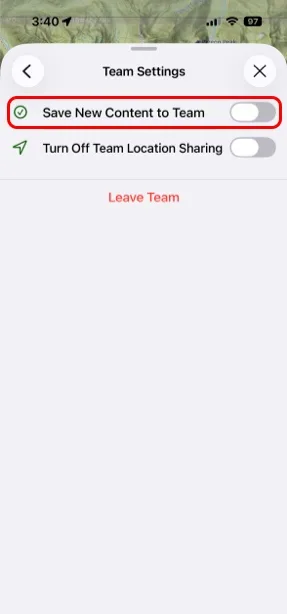
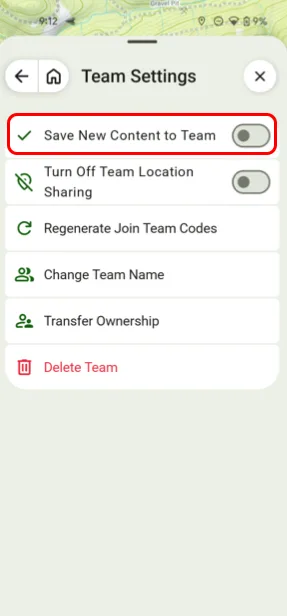
To add data you already have, see Moving Data to a Team. On the trail, you can also share your live location with your team.
Updated October 7, 2026
More in Teams & Pro Tools
Still need help?
We’re a small team and we read every message. Email support@topomaps.co and tell us which device you’re on.