
Moving Data to a Team
You can move any of your data (waypoints, routes, even whole folders) into a team, then view it within the team or on the map with the team's data overlay.
How to move a single item
-
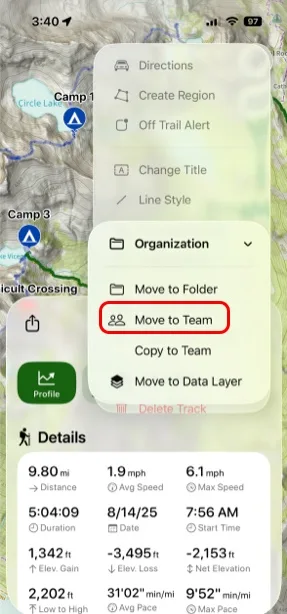
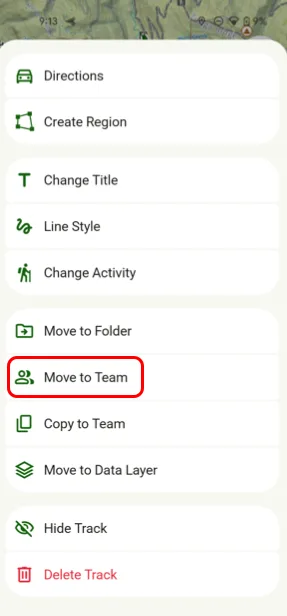
Open the route, waypoint, or other item and tap More.
-
Tap Organization, then tap Move to Team.
Tap Move to Team.
-
Select the team.
How to move several items at once
-
Tap your account button in the top-right corner, then tap Waypoints, Folders, or whichever list you want.
-
Tap the More (three dots)Checklist button at the top, then tap Select & Edit.
-
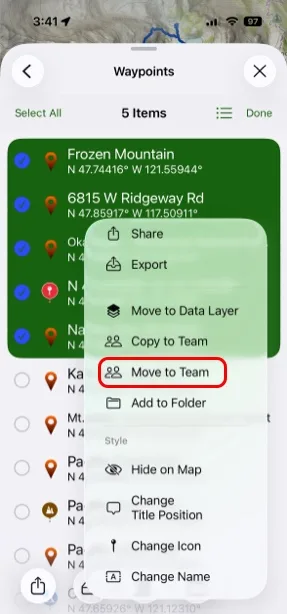
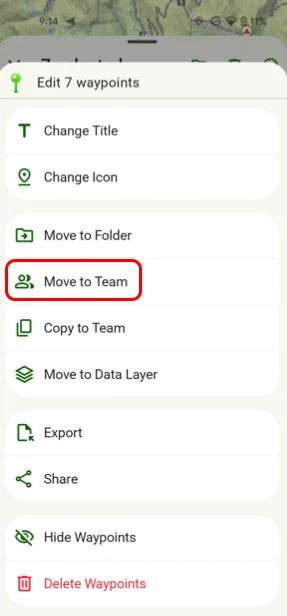
Select the items, then tap the More (three dots) button.
-
Tap Move to Team and select the team.
How to share data on the map with a team
To send a whole trip at once, zoom out until you can see all of it on the map, then:
-
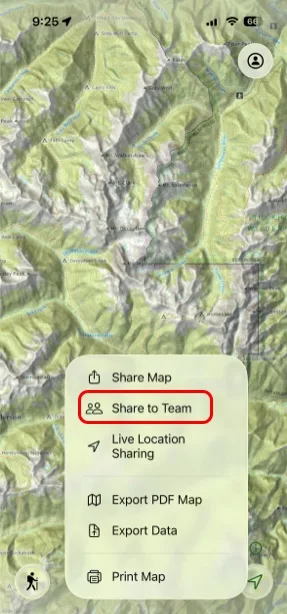
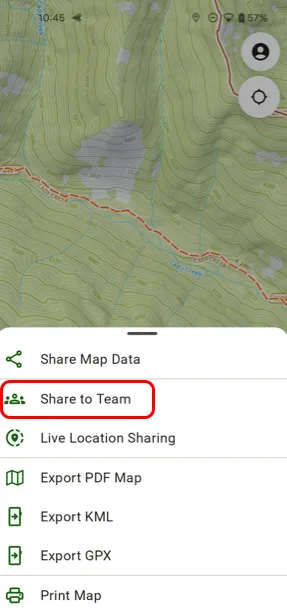
Tap the Share button in the toolbar, then tap Share to Team.
-
Select the team.
-
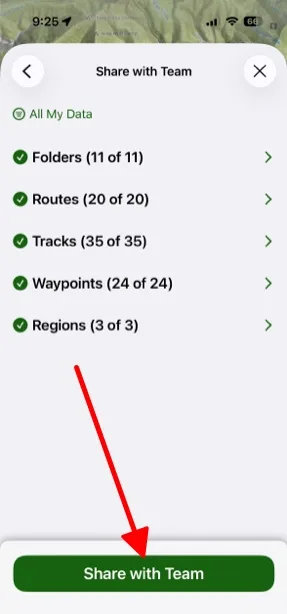
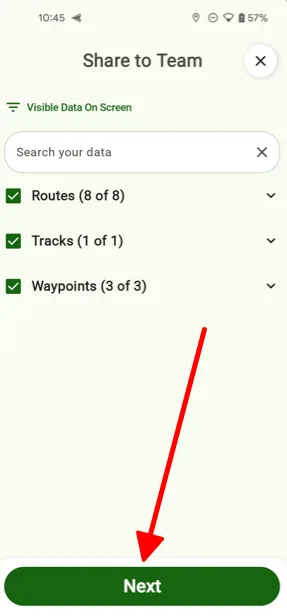
Choose the data to include. It defaults to the data visible on screen; tap the option at the top to pick data from somewhere else. Then tap Share with TeamNext.
-
Select the team.
How to show team data on the map
-
Tap the Maps button in the toolbar.
-
Under Teams, tap a team to turn its data on or off.
-
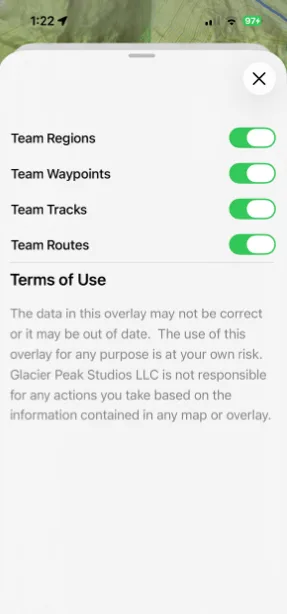
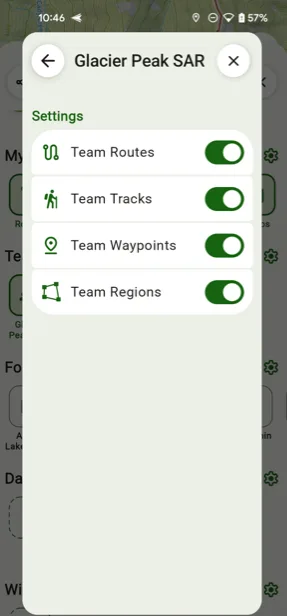
To show only some of a team's data, tap and hold the team, then tap Settingstap the settings icon next to Teams, then tap the team. Turn each type of data on or off.
Updated October 7, 2026
More in Teams & Pro Tools
Still need help?
We’re a small team and we read every message. Email support@topomaps.co and tell us which device you’re on.