
Workflows
Workflows change what happens when you add new data. If you create a lot of data in Topo Maps+, they streamline the process by setting the defaults and next steps you want.
How to open workflow settings
-
Tap your account button in the top-right corner.
-
Tap Settings.
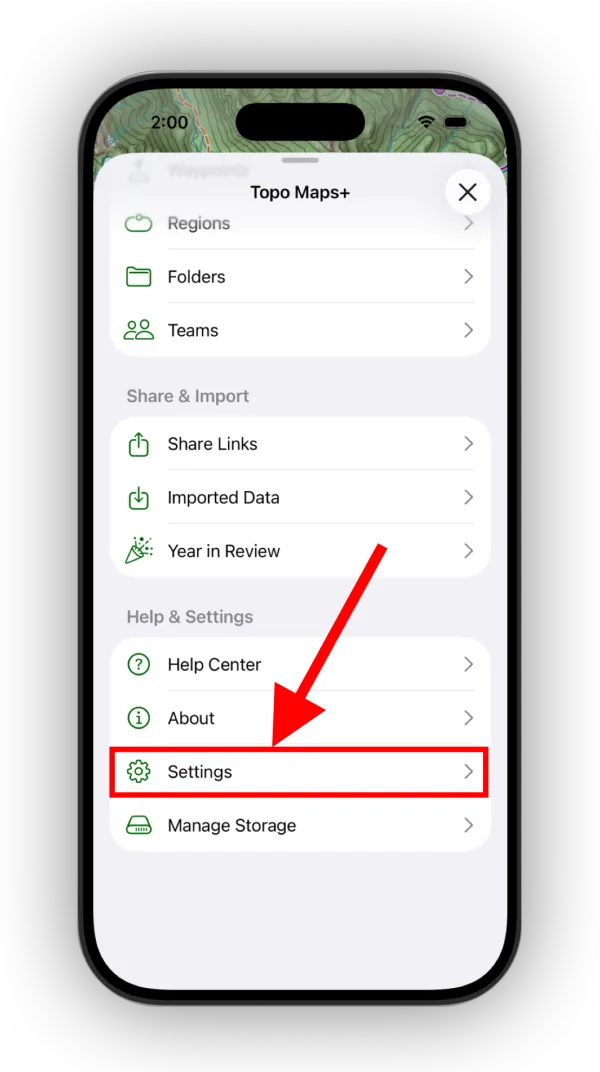
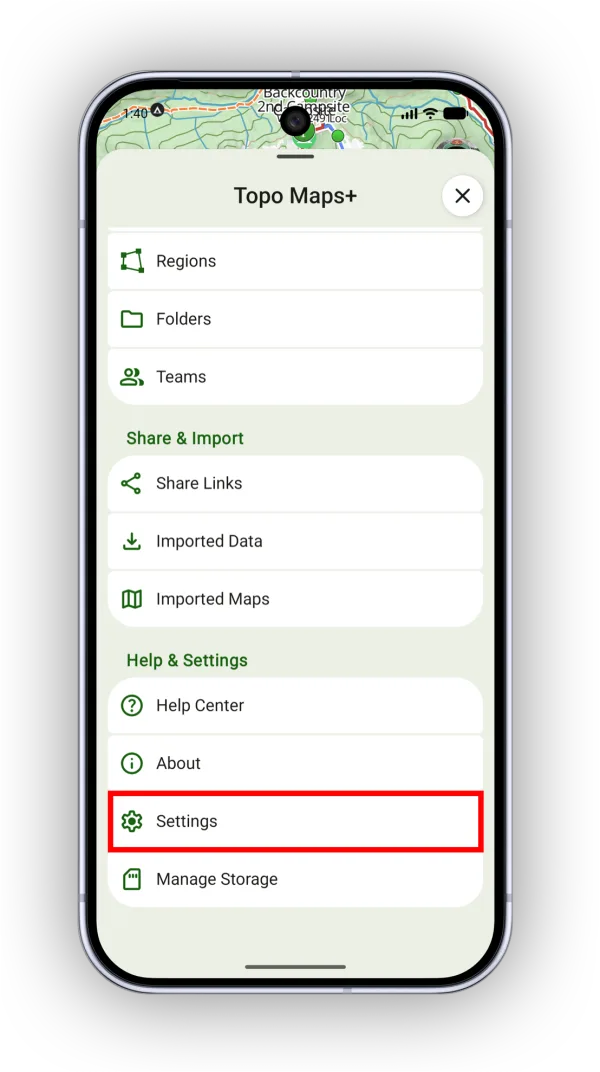
-
Scroll down to the Workflows section and tap the workflow you want to change.
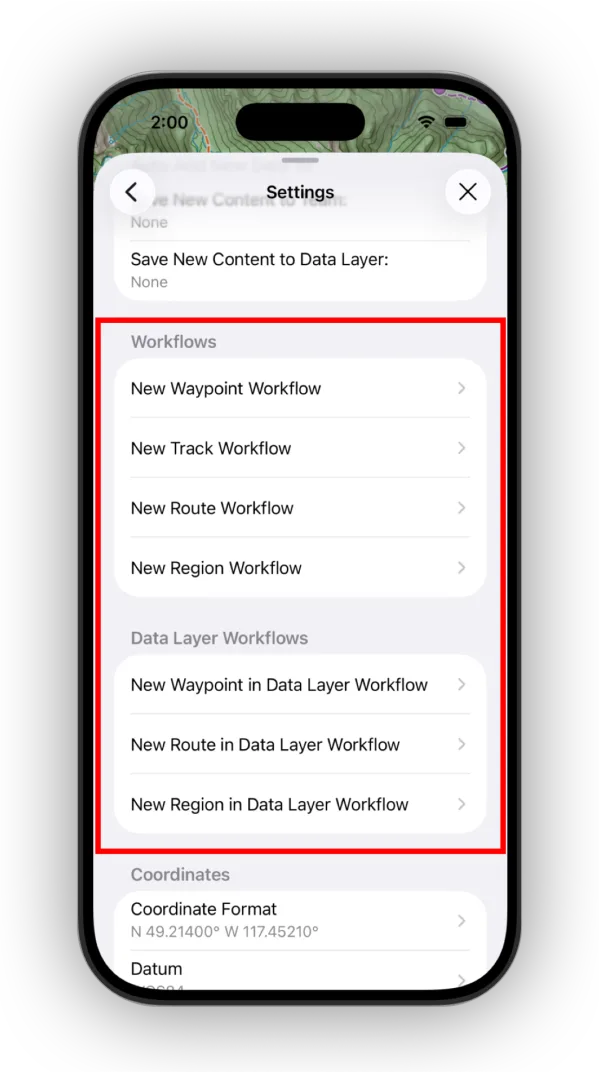
Shown on iPhone — Android looks slightly different.
How workflows are structured
Each workflow controls three things:
- Styles: Default style values, so new objects start with the style you like.
- Organization: A folder that new objects of that type are added to automatically.
- Action: What happens right after you add the object.
Waypoint workflows
- Styles
- Waypoint Title: How new waypoints get their title.
- Waypoint Icon: A custom icon for new waypoints, or the last icon you used.
- Waypoint Title Position: Where new waypoints show their titles on the map.
- Organization
- Waypoint Folder: An optional folder for new waypoints.
- Action
- And Then Open: What you see after adding a waypoint: Nothing, Set Waypoint Title, Set Waypoint Title & Icon, Full Waypoint Details, or Full Waypoint Details & Set Waypoint Title.
Track workflows
- Styles
- Track Title: How new tracks get their title.
- Track Color: The default color for new tracks.
- Track Line Style: The default line style for new tracks.
- Track Activity: The default activity for new tracks, such as hiking, biking, or skiing.
- Organization
- Track Folder: An optional folder for new tracks.
- Action
- And then open focus view: The focus view that opens automatically when you tap Record in the Hike menu: None, Track Stats, Elevation, Location, or Compass.
Route workflows
- Styles
- Route Title: How new routes get their title.
- Route Color: The default color for new routes.
- Route Line Style: The default line style for new routes.
- Organization
- Route Folder: An optional folder for new routes.
- Action
- And then open: What you see after adding a route: Nothing, Elevation Profile, or Route Details.
Region workflows
- Styles
- Region Title: How new regions get their title.
- Region Border Color: The default border color for new regions.
- Region Line Style: The default line style for new regions.
- Organization
- Region Folder: An optional folder for new regions.
- Action
- And then open: What you see after adding a region: Nothing, Region Details, or Set Title & Region Details.
Data layer workflows
Data layer workflows only appear once you've created at least one data layer. They work the same way, but apply only to new objects that are added to a data layer with Save New Content to Layer turned on. In that case:
- You create a waypoint, route, track, or region.
- It's added to the data layer automatically.
- The data layer workflow runs.
Updated October 7, 2026
More in Teams & Pro Tools
Still need help?
We’re a small team and we read every message. Email support@topomaps.co and tell us which device you’re on.