
Editing Routes
This feature isn’t available in the Android app yet.
Once you've saved a route, you can reshape it without starting over. The same options are available for tracks. To split one route into two or join two routes together, see Splitting & Joining Routes.
How to edit a route
-
Open the route's info card and tap More.
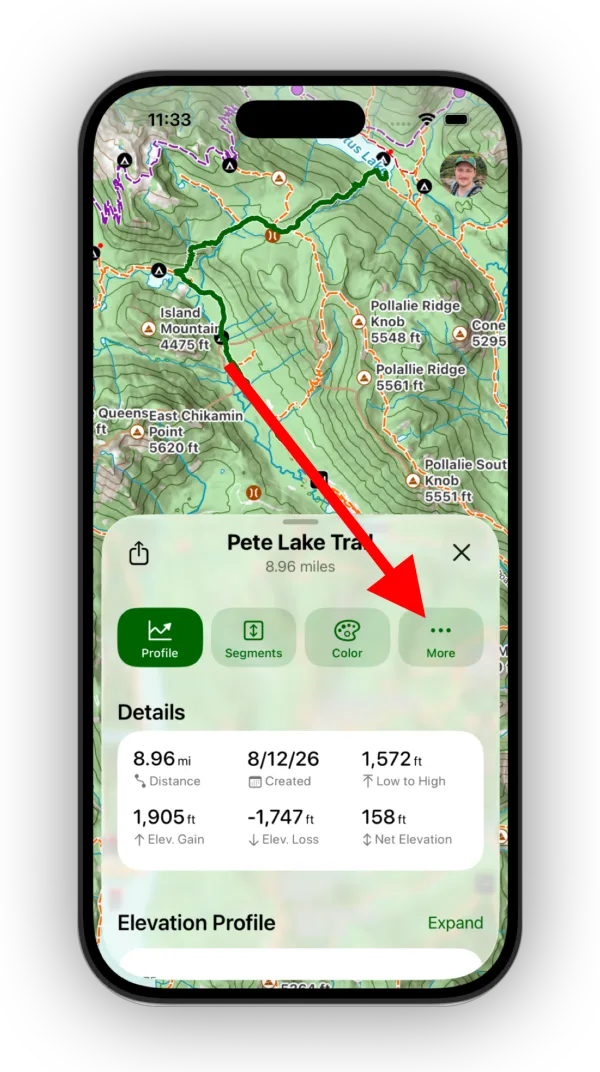
Shown on iPhone — Android looks slightly different. -
Tap Edit this Route, then choose an edit (see Editing options below).
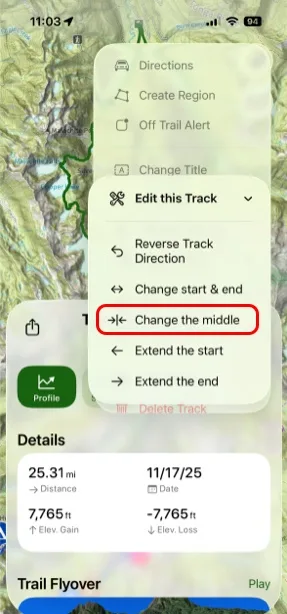
Shown on iPhone — Android looks slightly different. -
Follow the prompt on the map, then tap Next or Done.
-
Topo Maps+ asks you to confirm the change before it's applied. Tap Looks Good to keep it, or Undo to go back.
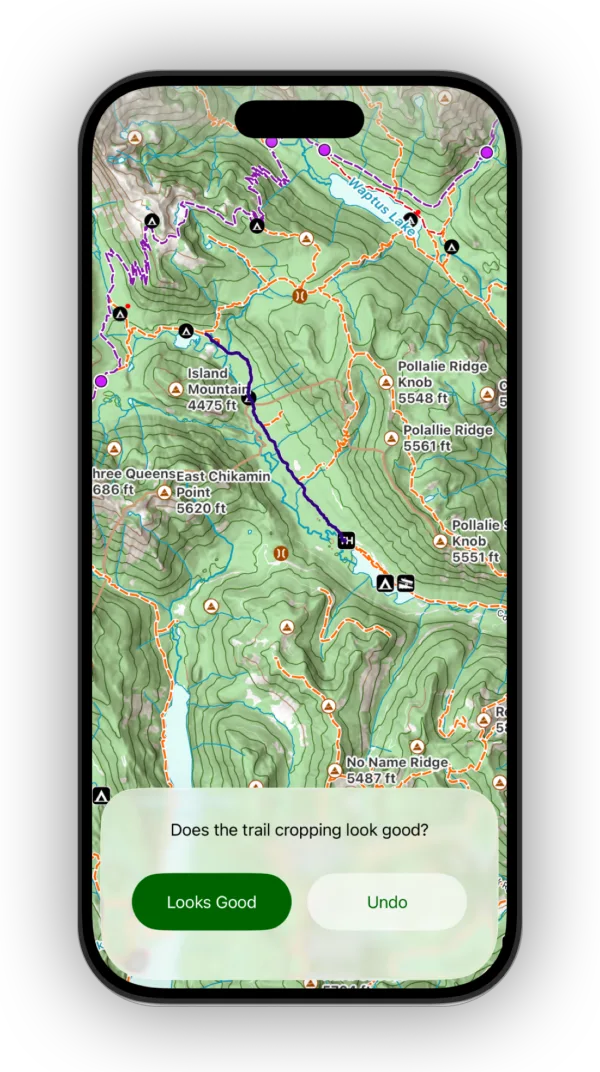
Shown on iPhone — Android looks slightly different.
Editing options
-
Reverse Route Direction: swaps the route so the beginning becomes the end and the end becomes the beginning.
-
Change start & end: a quick way to trim the route. Move the crosshairs to the new start and end, bringing the head and tail in.
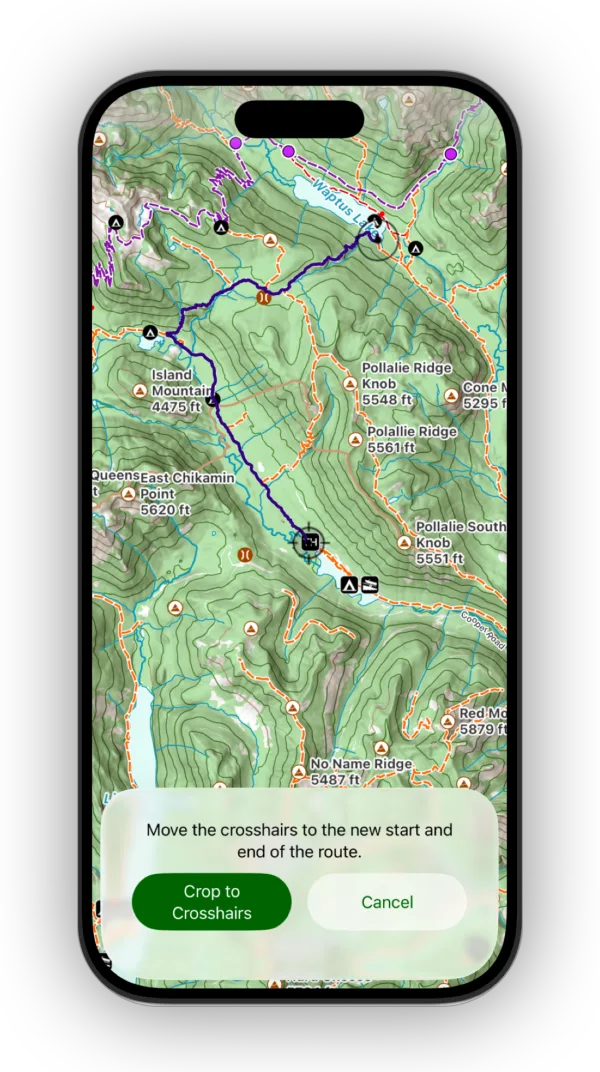
Shown on iPhone — Android looks slightly different. -
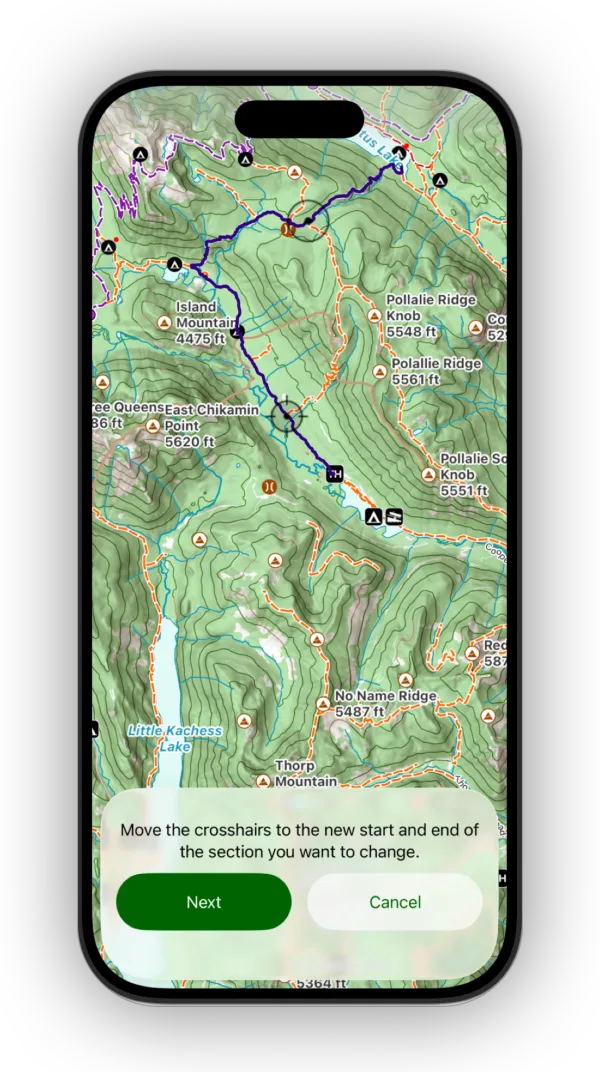
Change the middle: select a section in the middle of the route, then redraw it. First move the crosshairs to the start and end of the section you want to change and tap Next:
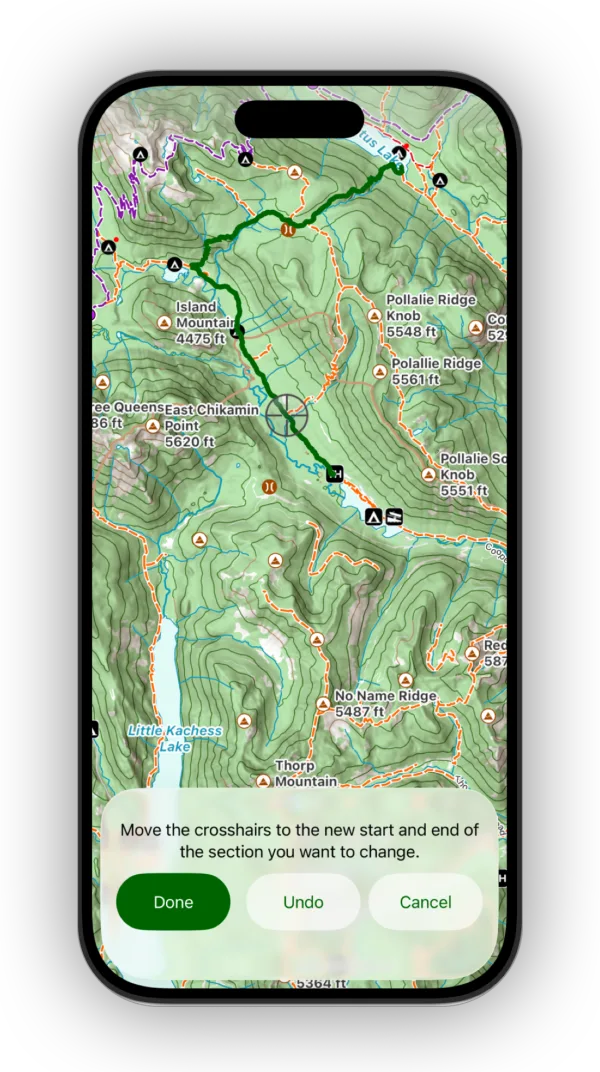
Shown on iPhone — Android looks slightly different. Then draw the new section and tap Done:
Shown on iPhone — Android looks slightly different. -
Extend the start: draw more route onto the beginning.
-
Extend the end: draw more route onto the end.
Updated October 7, 2026
More in Routes, Waypoints & Regions
Still need help?
We’re a small team and we read every message. Email support@topomaps.co and tell us which device you’re on.