
Creating a Route
Using the web app? Creating a Route on the Web App
Drawing your own backcountry route is one of the main things you can do in Topo Maps+. A single route can mix snapping to existing trails with sections you trace yourself.
How to create a route
-
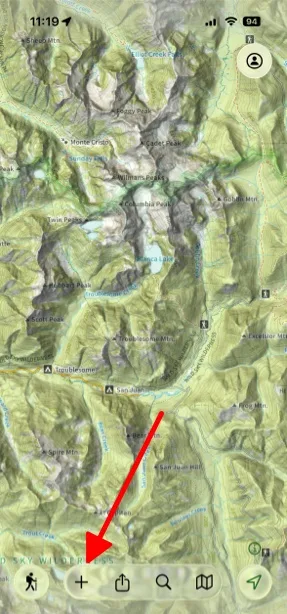
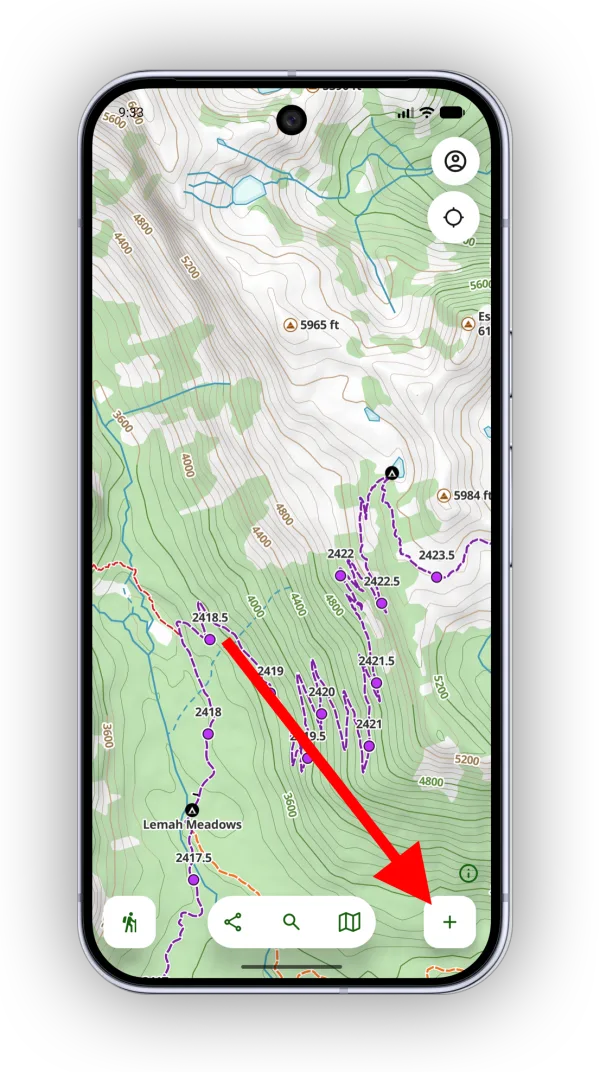
Tap the Add button.
-
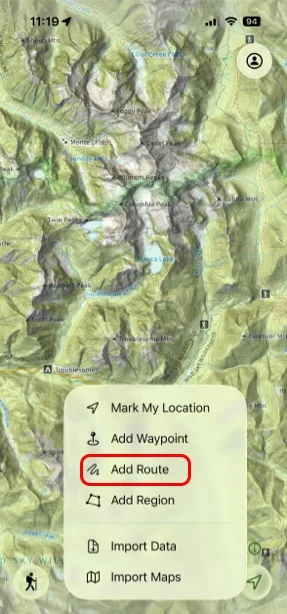
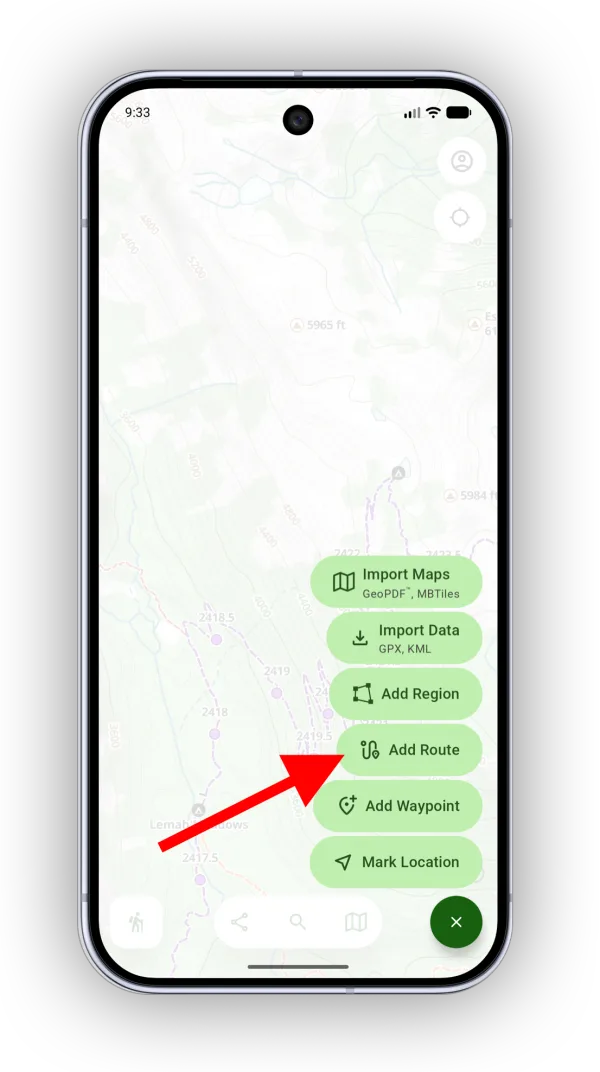
Tap Add Route.
-
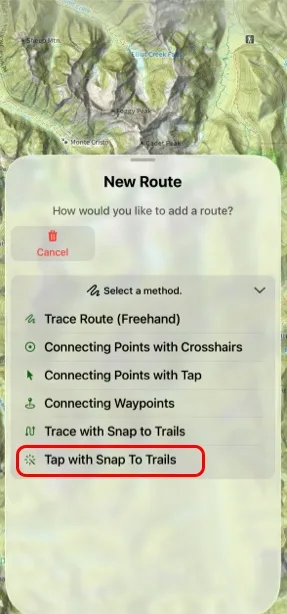
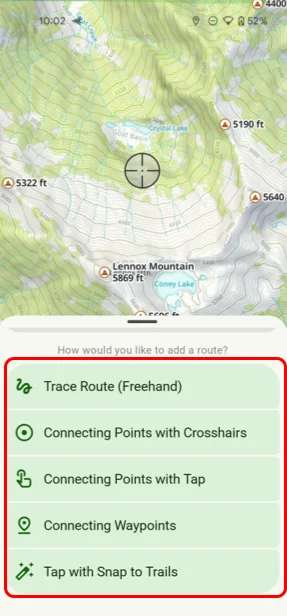
Choose how you want to draw the route (see Drawing methods below).
-
Draw your route on the map. You can switch methods at any point, so if you run out of trail to follow, switch to a manual method to finish the route.
-
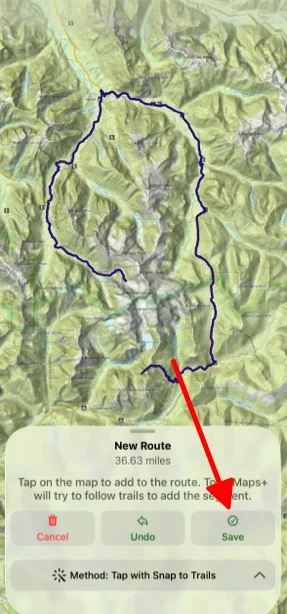
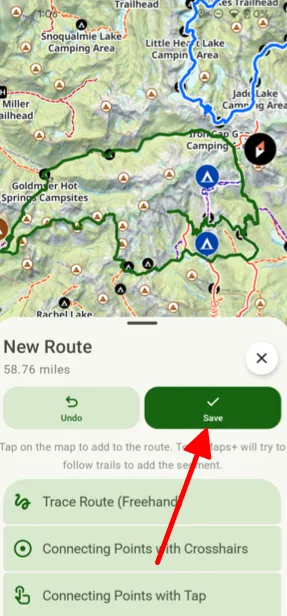
When you're finished, tap Save. The route's info card opens so you can see its details.
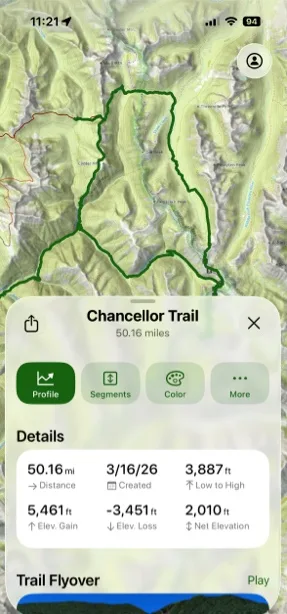
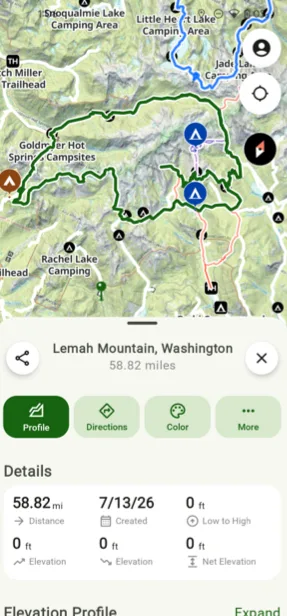
Drawing methods
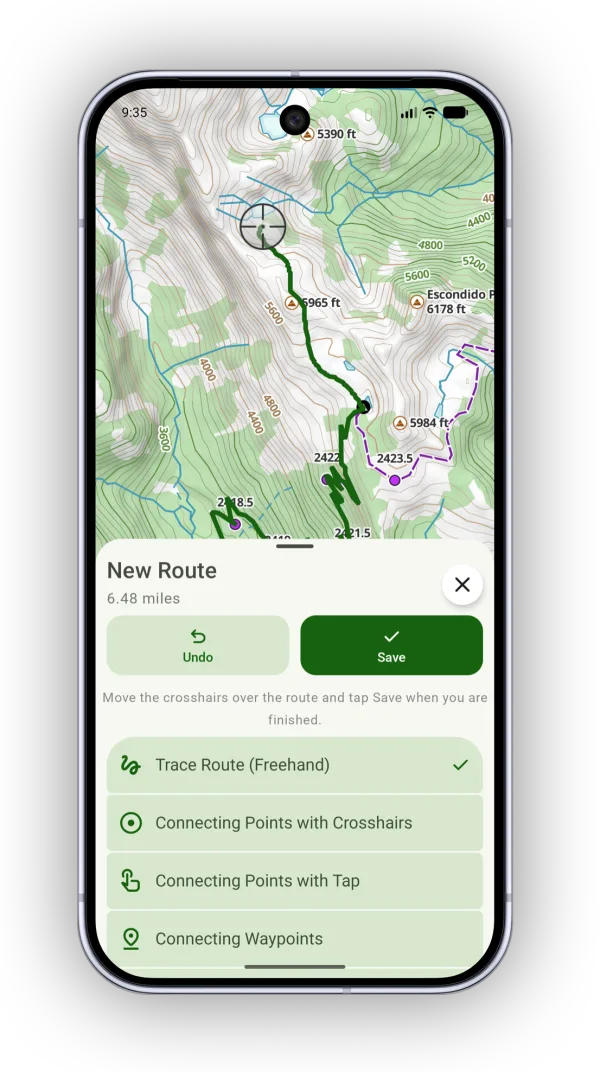
- Trace Route (Freehand): draw by dragging the crosshairs. This gives you the most freedom, but it's hard to be exact.
- Connecting Points with Crosshairs: move the crosshairs and tap Add Point to add points one at a time, with a straight line between each point.
- Connecting Points with Tap: each tap on the map adds a point, with straight lines in between. Faster than crosshairs, but harder to be exact.
- Connecting Waypoints: tap your saved waypoints, and straight lines connect them.
- Tap with Snap to Trails: tap along your route and Topo Maps+ finds a trail at that spot to follow.
On iPhone and iPad you can also use Trace with Snap to Trails: trace along the map and the route follows existing trails. It's helpful when part of your trip follows trails and part goes cross-country.
Snapping to trails is by far the quickest way to build a route, but it only works where there's a trail Topo Maps+ knows about.
Here a route started with snap to trails and was finished by switching to Trace Route (Freehand):
How to use Tap with Snap to Trails
-
Go to the area where you're planning your route, tap Add, then Add Route.
-
Choose Tap with Snap to Trails.
-
Move the crosshairs to where you want to begin and tap Start.
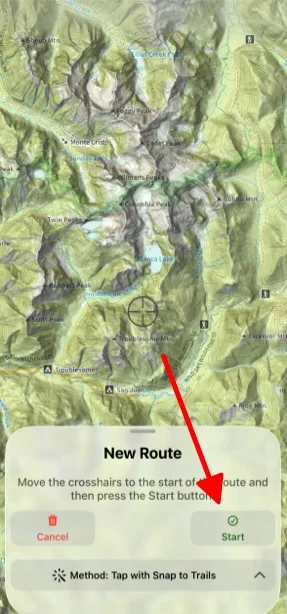
Shown on iPhone — Android looks slightly different. -
Tap as many spots as you want along your route. Each tap moves the route forward along the trail to the point closest to where you tapped.
-
Tap Save when you're done.
How to find your saved routes
-
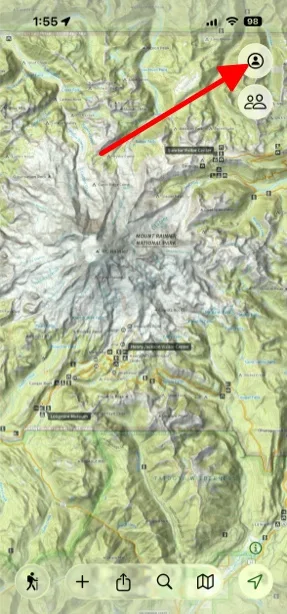
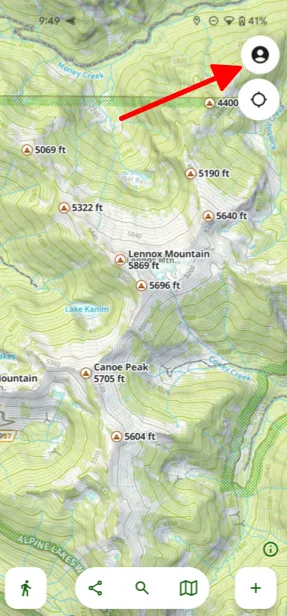
Tap the Account button in the top-right corner.
-
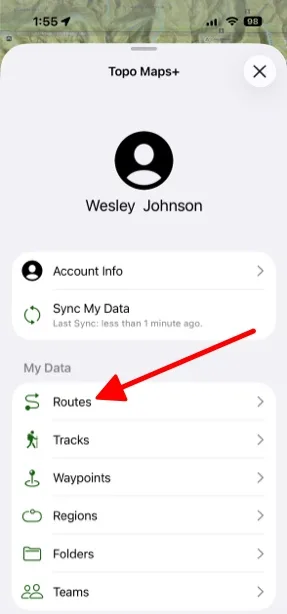
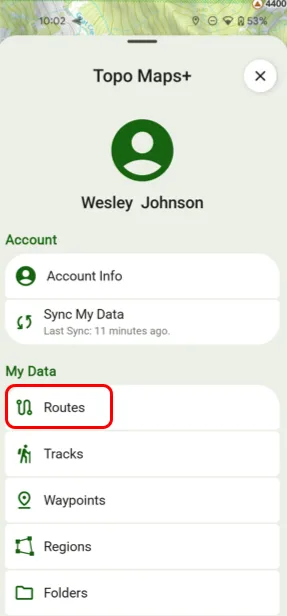
Tap Routes to see all of your saved routes.
Updated October 7, 2026
More in Routes, Waypoints & Regions
Still need help?
We’re a small team and we read every message. Email support@topomaps.co and tell us which device you’re on.