
Compact, Standard, and Expanded Lists
This feature isn’t available in the Android app yet.
Your Routes, Tracks, Waypoints, and Regions lists can show as simple rows, rows with a small map, or large cards. Use a smaller view to see more items at once, or a larger one to recognize an item by its shape on the map.
How to change the view
-
Tap the account button in the top-right corner of the map.
-
Tap Routes, Tracks, Waypoints, or Regions. When you're working in a team, the rows read Team Routes, Team Tracks, and so on.
-
Tap the … button next to the search bar.
-
Under Display, tap Compact, Standard, or Expanded.
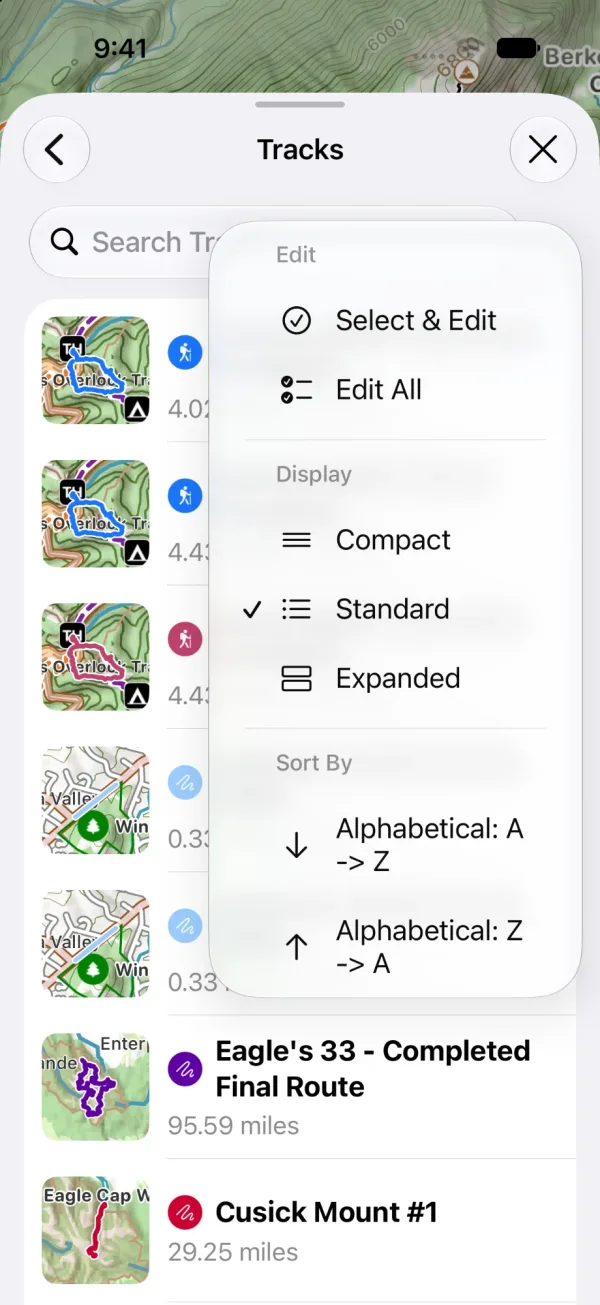
Shown on iPhone — Android looks slightly different.
Your choice applies to all four lists on this device.
The three views
-
Compact: the smallest rows, with no maps, so the most items fit on the screen.
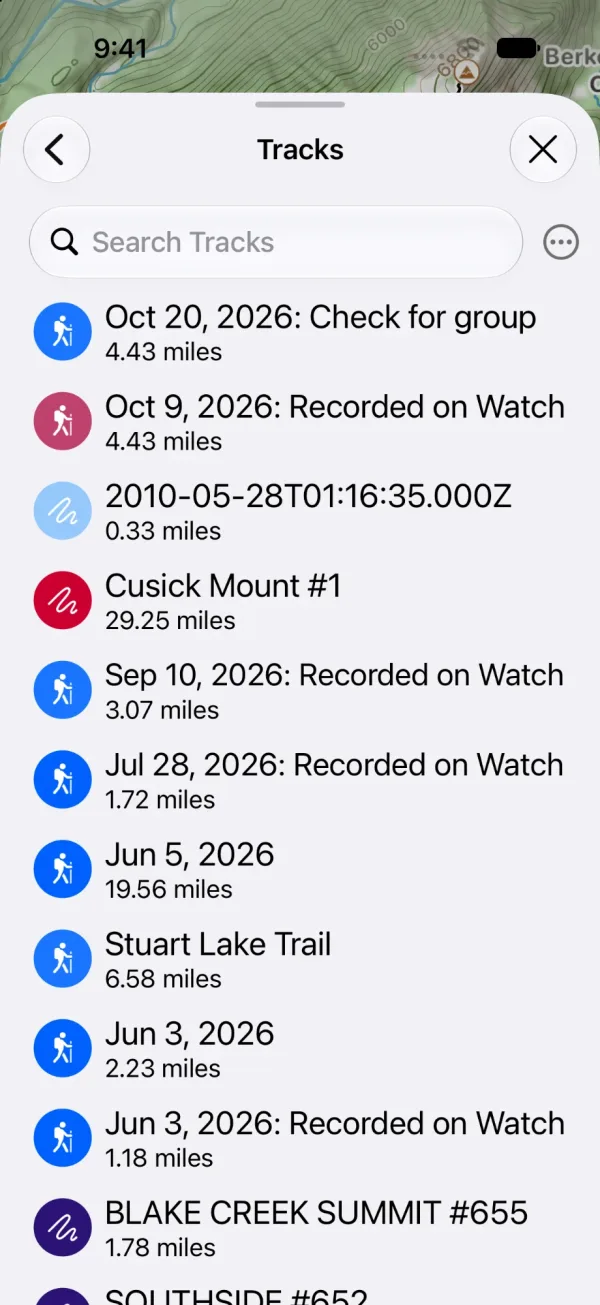
Shown on iPhone — Android looks slightly different. -
Standard: a small map on the left, with the item's name and details beside it. This is the view you start with.
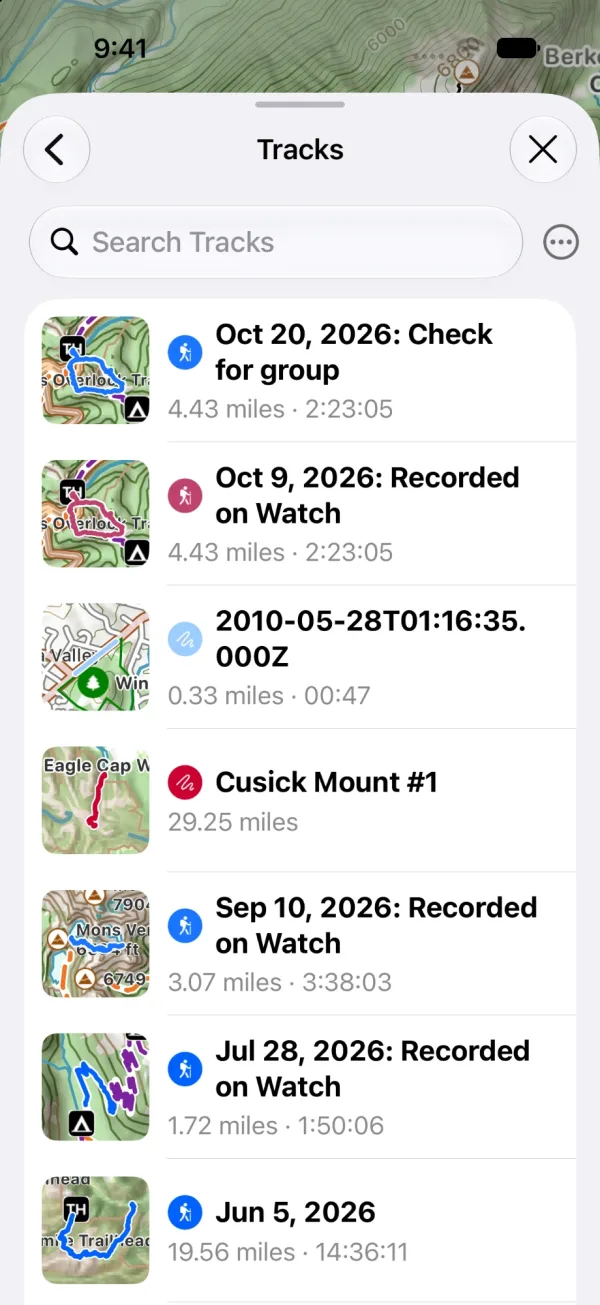
Shown on iPhone — Android looks slightly different. -
Expanded: one large card per item, with the name and details across the top and a big map below them.
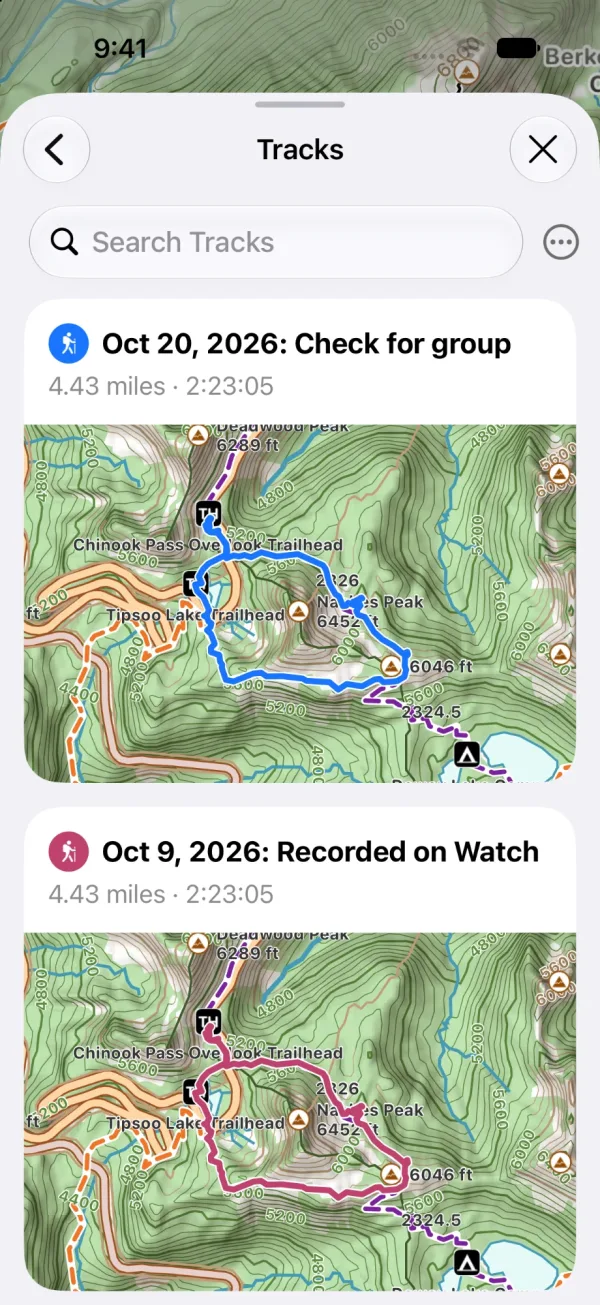
Shown on iPhone — Android looks slightly different.
What each view shows
In Standard and Expanded, the details depend on the type of item:
| List | Details |
|---|---|
| Tracks | Distance and duration, with an icon for the activity |
| Routes | Distance |
| Waypoints | Coordinates |
| Regions | Area |
Good to know
- Search results in these lists use the view you chose.
- Select & Edit and Edit All always use compact rows, so it's easy to select several items.
- With no connection, the maps in these views show only what you've downloaded.
- Folders aren't affected. The Track Groups list has its own switch at the top.
Updated November 2, 2026
More in Routes, Waypoints & Regions
Still need help?
We’re a small team and we read every message. Email support@topomaps.co and tell us which device you’re on.