
Track Groups
This feature isn’t available in the Android app yet.
Using the web app? Track Groups on the Web App
When you record the same route more than once, like a lunchtime loop or a favorite ride, Topo Maps+ puts the recordings in a track group. The map then shows one line instead of a tangle of them, and tapping the line shows every recording of that route.
What track groups are
A track group holds your recordings of one route. The map draws just one of them, called the map track. The others stay in your data and still appear in your Tracks list, but they don't draw on the map.
Your iPhone or iPad finds groups by comparing the shape of each recording when it finishes, including recordings from your Apple Watch.
- A loop counts as the same route whichever way you walk it and wherever you start.
- The activity doesn't matter, so a walk and a run on the same loop are grouped together.
- Recordings that share a trailhead but then go different ways aren't grouped.
How to turn track groups on
Track groups are on if you installed Topo Maps+ with version 10.4 or later. If you had the app before that, turn them on yourself.
-
Tap your account button in the top-right corner.
-
Scroll down to Help & Settings and tap App Settings.
-
Under Map Data Display, turn on Group Repeated Tracks.
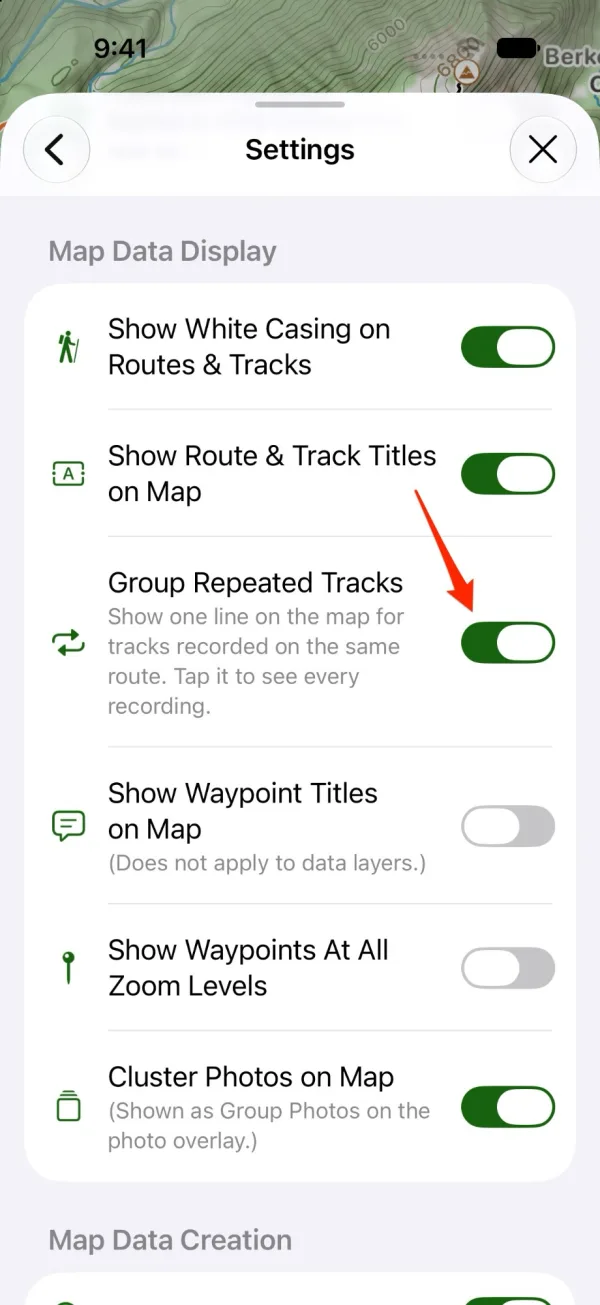
Shown on iPhone — Android looks slightly different.
You can also turn it on from the Track Groups list, which shows the same switch while the setting is off.
When you turn it on, Topo Maps+ checks your tracks for routes you've recorded more than once. Track Groups shows Finding repeated tracks… and how many tracks it has checked. With hundreds of tracks this takes a little while. If you're recording a track, it waits until you finish.
Turning the setting off only changes the map: every recording draws again, and your groups are kept. Each device has its own setting.
How to see your track groups
-
Tap your account button in the top-right corner.
-
Under My Data, tap Track Groups. When you're working in a team, the row reads Team Track Groups.
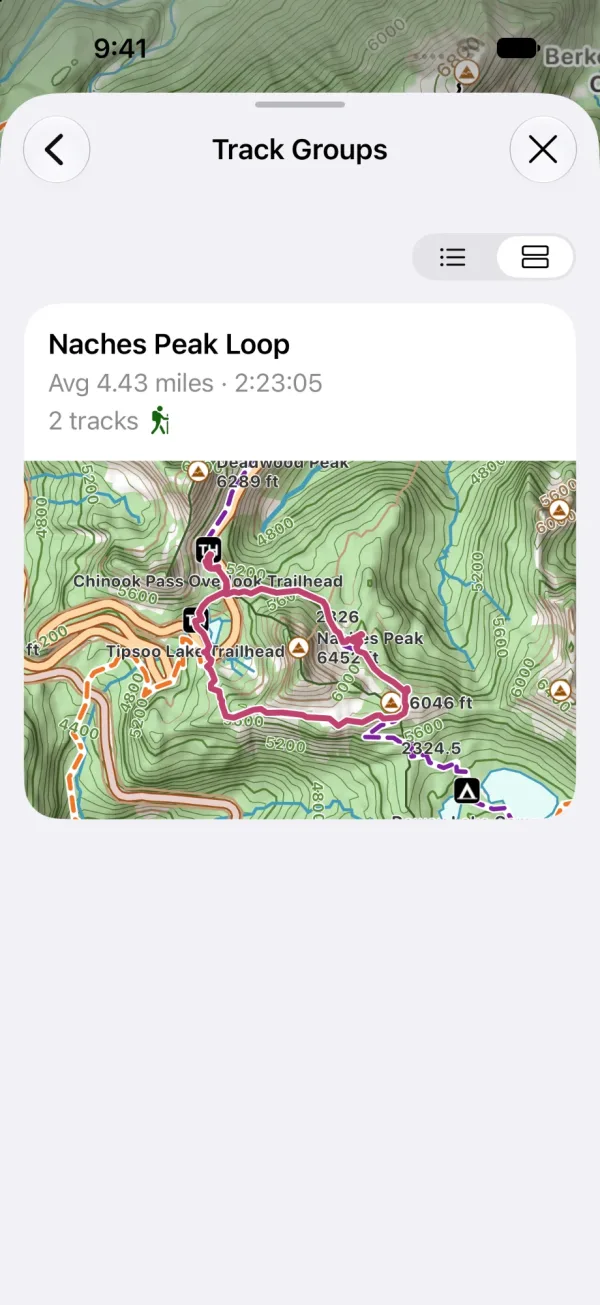
Shown on iPhone — Android looks slightly different.
Each group shows a map, its average distance and time, how many tracks it holds, and an icon for each activity you recorded. Use the switch at the top of the list to choose compact rows or large cards with a bigger map.
Tap a group to open it. The map moves to the group's map track.
How to open a group from the map
Tap a grouped line on the map. The group's card opens, titled with the group's name. If you tap a spot where several items overlap, the group is listed by its title and number of recordings.
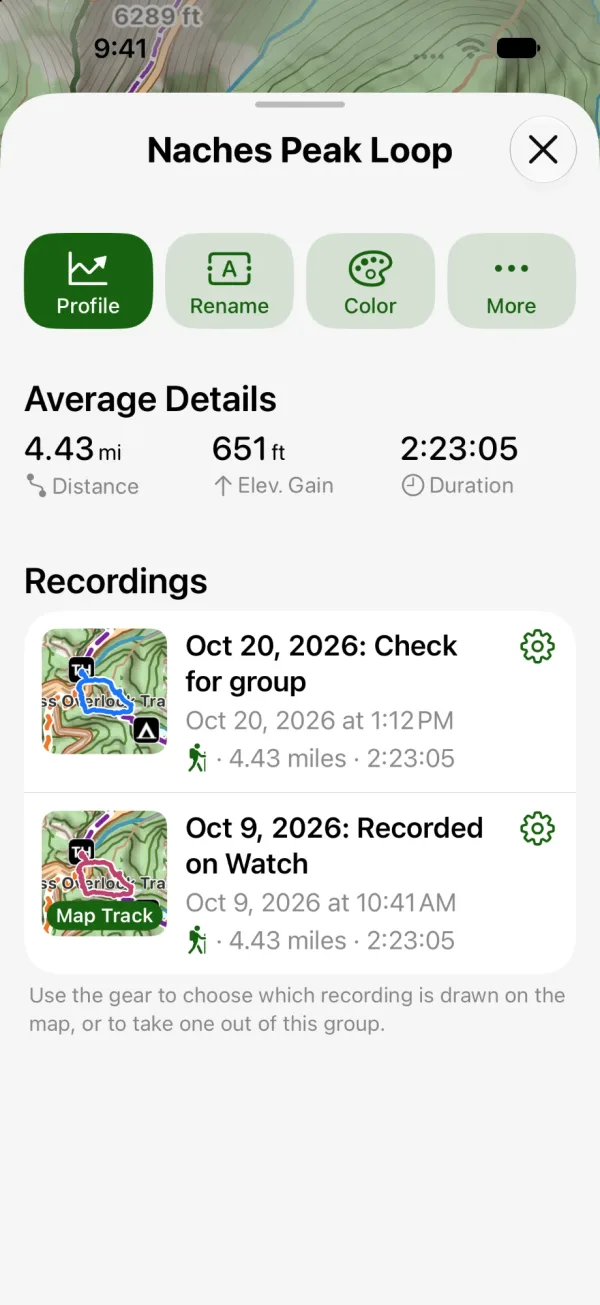
- Average Details shows the average distance, elevation gain, and duration of the recordings.
- Recordings lists every recording, newest first. Tap one to open it. The recording drawn on the map is marked Map Track.
How to choose which recording is drawn
-
Open the group.
-
Tap the gear next to the recording, then tap Use as Map Track.
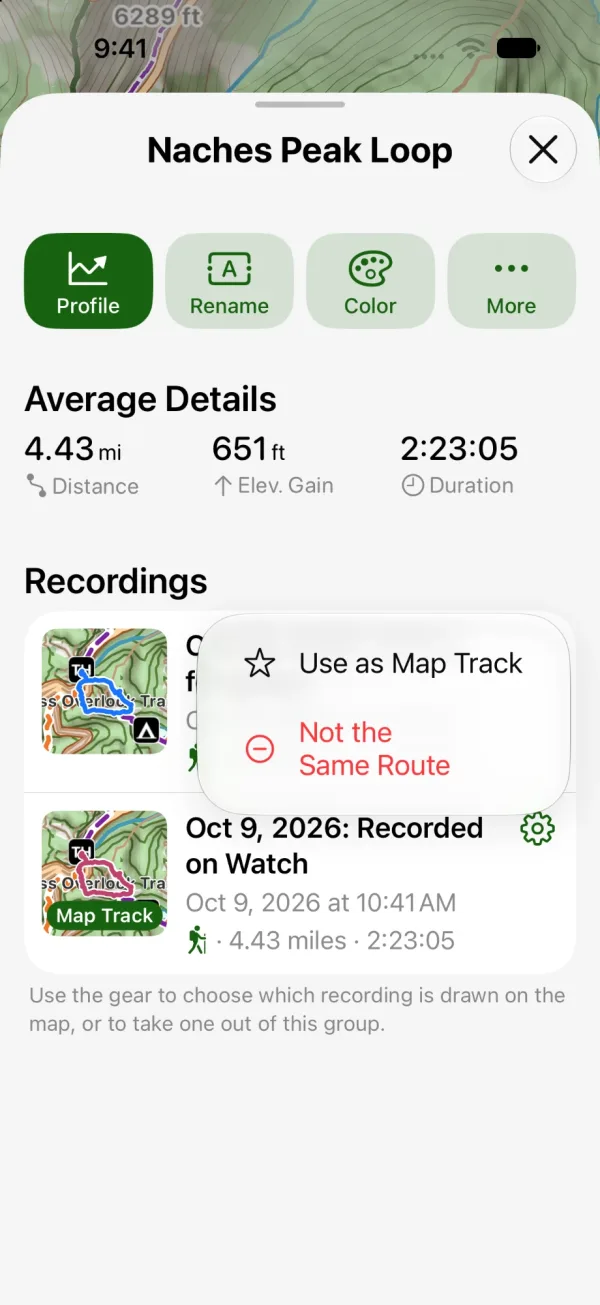
Shown on iPhone — Android looks slightly different.
The group's line uses the map track's color. To change it, tap Color in the group's card.
How to add a track to a group
Topo Maps+ groups recordings on its own, but you can also do it yourself, for example for a walk you cut short or a variation on a route.
-
Open the track, tap More, then tap Organization → Add to Track Group….
-
Choose a group, or tap New Track Group and give it a title to start a group with just this track.
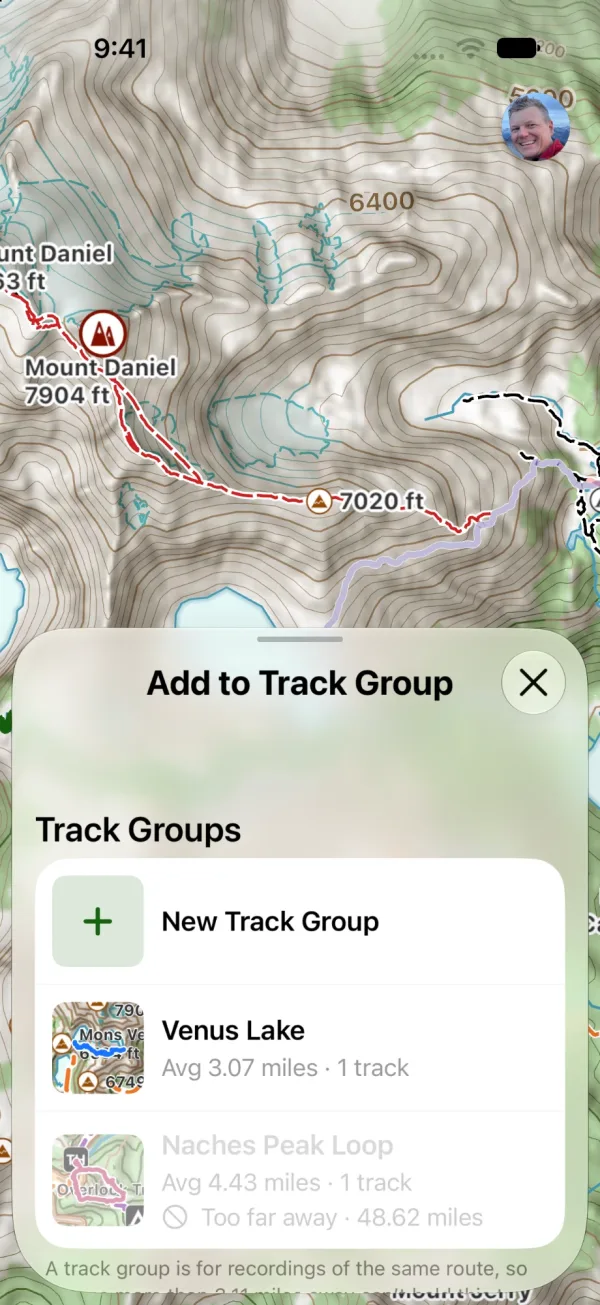
Shown on iPhone — Android looks slightly different.
Groups closest to the track are listed first. A group can hold a single track, and new recordings of that route can join it automatically.
A group is for recordings of the same route, so a track has to be near it:
- If the track doesn't overlap the group, the group shows how far away it is, and Topo Maps+ asks you to confirm. The track won't show on the map on its own once it's in the group.
- A group more than 5 km from the track reads Too far away and can't be chosen. To keep different hikes together, use a folder instead.
How to take a recording out of a group
If a recording isn't really the same route, take it out of the group. It won't be added back automatically.
- In the group's card, tap the gear next to the recording, then tap Not the Same Route.
- Or open the recording, tap More, then tap Organization → Remove from Track Group.
A recording in a group also has a Track Group section on its card. Tap it to open the group.
How to manage a group
Open the group and use the buttons at the top of the card:
- Profile: see the elevation profile of the map track.
- Rename: give the group a title, such as "Run around the block".
- Color: change the color of the map track, which is the color the group draws in.
- More → Hide on Map: hide every recording in the group. Show on Map brings them back.
- More → Move All to Group…: move every recording into another group, for example different loops around the same property that weren't grouped automatically. This group is removed. No recordings are deleted.
- More → Delete Group: remove the group. The recordings stay in your data and show separately on the map again.
- More → Delete All Recordings: delete the group and every recording in it.
Groups in data layers
Tracks in a data layer are only grouped if the layer allows it. Open the data layer's settings and turn on Group Repeated Tracks. It's off by default.
What gets grouped
- Only tracks. Planned routes are never grouped.
- Only tracks in the same place: your own data, the same team, or the same data layer. Your own track and a team's track on the same route aren't grouped together.
- Tracks you imported from a file or a share link aren't grouped automatically. You can still add one to a group yourself.
On other devices
- Teams: a team's groups appear under Team Track Groups. If you don't have permission to change the team's data, you can open a group but not change it.
- Mac: groups sync to the Mac app, where you can open and manage them. Your iPhone or iPad does the finding.
- Apple Watch: the map shows only the map track for each group. Your list of recordings on the watch still shows every recording.
Updated November 2, 2026
More in On the Trail
Still need help?
We’re a small team and we read every message. Email support@topomaps.co and tell us which device you’re on.