
Car Ride Detection
This feature isn’t available in the Android app yet.
Car Ride Detection keeps your tracks accurate. When it senses you’ve started driving, it asks whether to stop recording, so your track ends where your activity actually ended — not after your drive home. It works on iPhone and Apple Watch, and you can turn it off at any time in settings.
When your device senses you’ve started driving, you get a notification:
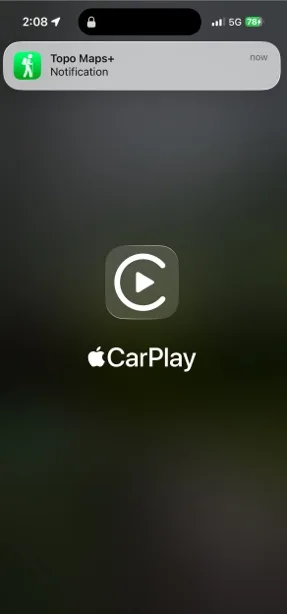
Tap it to open Topo Maps+ and choose whether to stop recording or keep going:
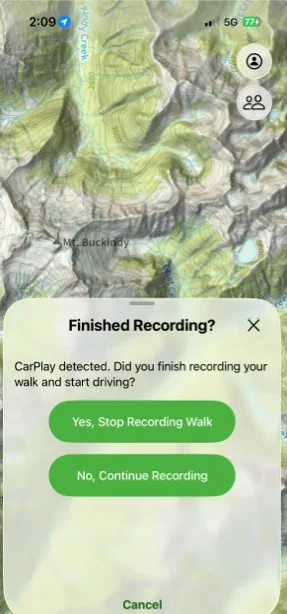
How it works
Car Ride Detection watches for the switch from a human-powered activity to riding in a vehicle. How it does that depends on your device and the type of activity you’re recording.
On iPhone
Low-speed activities. The app monitors your speed. If it suddenly jumps beyond normal human-powered movement, you get a notification asking whether you’re driving. Low-speed activities are:
- Hike
- Backpack
- Mountaineering
- Thru-hiking
- Walking
- Snowshoeing
- Trail running
- Running
- Paddle
High-speed activities. The app doesn’t rely on speed. Instead, it detects car travel only when your iPhone connects to CarPlay. If your vehicle doesn’t support CarPlay, or you don’t use it, car travel isn’t detected during these activities. High-speed activities are:
- Biking
- Skiing
- Snowboarding
- Cross-country skiing
- Mountain biking
On Apple Watch
Low-speed activities work the same as on iPhone: a sudden increase in speed prompts you to confirm whether you’re driving.
High-speed activities use a combination of speed and heart rate. If your speed increases and your heart rate drops close to your resting heart rate while you’re still recording, the app asks whether you’re in a vehicle. This avoids false detections when you’re coasting downhill on a bike or skis.
Why detection may be delayed
After intense activity, your heart rate usually takes several minutes to return to resting. The app waits for this recovery so it doesn’t stop your track while you’re still active. As a result, detection may happen a few minutes after you get in a vehicle, especially if you leave right after finishing your activity.
How to turn Car Ride Detection off or on
-
Tap the Menu button in the top-right corner of the screen.
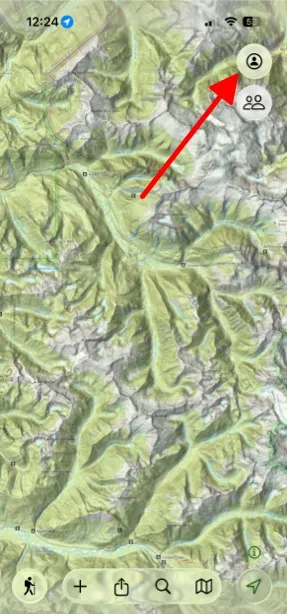
Shown on iPhone — Android looks slightly different. -
Scroll down and tap Settings.
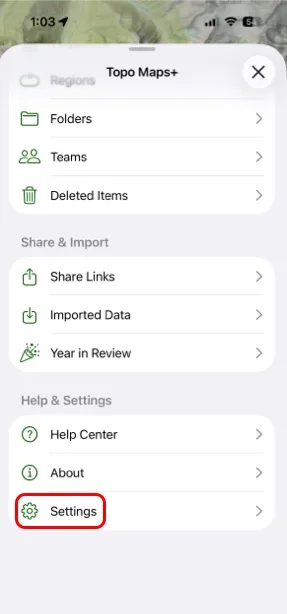
Shown on iPhone — Android looks slightly different. -
Under Recording Tracks, turn on Disable Car Ride Detection to turn the feature off. Turn it back off to turn detection on again.
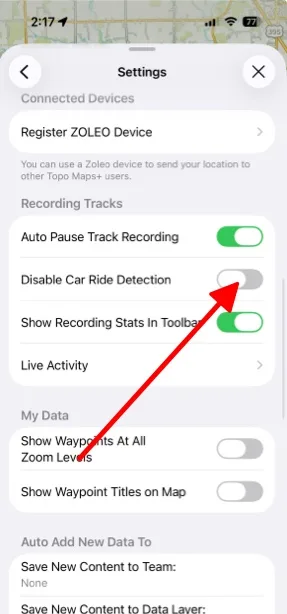
Shown on iPhone — Android looks slightly different.
Updated October 7, 2026
More in On the Trail
Still need help?
We’re a small team and we read every message. Email support@topomaps.co and tell us which device you’re on.