
Progress on Trail
On Apple Watch? Progress on Trail for Apple Watch
Progress on Trail shows how far you’ve gone on a trail without recording your hike. It’s a convenient way to check your progress, and it saves battery.
How to view Progress on Trail
-
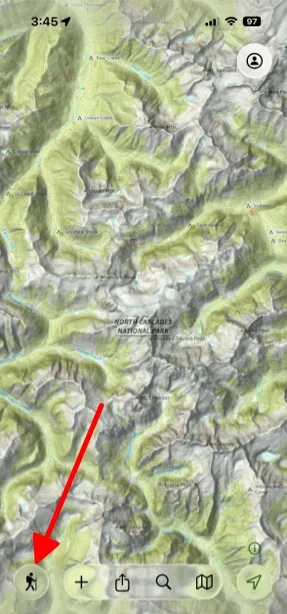
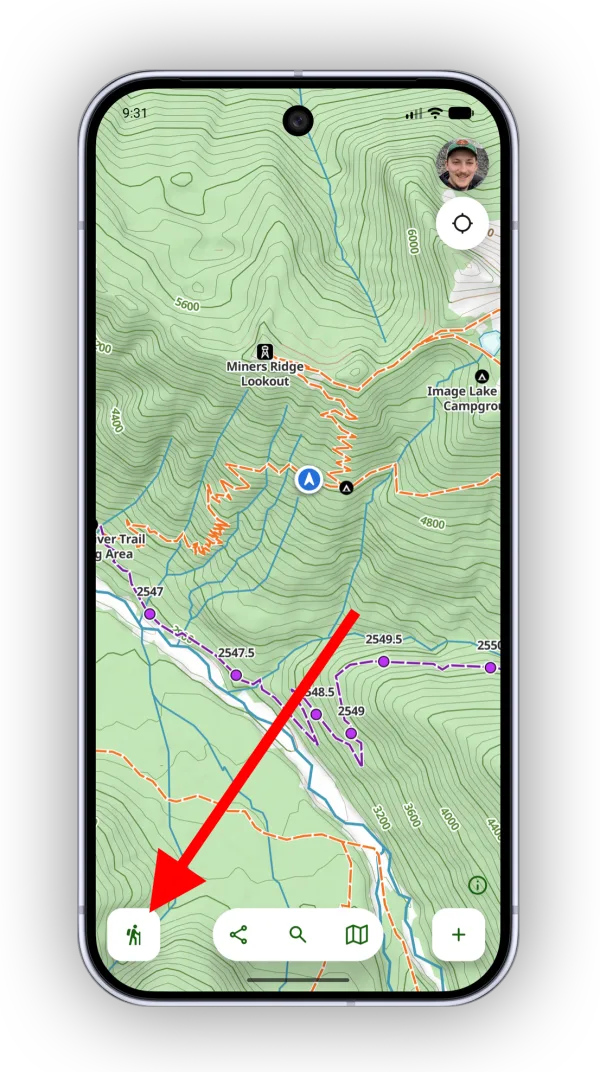
Tap the Hike button in the bottom-left corner.
-
Under Progress on Trail, select the trail you’re following. Depending on where you are, there may be several trails to choose from.
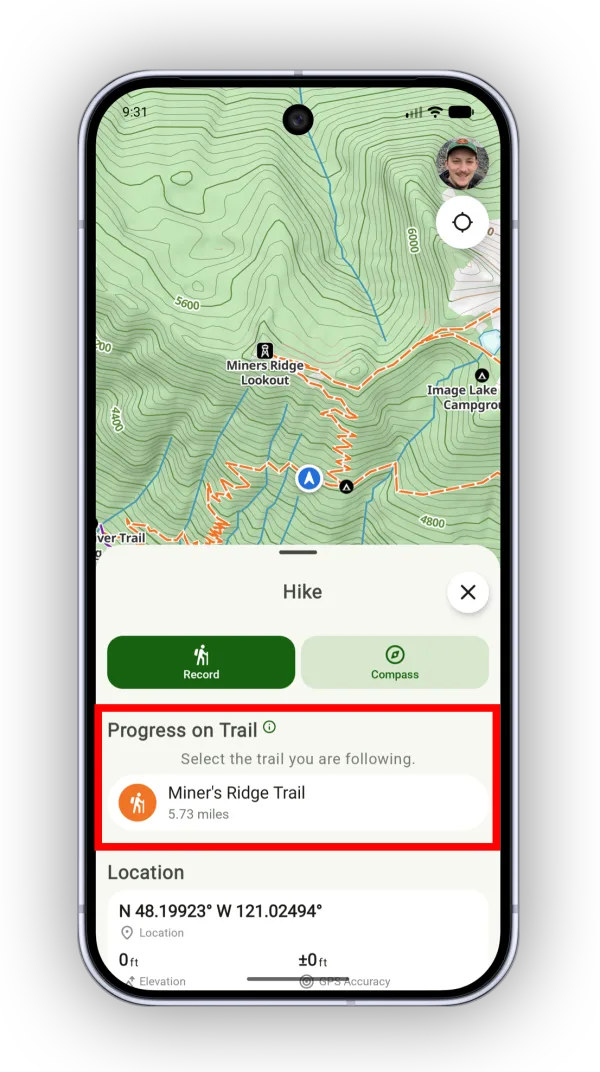
Shown on Android — iPhone looks slightly different. -
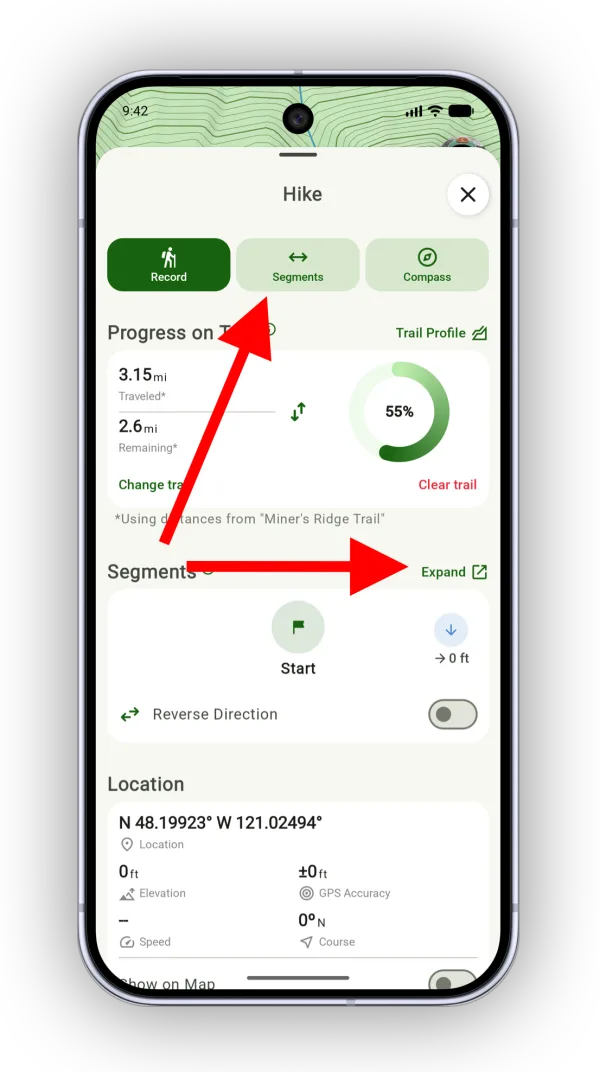
Your distance traveled, distance remaining, and percent complete appear in the Hike menu.
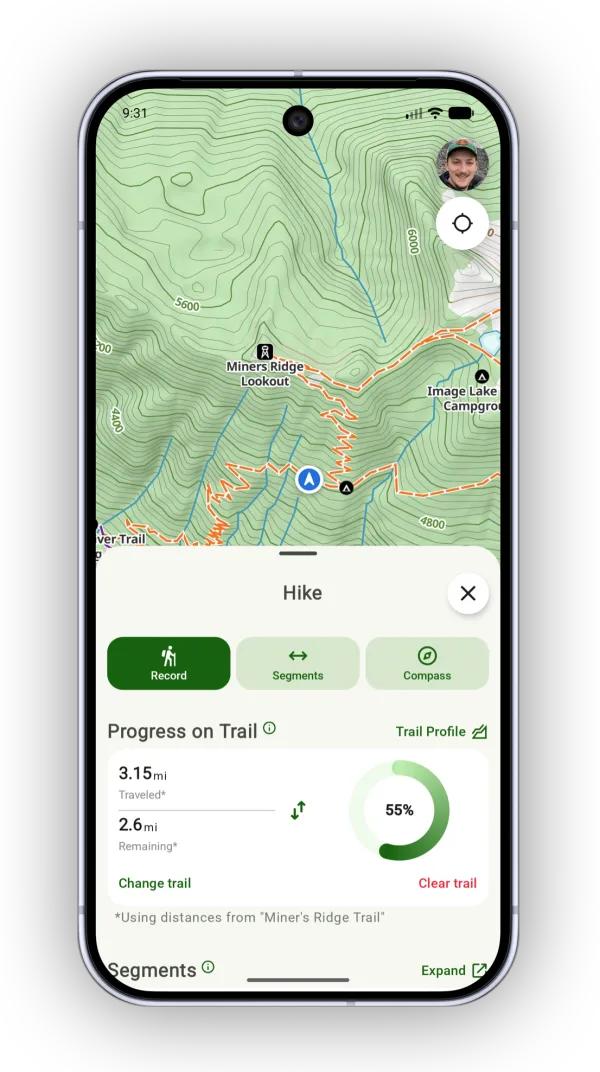
Shown on Android — iPhone looks slightly different.
View progress in Trail Segments
You can also see your progress in Trail Segments. Tap the Segments button, or tap Expand on the Segments section.
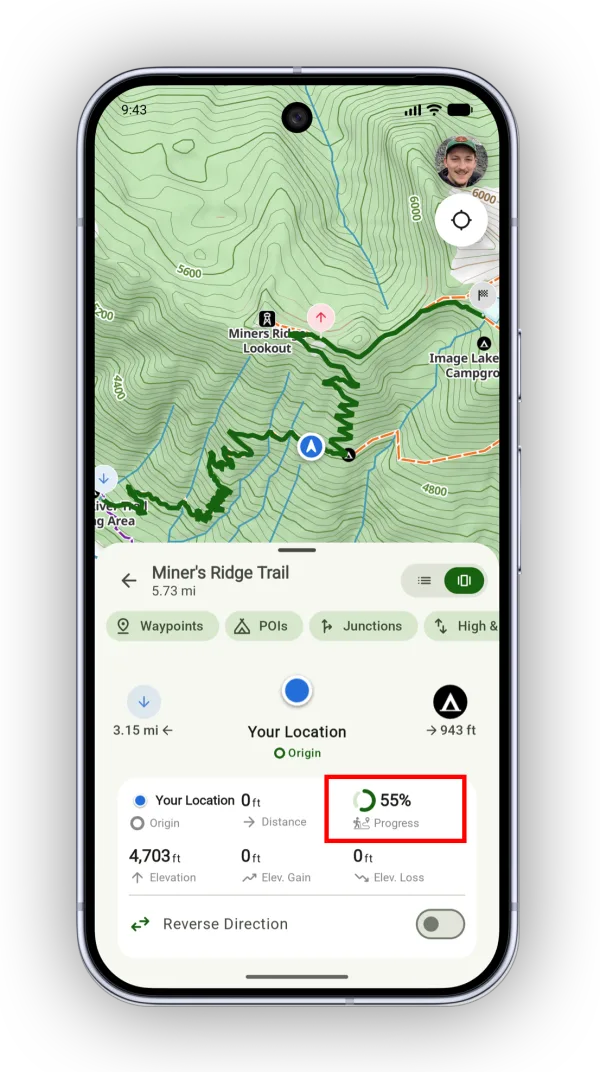
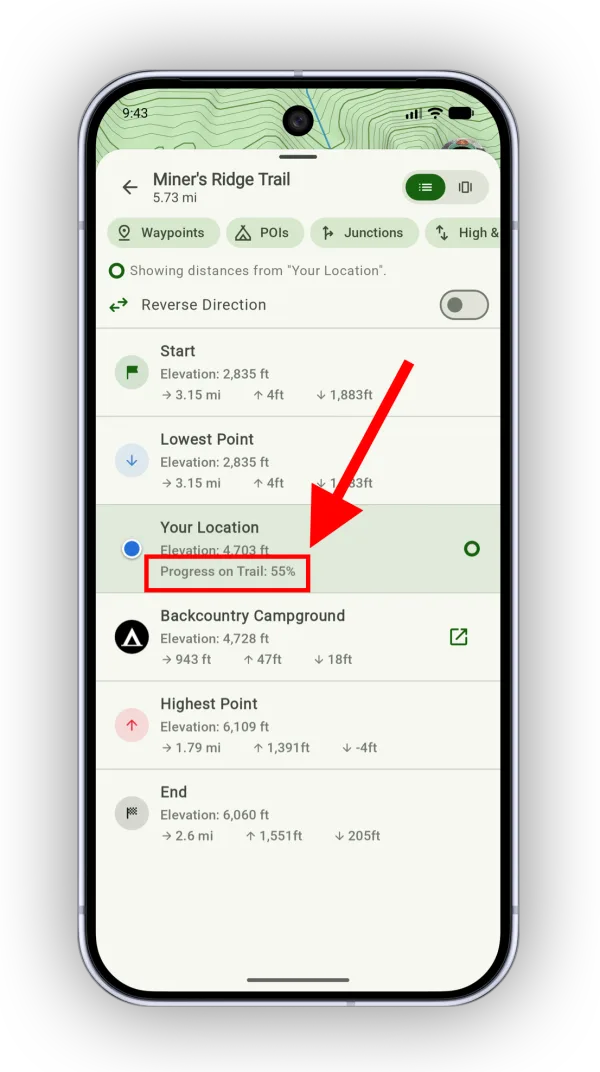
Both the horizontal view and the list view of Trail Segments show your progress.
Updated October 7, 2026
More in On the Trail
Still need help?
We’re a small team and we read every message. Email support@topomaps.co and tell us which device you’re on.