
Recording a Track
On Apple Watch? Recording Tracks on Apple Watch
Topo Maps+ records your trip as a GPS track you can review, share, and export later. Recording works fully offline.
How to record
-
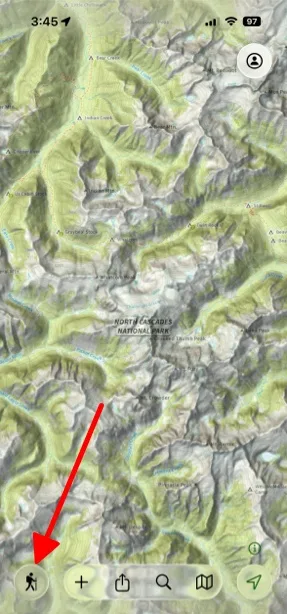
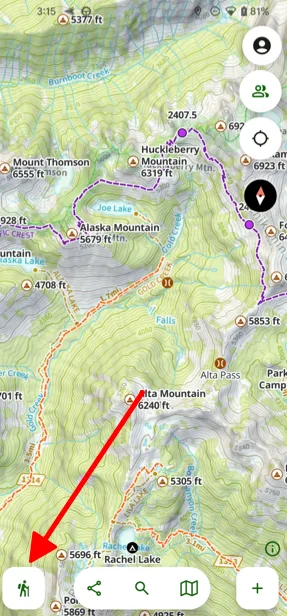
Tap the Hike button in the bottom-left corner of the map.
-
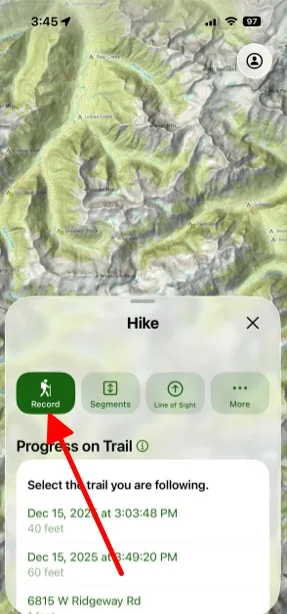
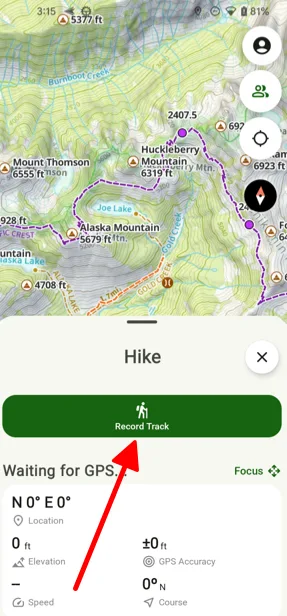
Tap RecordRecord Track.
-
Choose the activity you’re doing.
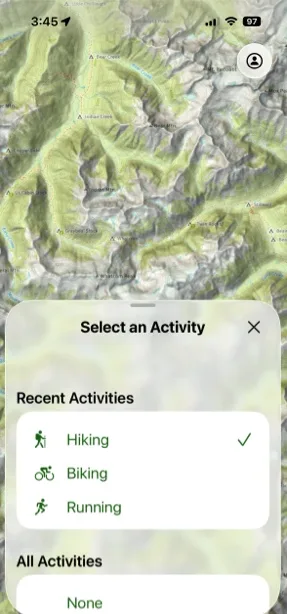
Shown on iPhone — Android looks slightly different. -
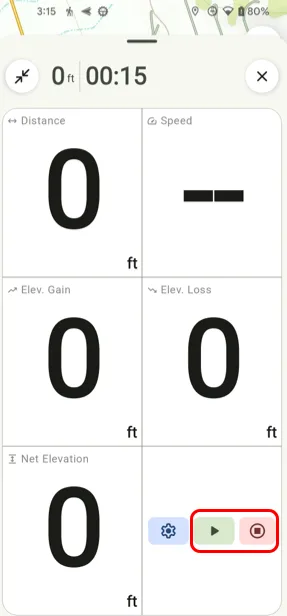
While you record, you can see all of your current stats.
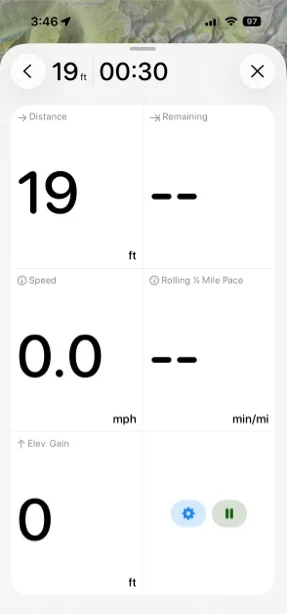
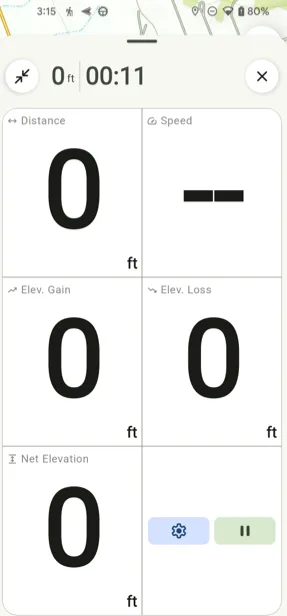
-
Tap Pause to take a break. From there you can Resume or End the track.
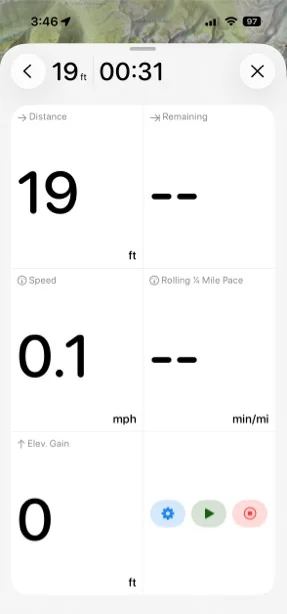
Auto-pause when you stop
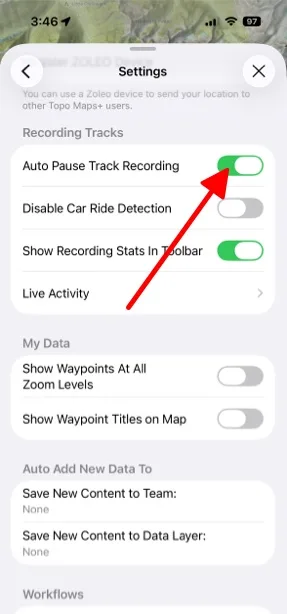
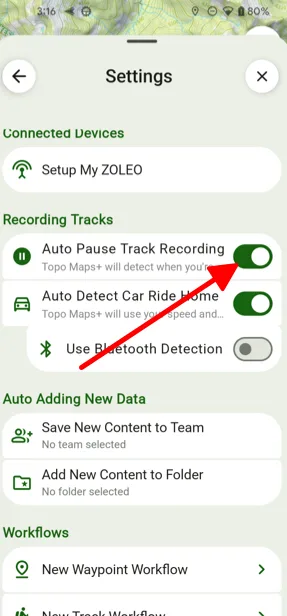
If you don’t want the recording to keep running while you’re stopped for breaks, turn on auto-pause:
-
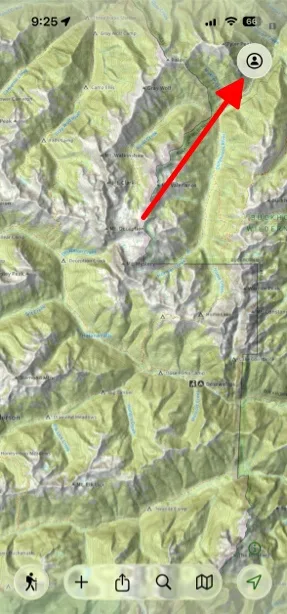
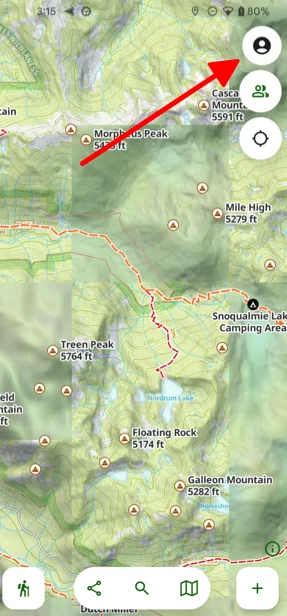
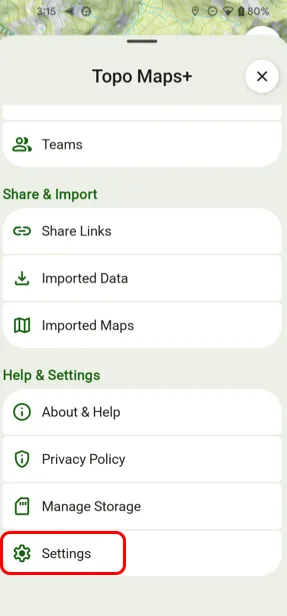
Tap the Menu button in the top-right corner.
-
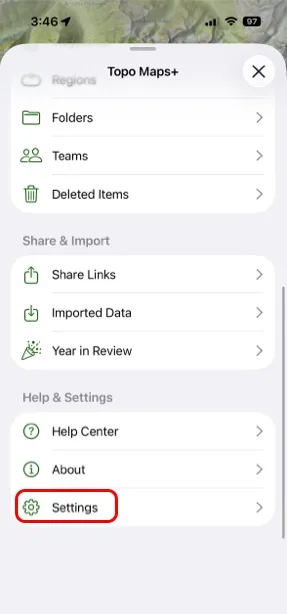
Scroll down and tap Settings.
-
Turn on Auto Pause Track Recording.
Live Activity on your Lock Screen
While a track is recording, a Live Activity on your Lock Screen shows your distance, duration, speed, and more — no need to unlock your phone. You can choose which stats it shows in Menu → Settings → Live Activity.
Keep recording in the background
Some Android phones aggressively stop apps running in the background to save battery, which can cut a recording short or turn it into straight lines. If that happens, allow Topo Maps+ to run without battery restrictions in your phone’s Settings → Apps → Topo Maps+ → Battery.
Updated September 8, 2026
More in On the Trail
Still need help?
We’re a small team and we read every message. Email support@topomaps.co and tell us which device you’re on.