
Recording Tracks on Apple Watch
On your phone? Recording a Track
Record your hike right from your wrist. While you record, the watch shows your stats and your progress along a route, and can save the track as an Apple Health workout.
How to start a recording
-
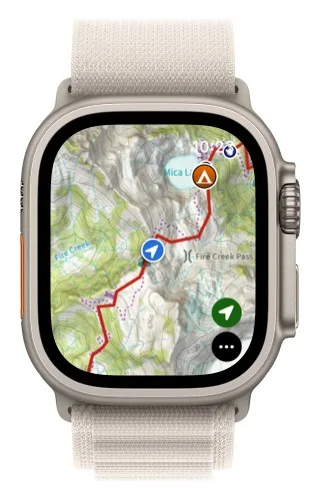
Tap the menu button in the bottom-right corner.
-
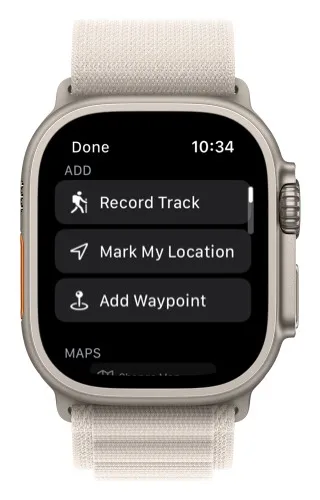
Tap Record Track.
The recording screens
-
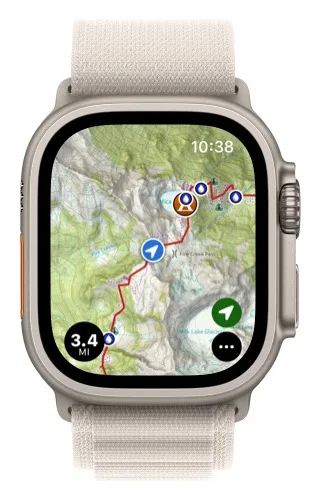
Tap the recording distance in the bottom-left corner to bring up the controls and metrics.
-
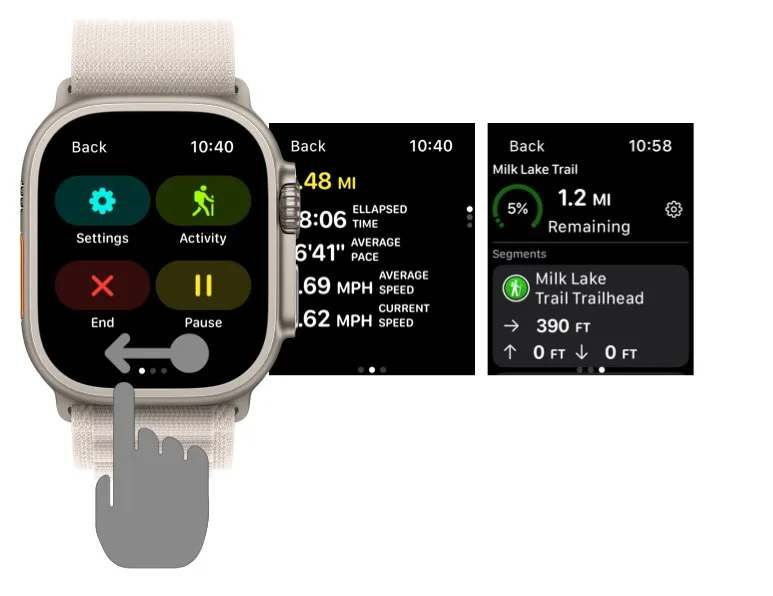
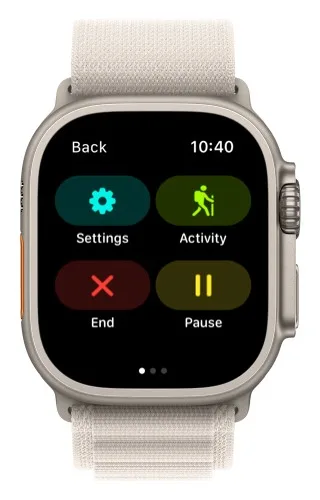
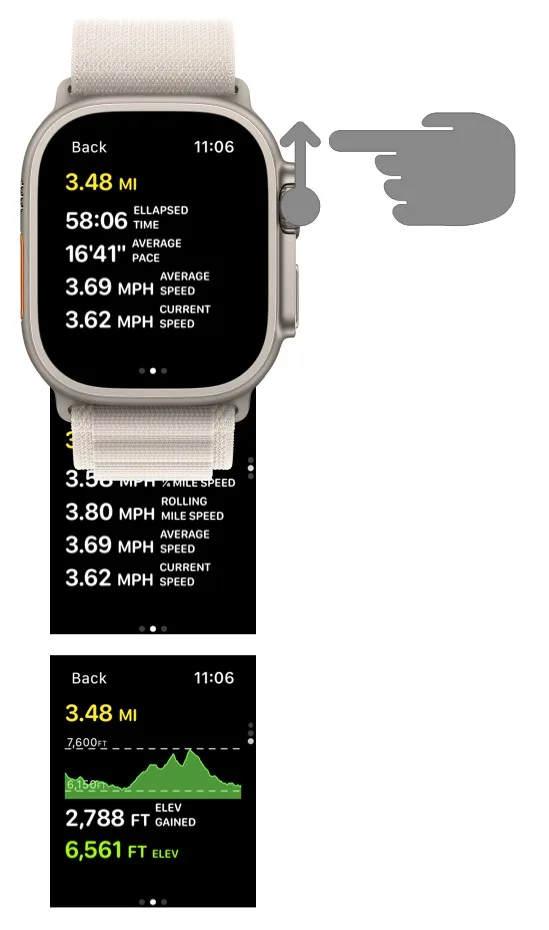
Swipe sideways to move between the three screens: recording controls on the left, recording metrics in the middle, and Progress on Trail on the right.
Recording controls
- End: stops the recording.
- Pause: pauses and resumes the recording.
- Settings: changes your recording settings.
- Activity: picks the kind of activity you're doing.
Recording metrics
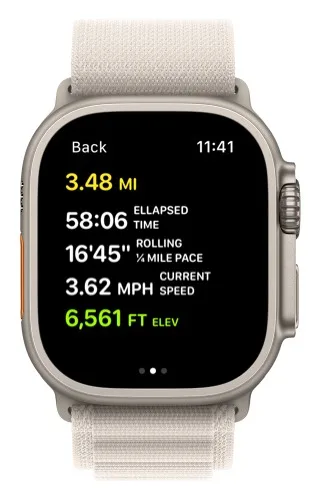
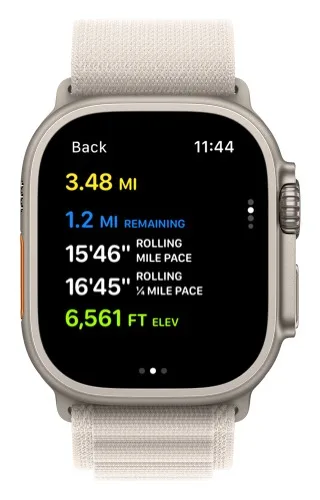
Swipe up or rotate the Digital Crown to move between the metric screens.
Progress on Trail
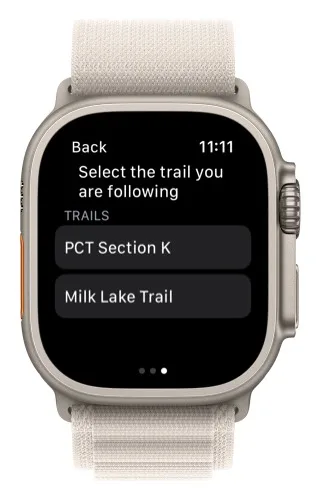
The first time you open this screen, select the trail you're following.
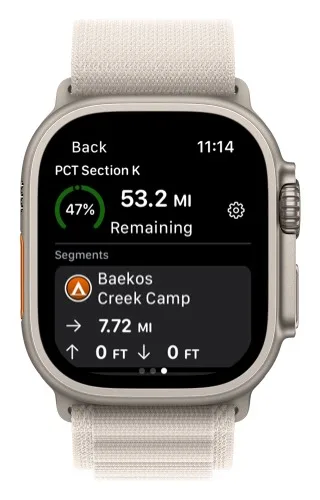
The screen then shows your progress along that trail: the distance remaining at the top and the segments below. To add a segment, add a waypoint on the map close to the trail.
Recording settings
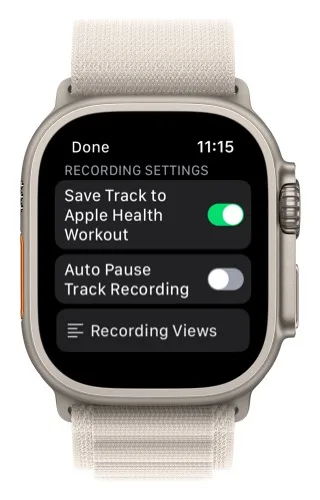
- Save Track to Apple Health Workout also saves your recording as an Apple Health workout. Only one app can record a workout at a time, so turn this off if you want to record the workout with Apple's Workout app.
- Auto Pause Track Recording pauses the recording when you stop and resumes it when you start moving again.
How to customize your metrics
-
In the recording settings, tap Recording Views.
-
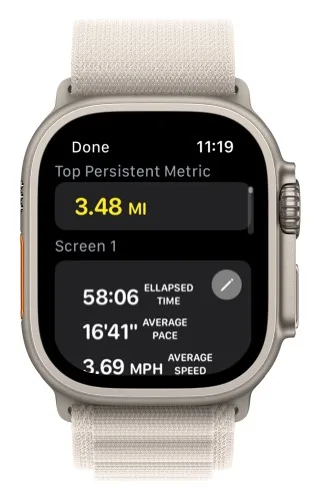
To change the one metric that appears on every metric screen, tap the metric under Top Persistent Metric. You can pick a new metric, change its color, or both.
-
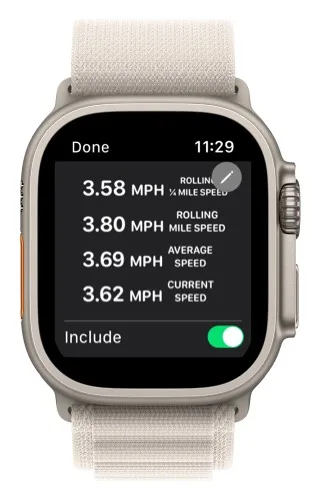
There are 3 metric screens and 4 elevation screens. Use the Include toggle at the bottom of each screen to choose whether it appears while you record. The first metric screen is required and can't be turned off.
-
Tap a screen to change its metrics.
-
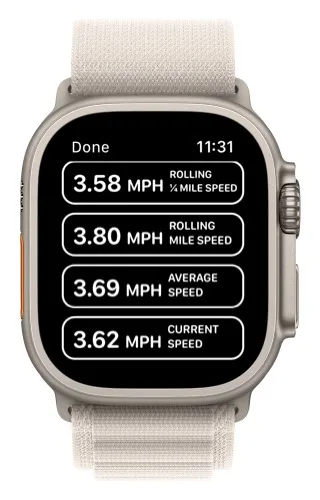
Tap any of the four metrics to pick a different metric or color.
Updated October 7, 2026
More in Apple Watch
Still need help?
We’re a small team and we read every message. Email support@topomaps.co and tell us which device you’re on.