
Waypoints on Apple Watch
On your phone? Adding Waypoints
Drop waypoints right from your wrist to mark a campsite, water source, or anything else you want to remember, and customize how they look.
How to add a waypoint
-
Tap the menu button in the bottom-right corner.
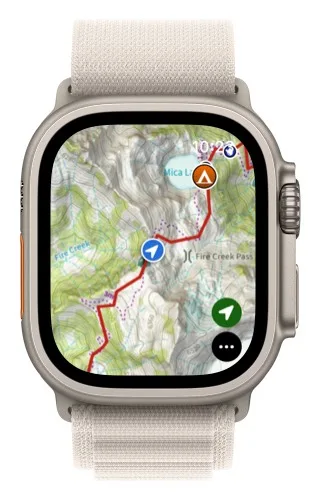
-
Tap Mark My Location or Add Waypoint.
- Mark My Location adds a waypoint at your current location.
- Add Waypoint lets you add a waypoint anywhere on the map.
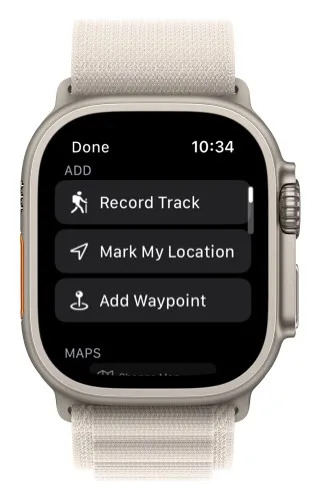
-
If you chose Add Waypoint, move the crosshairs to the spot you want and tap Add.
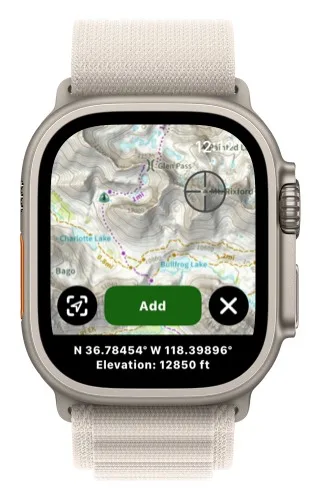
If you have an Apple Watch Ultra, you can set up the Action Button to add a waypoint.
How to edit a waypoint
-
Tap a waypoint on the map to edit its title and icon.
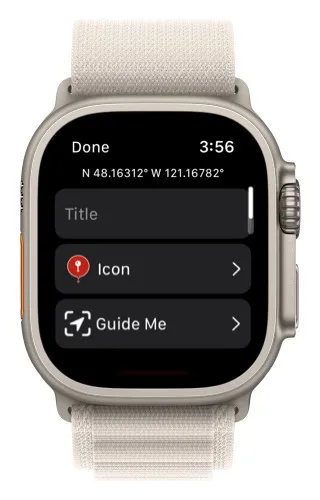
-
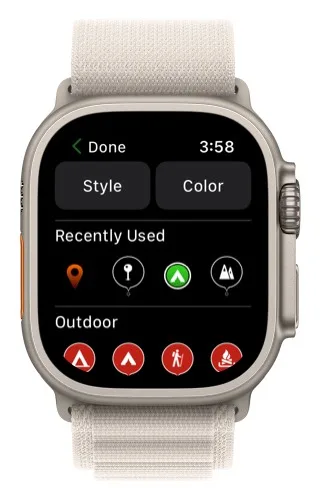
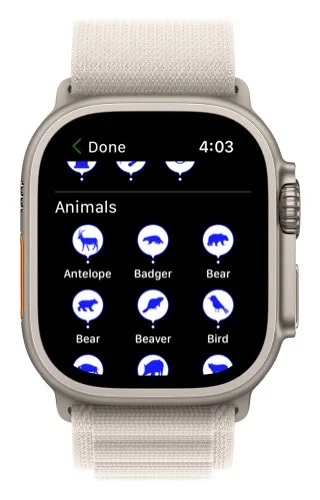
Tap Icon to choose from all of the same icons that are available on your iPhone.
-
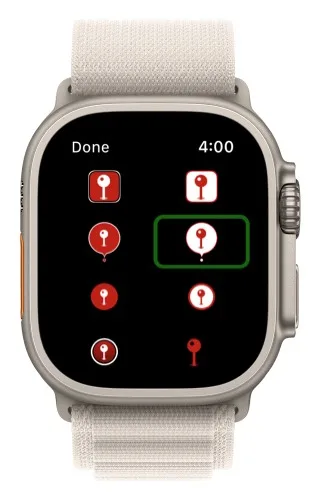
Tap Style at the top to change the icon style.
-
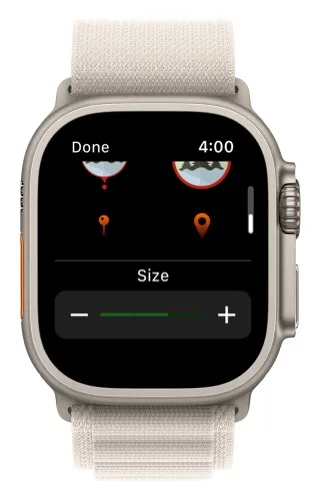
Scroll down to change the icon size.
-
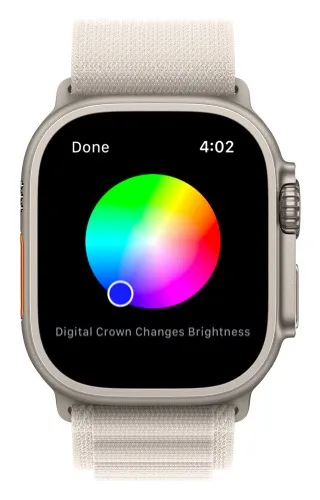
Tap Color, then move the circle on the color wheel to change the icon's color. Rotate the Digital Crown to change the brightness.
-
Scroll down the list of icons to see every icon available in the selected style, size, and color.
You can also have Topo Maps+ guide you to a waypoint.
Updated October 7, 2026
More in Apple Watch
Still need help?
We’re a small team and we read every message. Email support@topomaps.co and tell us which device you’re on.