
Screen Gestures on Apple Watch
Use swipes, taps, and the Digital Crown to move around the map and get information about your location and waypoints.
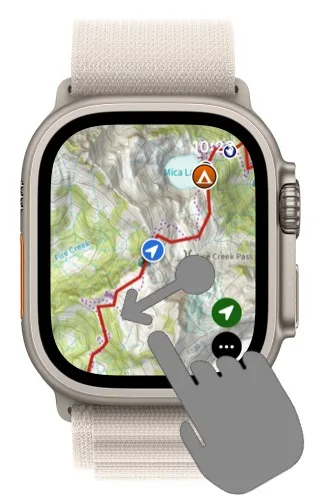
Swipe
Swipe on the map to move it.
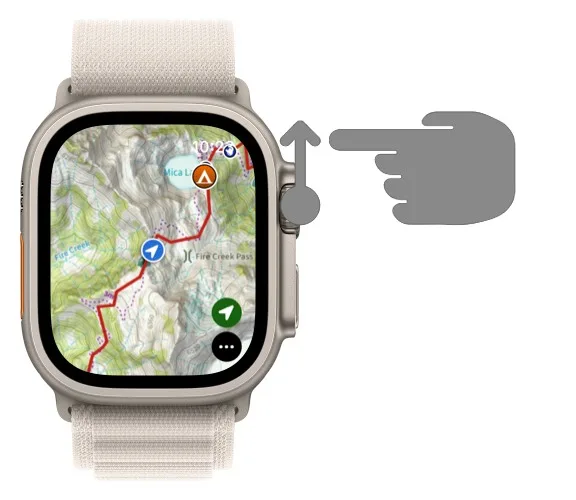
Digital Crown
Rotate the Digital Crown to zoom the map in and out.
Location button
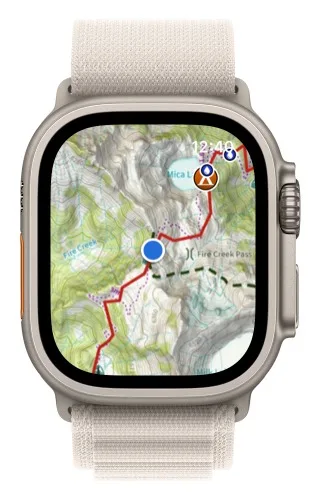
Tap the green location button on the right to switch between modes:
-
Hollow arrow: the map doesn't stay centered on your location.

-
Solid arrow: your location stays fixed in the middle of the map.

-
Arrow pointing up: the map rotates to match the direction your watch is facing.

Single tap
-
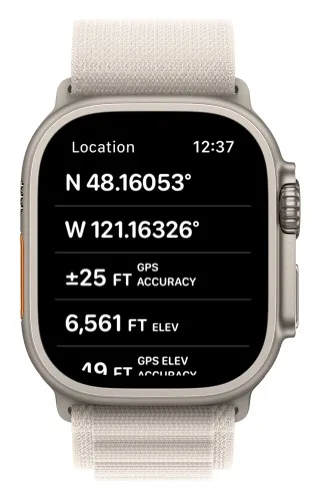
Tap your location marker to see information about your current location.

-
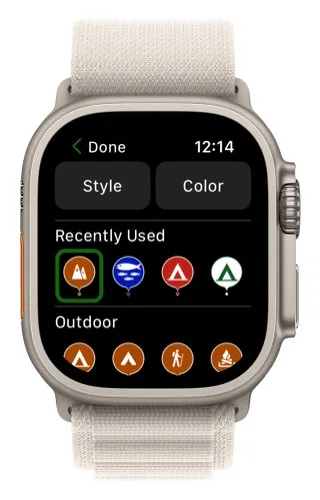
Tap a waypoint to see its information.
-
Tap anywhere else on the map to turn full-screen mode on or off.
Double tap
Double-tap the map to zoom in on that spot.
Tap and hold
Tap and hold on the map to bring up crosshairs. The bottom of the screen shows the coordinates and elevation of the spot under the crosshairs.
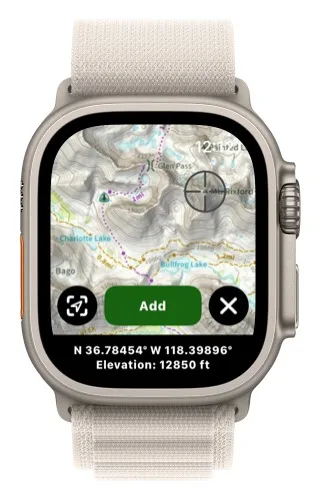
- Tap the Guide Me button in the bottom-left corner to navigate to that spot. It only appears if your Apple Watch has a compass.
- Tap Add to add a waypoint there.
- Tap the cancel button in the bottom-right corner to close the crosshairs.
Updated October 7, 2026
More in Apple Watch
Still need help?
We’re a small team and we read every message. Email support@topomaps.co and tell us which device you’re on.