
Recommended Apple Watch Settings
Several Apple Watch settings have a big effect on how Topo Maps+ behaves and how long your battery lasts. For the best experience in the backcountry, we recommend:
- Set Wake Duration to 70 seconds.
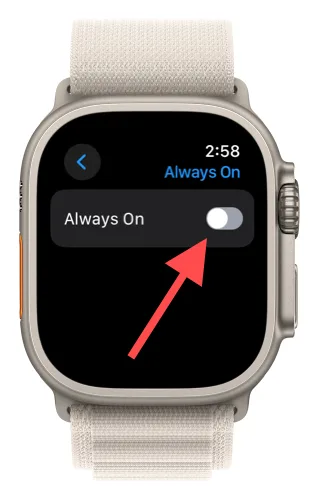
- Turn off Always On for the display.
- Turn on Theater Mode.
- Set Return to Clock to 1 hour.
- Record your tracks with Apple Workout, even if you don't need the recording.
How to set Wake Duration
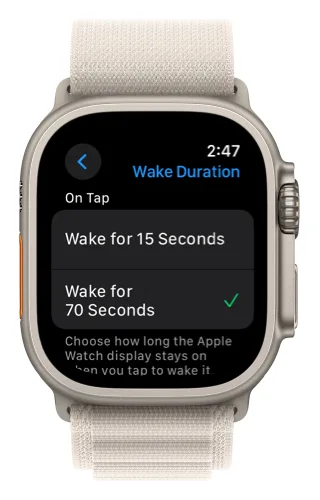
By default, the Watch sleeps after 15 seconds, which isn't much time. Setting it to 70 seconds (the maximum) gives you more time to look at the map. If you only need a quick glance, cover the watch with your hand to turn the display off and save battery. This only works with Theater Mode turned on.
-
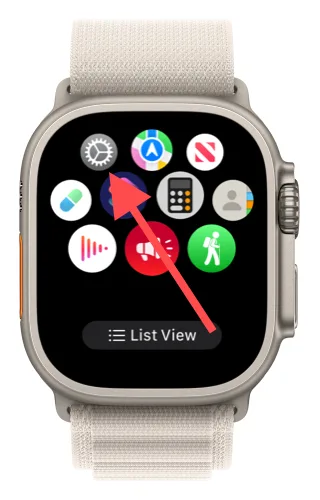
Open the Settings app on your watch.
-
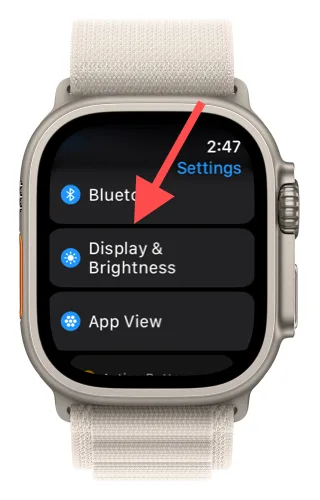
Tap Display & Brightness.
-
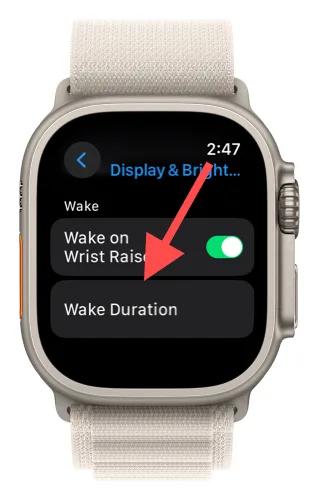
Tap Wake Duration.
-
Choose Wake for 70 Seconds.
How to turn off Always On
With Always On, the display shows the last image of the app instead of turning off when the wake duration ends. For Topo Maps+, that means you'd see what the map last looked like, but it won't update until you raise your wrist. That isn't very helpful, and it uses a lot of battery.
-
In Display & Brightness, turn off Always On.
How to set Return to Clock
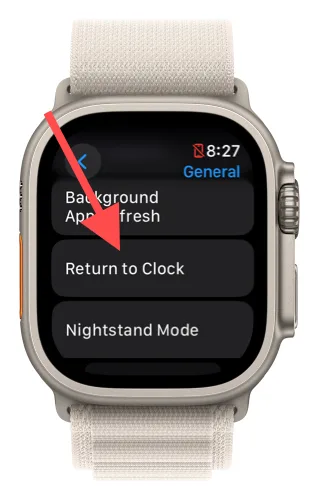
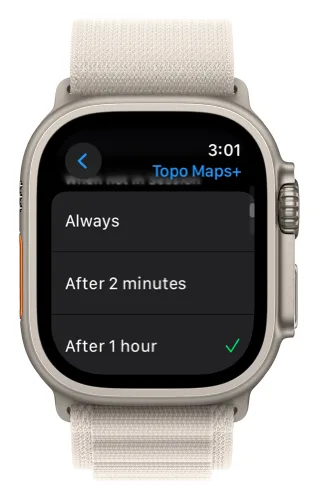
By default, the Watch returns to the clock after 2 minutes, which closes the app you were using. That's frustrating when you want to keep checking the map. Setting it to 1 hour keeps Topo Maps+ open longer.
-
In Settings → General, tap Return to Clock.
-
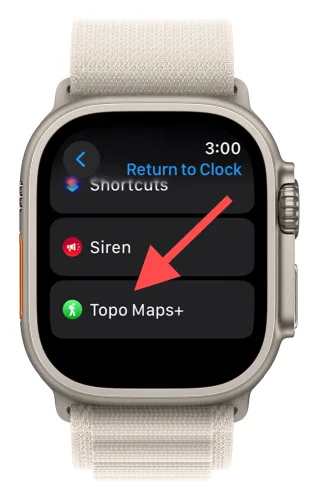
Select Topo Maps+.
-
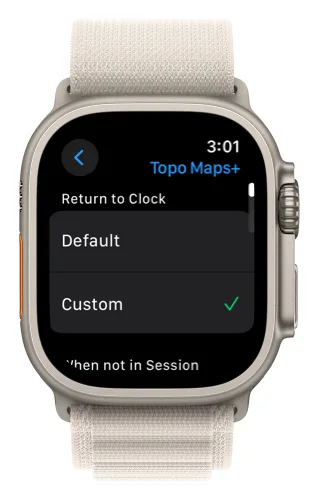
Tap Custom.
-
Tap After 1 hour.
How to turn on Theater Mode
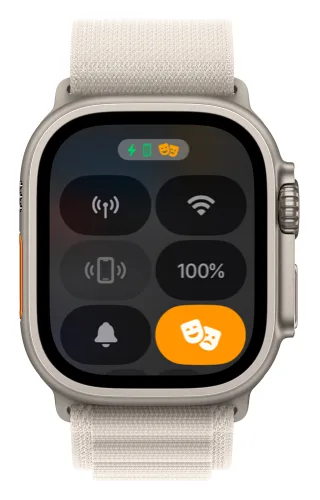
This one comes down to personal preference. It's nice to have the display turn on when you raise your wrist, and Theater Mode turns that off. If you use trekking poles, though, the watch will keep thinking you're raising your wrist. In that case, or if you just move your arms a lot, Theater Mode saves a good bit of battery.
-
Press the side button to open Control Center, then tap the masks icon to turn Theater Mode on or off.
Record your tracks
Recording a track uses Apple Workout, which keeps Topo Maps+ active. It also shows your location instantly when you look at the watch, instead of waiting for GPS to find you again after the watch wakes up. See Recording Tracks on Apple Watch to learn how.
For more ways to stretch your battery, see our battery life guide.
Updated October 7, 2026
More in Apple Watch
Still need help?
We’re a small team and we read every message. Email support@topomaps.co and tell us which device you’re on.