
Folders
Folders keep your data organized. Put each trip, hunt, or other activity in its own folder so you can get to just that data. Each folder can also be shown as its own overlay, so you can turn on a folder and see only its data on the map.
How to create a folder
-
Tap the Account button in the top-right corner.
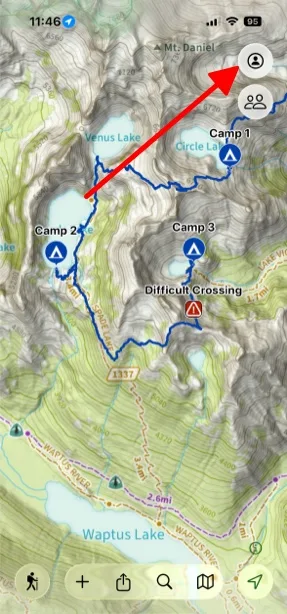
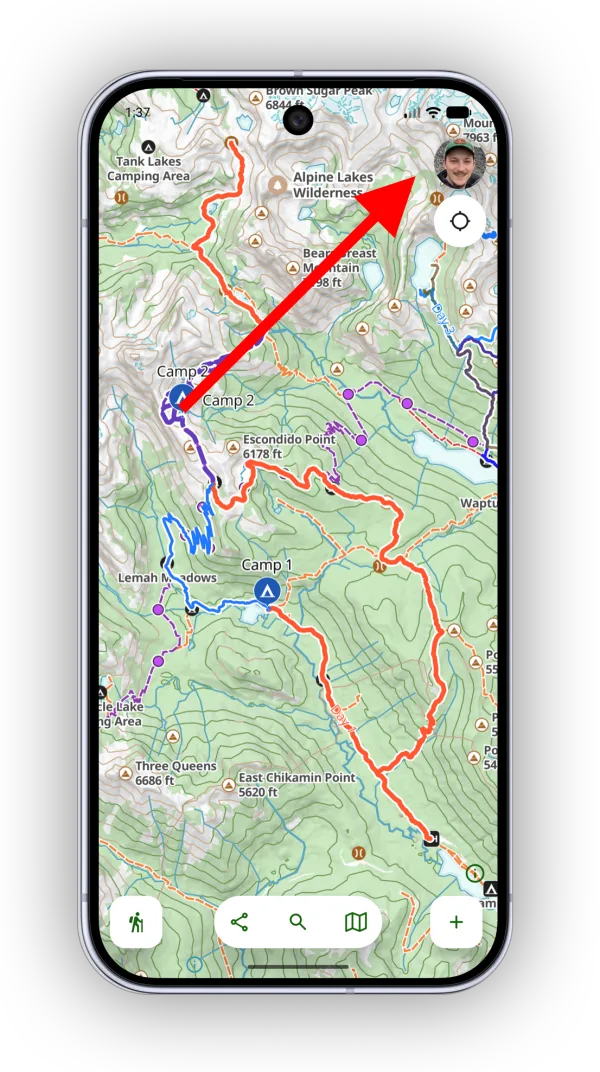
-
Tap Folders.
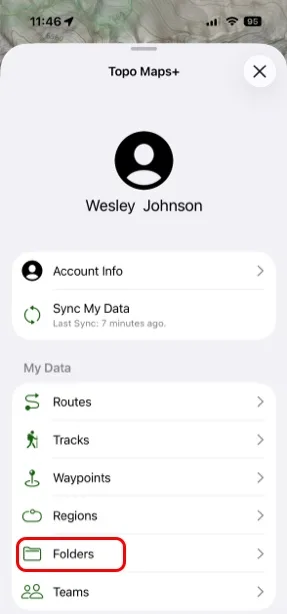
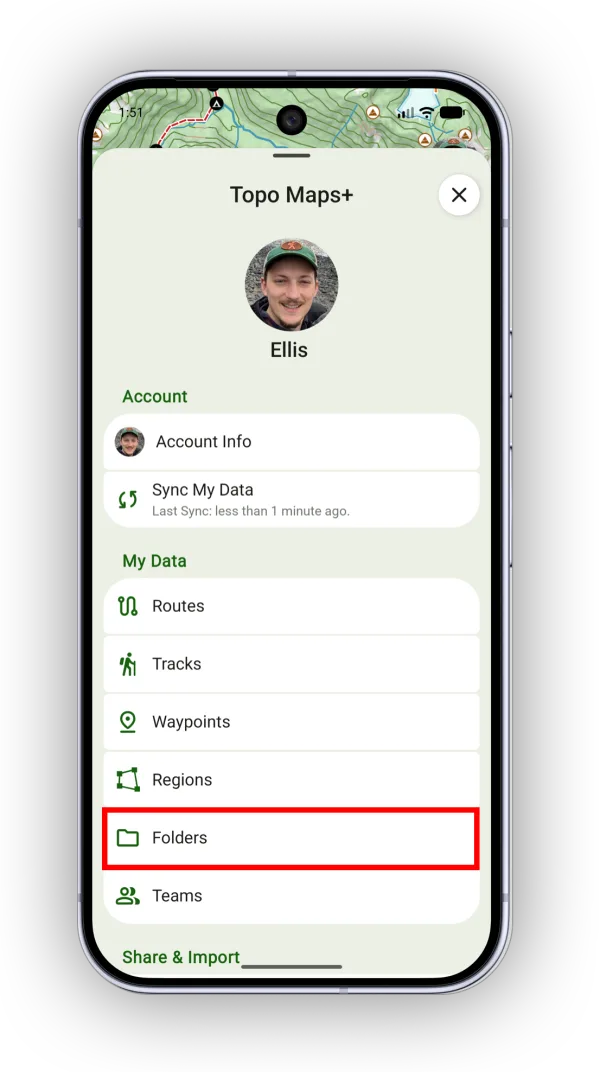
-
Tap the + button next to the search barNew Folder. You can also tap any existing folder to view and edit it.
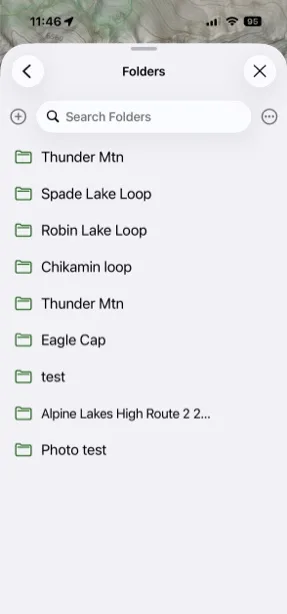
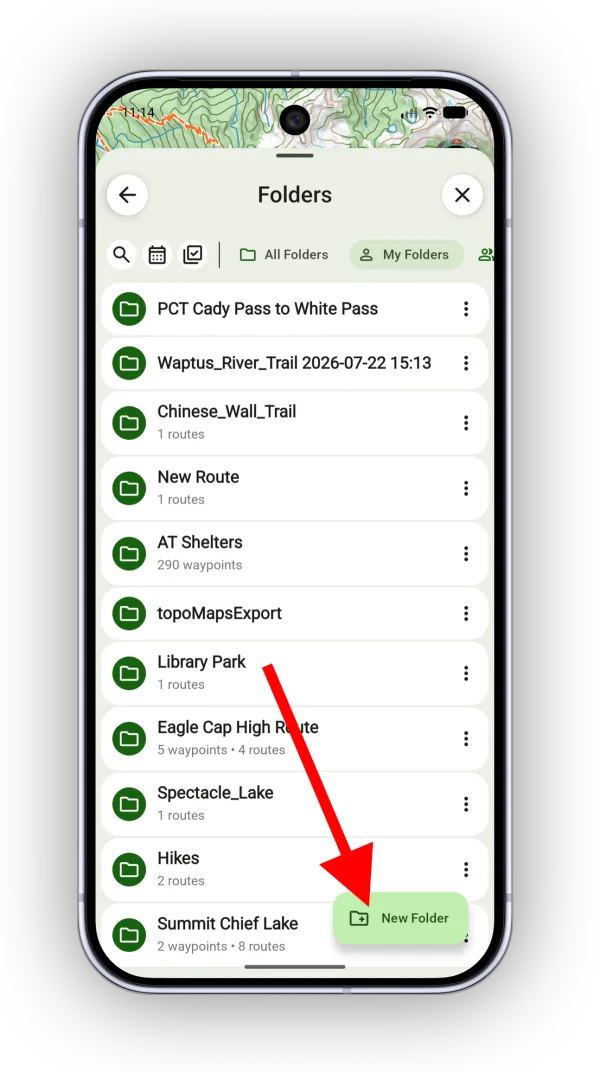
How to add data to a folder
-
Open the folder and tap the add button.
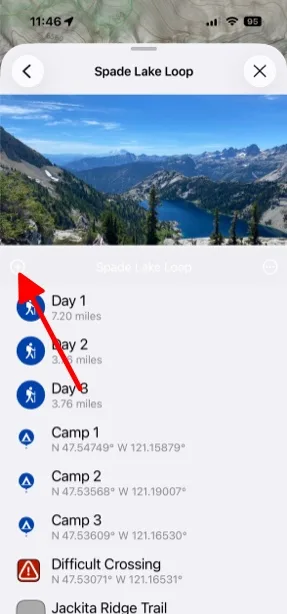
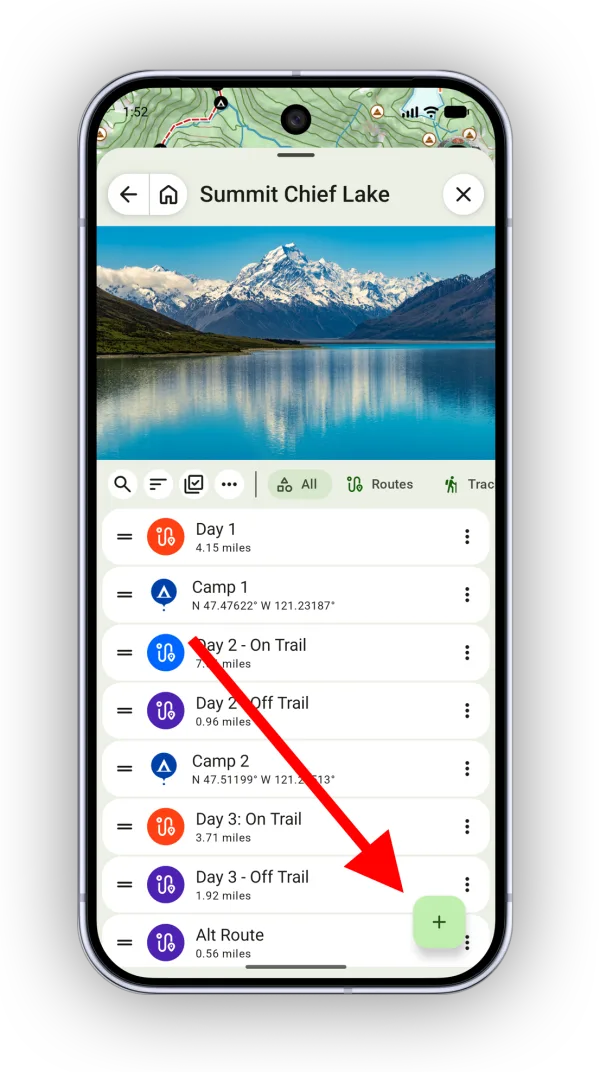
-
Tap Add Routes, Tracks, & WaypointsAdd Data and choose the items you want to add. From the same menu you can also add a subfolder or a note.
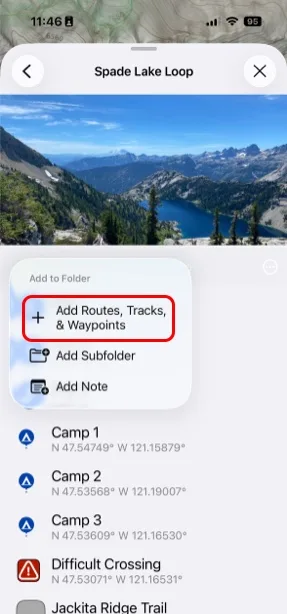
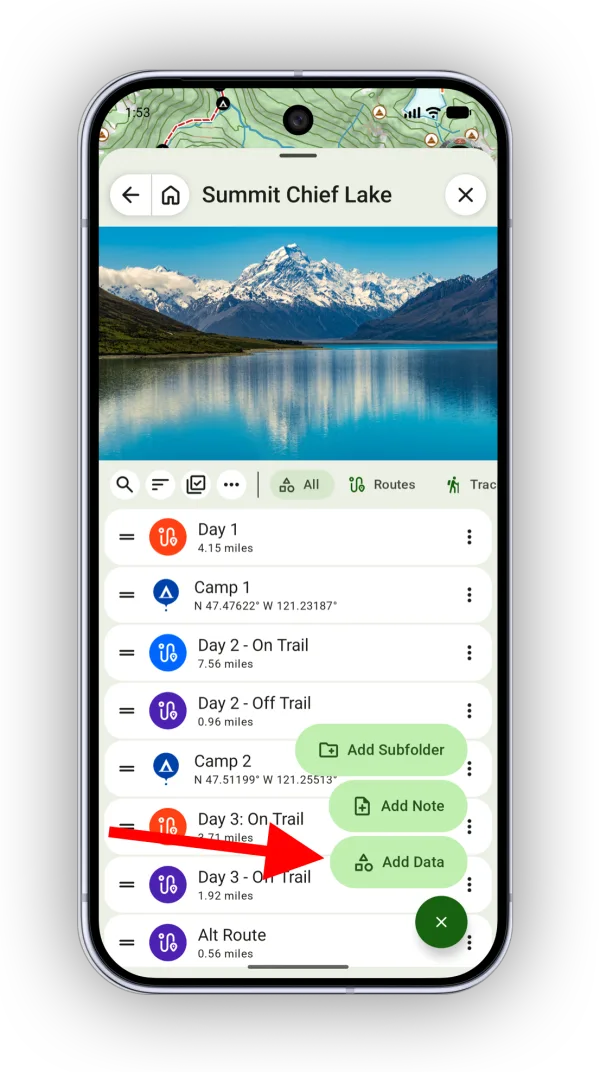
To rearrange the items in a folder, touch and hold an item, then drag it.
From a route, waypoint, or other item
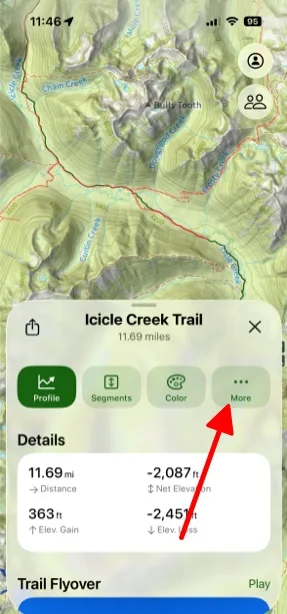
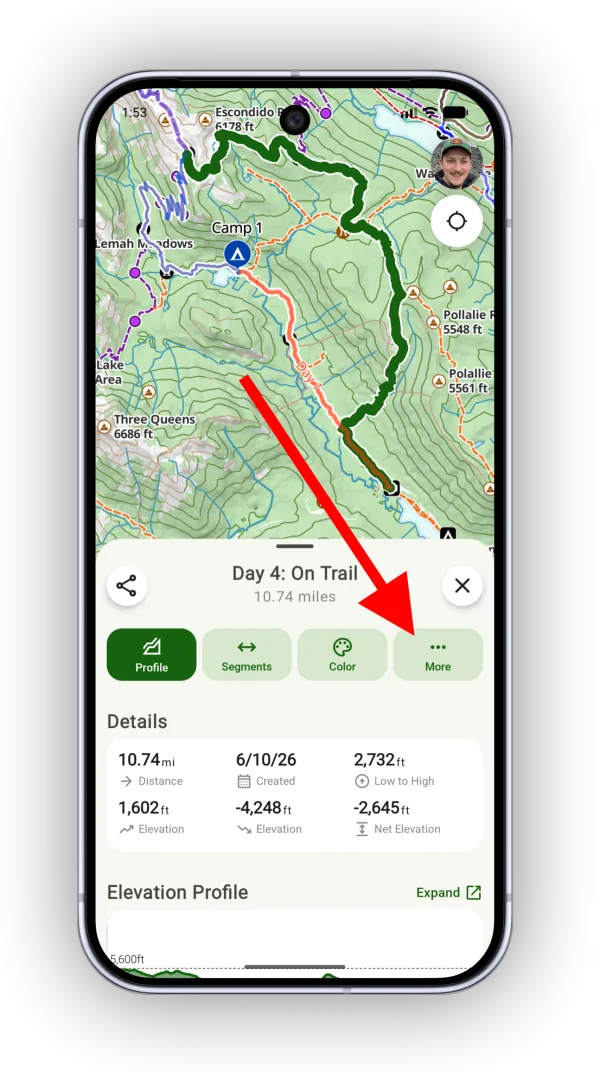
You can add data to a folder from just about anywhere. For example, from a route on the map:
-
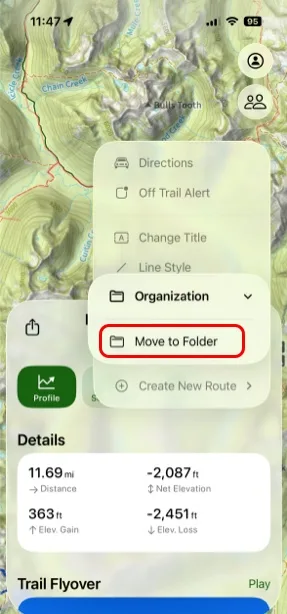
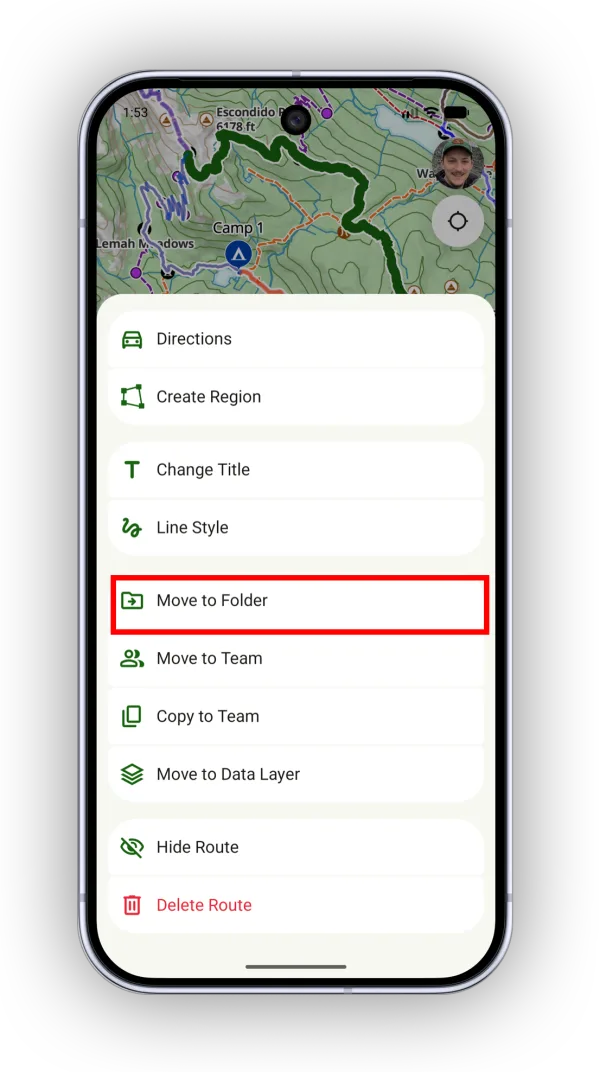
Open the item's info card and tap More.
-
Tap Organization → Move to FolderMove to Folder, then choose the folder.
Several items at once
-
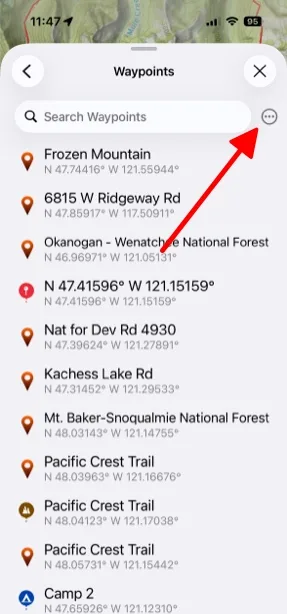
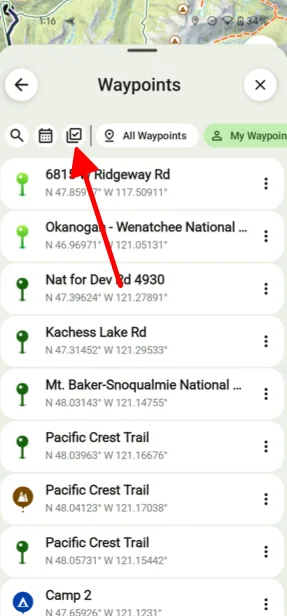
Tap the Account button, then open a list of your data, such as Waypoints or Routes.
-
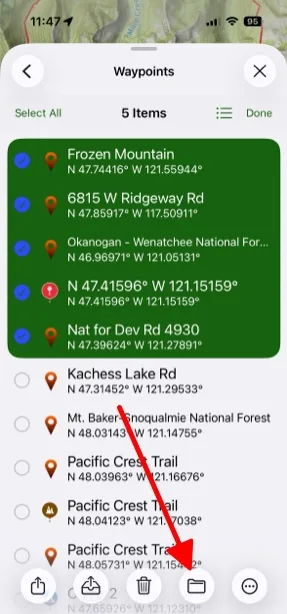
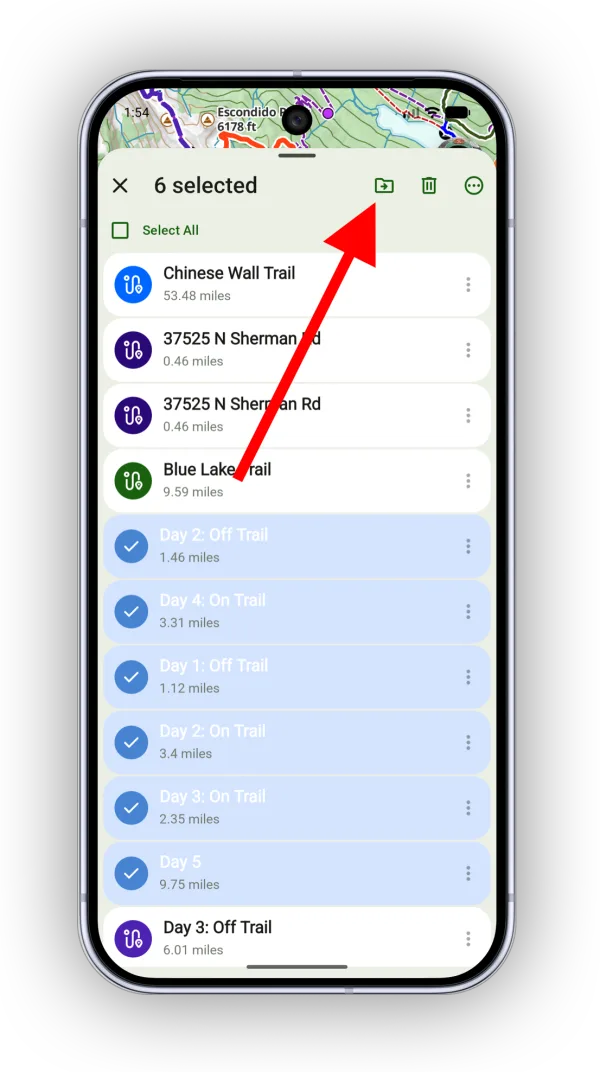
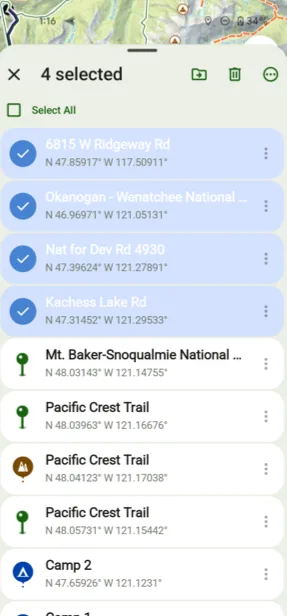
Tap the … buttonthe select button at the top of the list, tap Select & Edit, and select the items you want to move.
-
Tap the folder button.
-
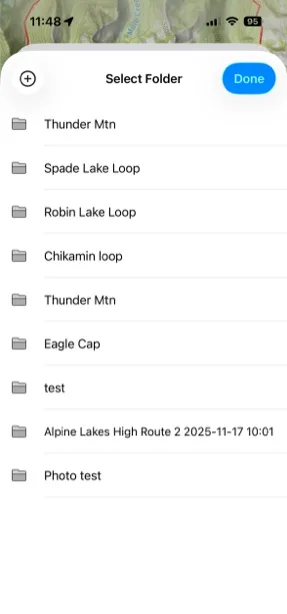
Choose the folder and tap Done.
How to show a folder on the map
-
Tap the Maps button in the toolbar.
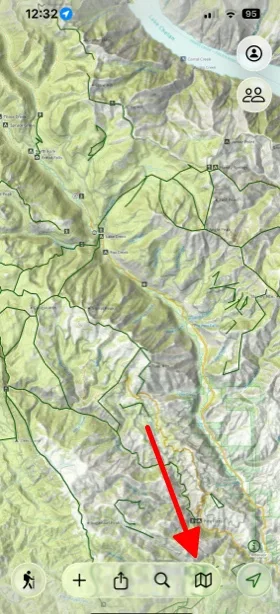
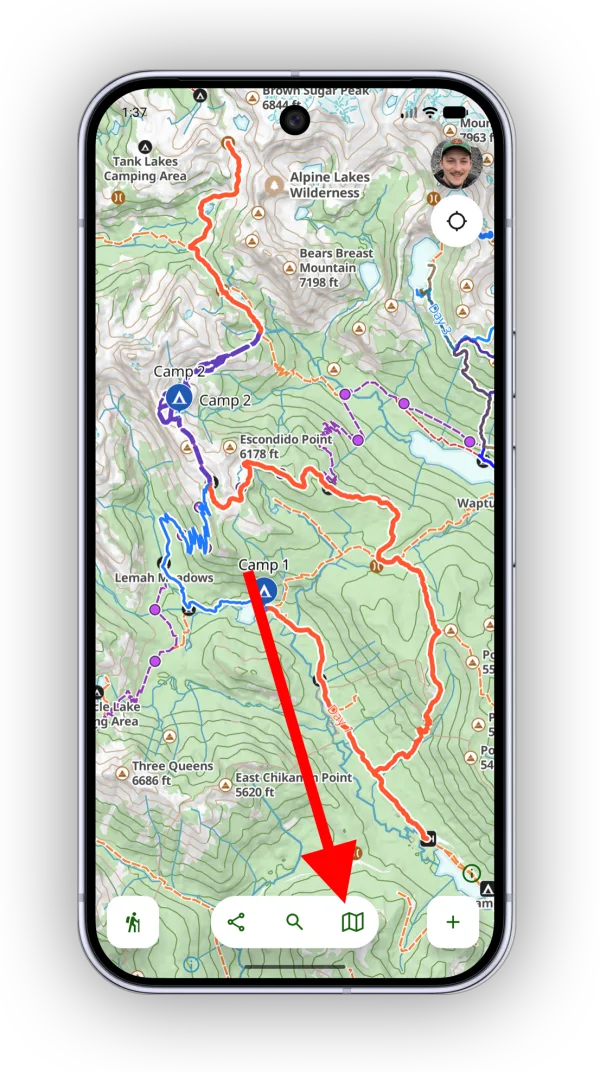
-
Scroll down and tap Customize.
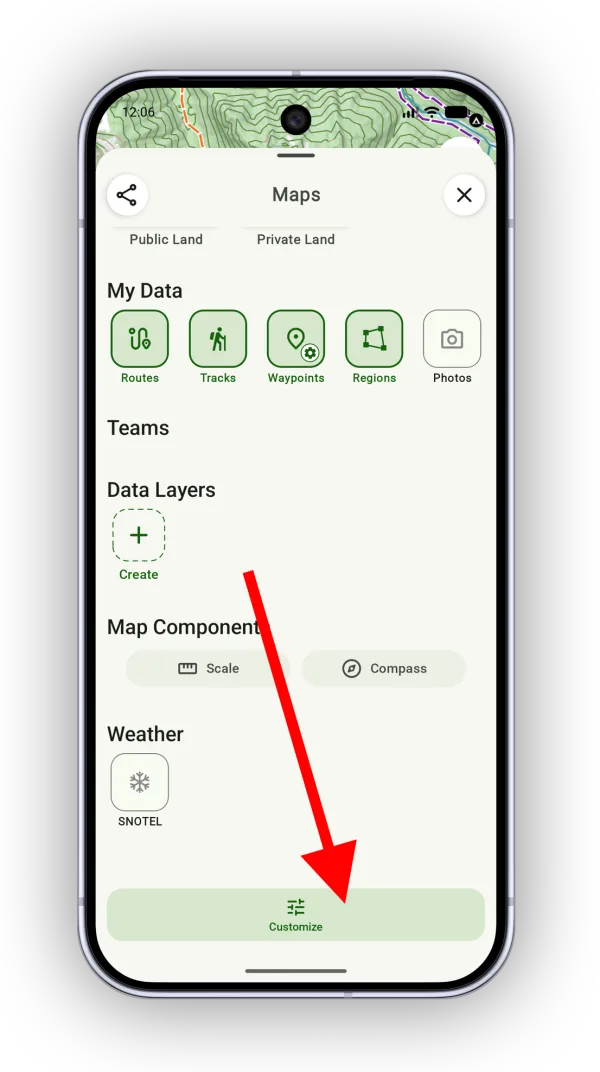
Shown on Android — iPhone looks slightly different. -
Tap the add button next to Folder.
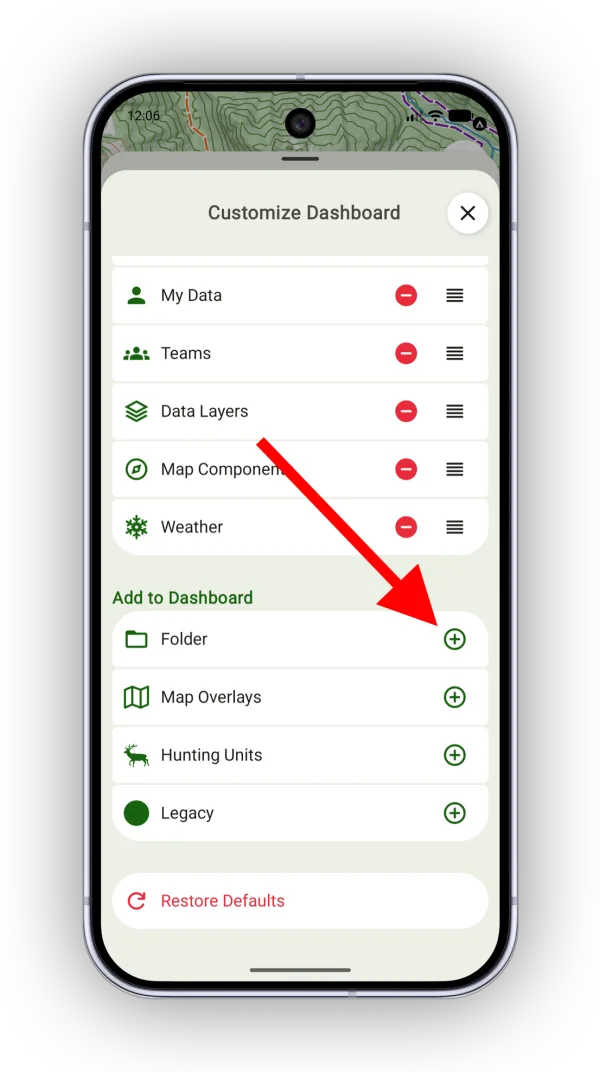
Shown on Android — iPhone looks slightly different. -
Close the customize menu. In the Folder section, tap Manage or Add and select your folder.
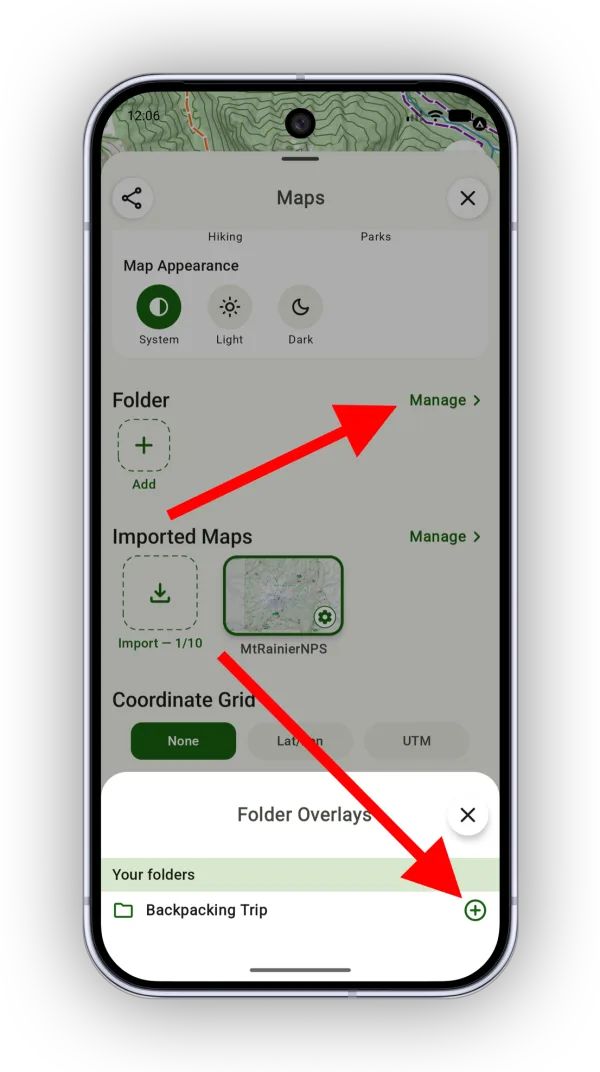
Shown on Android — iPhone looks slightly different.
Updated October 7, 2026
More in Routes, Waypoints & Regions
Still need help?
We’re a small team and we read every message. Email support@topomaps.co and tell us which device you’re on.