
Adding Regions
Some things you want to track can't be captured with waypoints and routes alone: a patch where you found good huckleberries, a property boundary you need to stay inside while hunting, or an area you've already searched. With Topo Maps+ Pro, you can draw these as regions.
How to add a region
-
Tap the Add button in the toolbar.
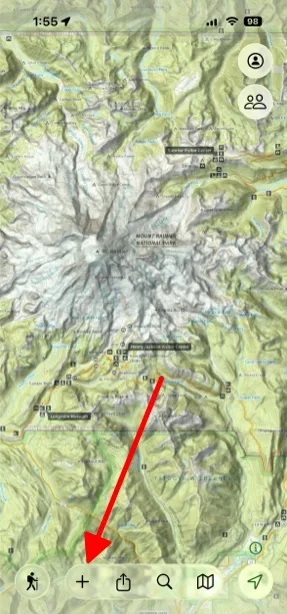
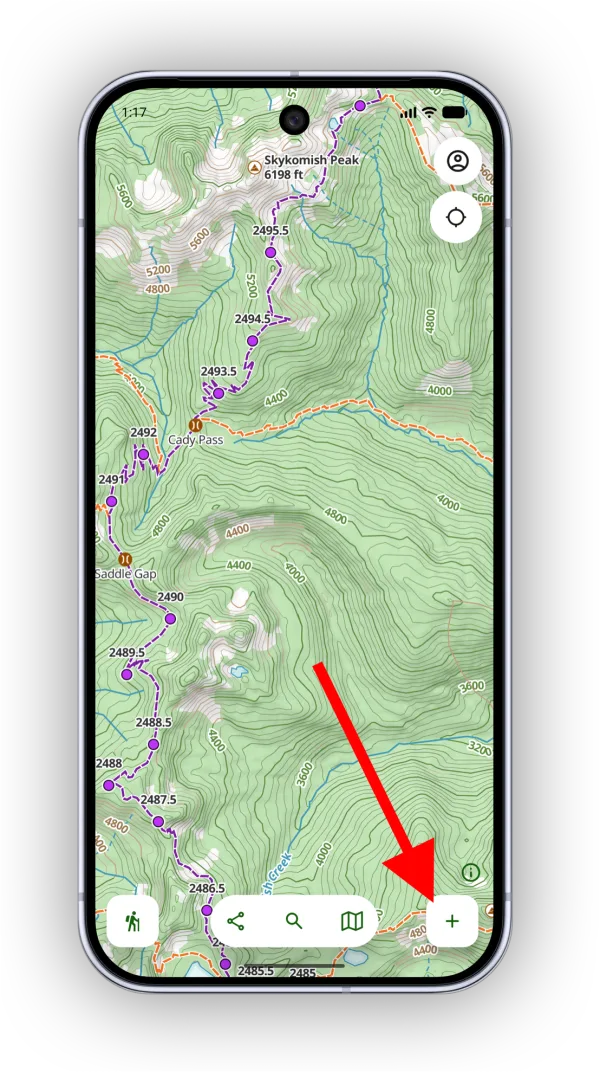
-
Tap Add Region.
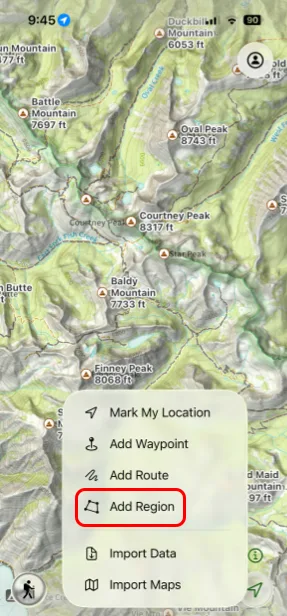
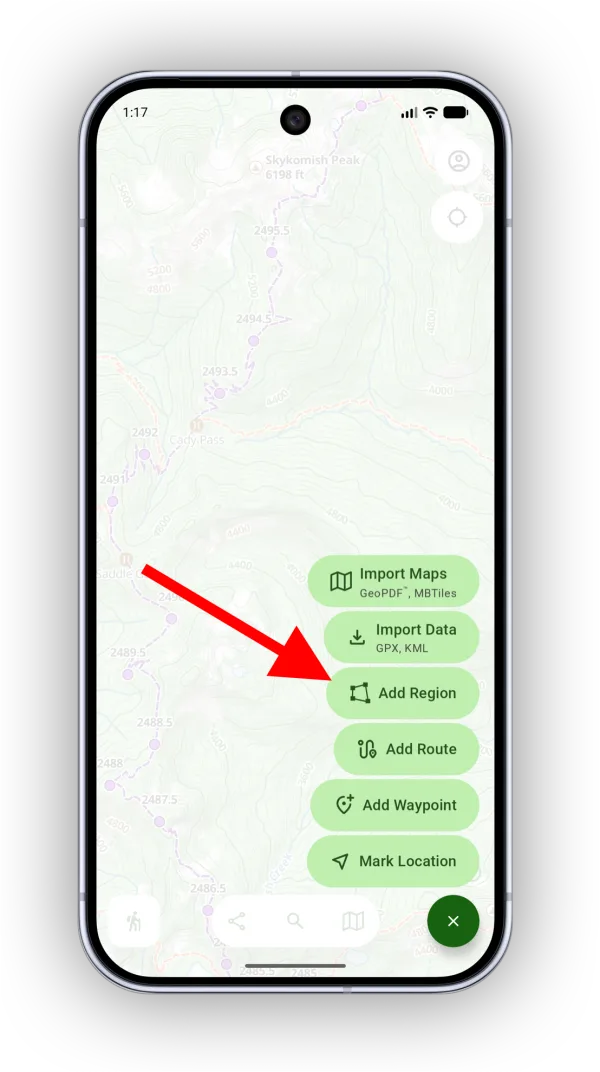
-
Choose how you want to draw the region:
- Trace Region (Freehand): drag the crosshairs to draw the border by hand.
- Connecting Points with Crosshairs: position the crosshairs and add points to the border one at a time.
- Connecting Points with Tap: tap the map to add each point.
- Connecting Waypoints: tap your saved waypoints to use them as points on the border.
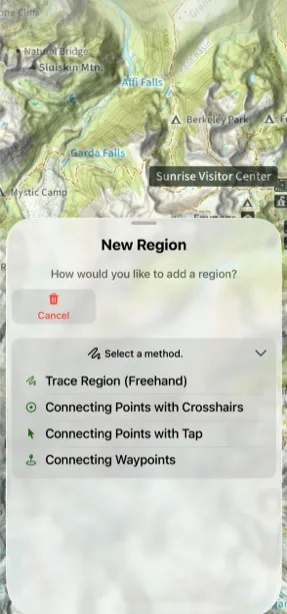
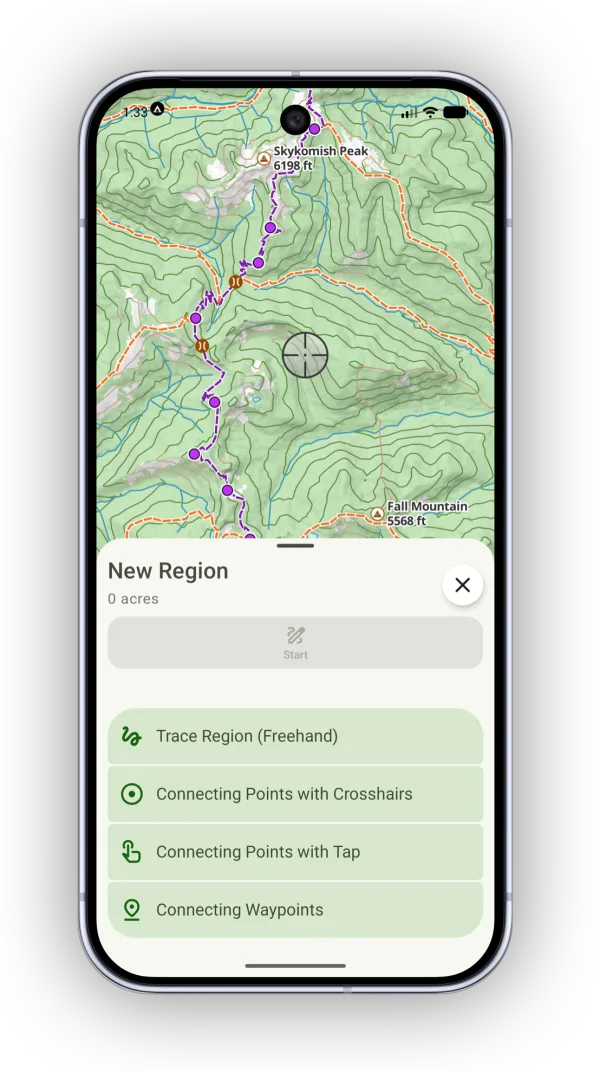
-
Draw your region, then tap Save.
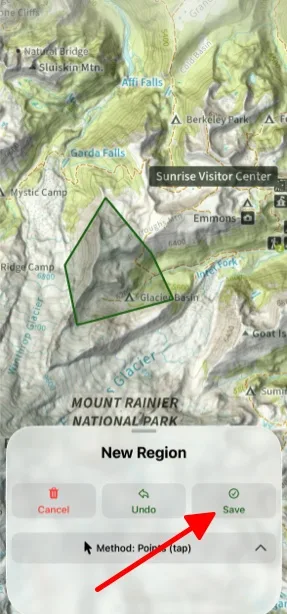
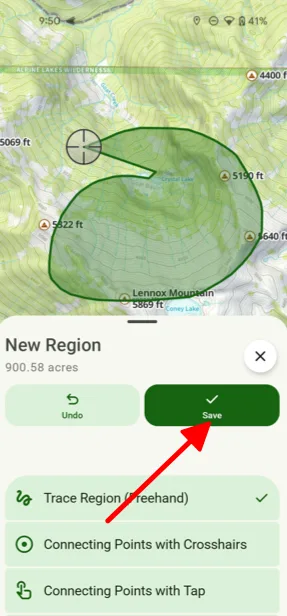
-
Name your region and tap Done.
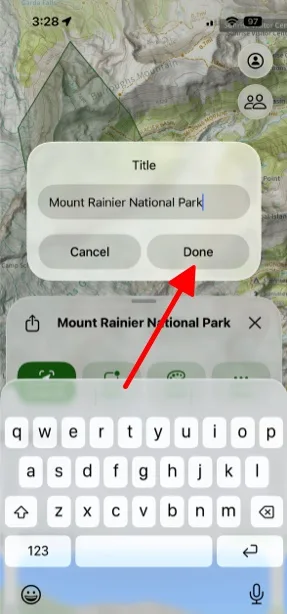
Shown on iPhone — Android looks slightly different. -
After saving, the region's sheet opens. From here you can change its title, border color, and fill color, or create a proximity alert for it.
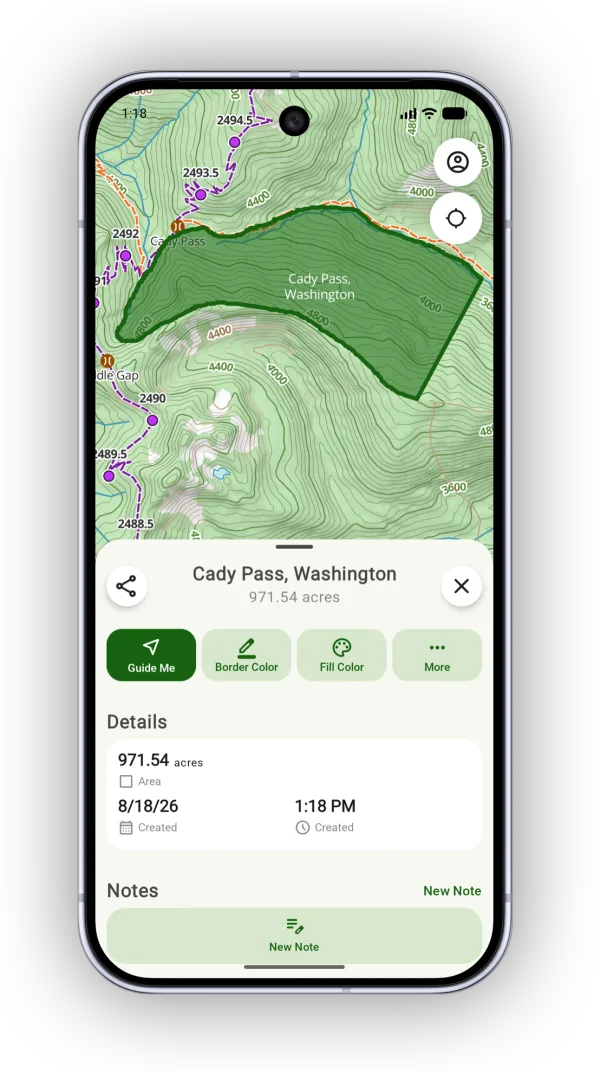
Shown on Android — iPhone looks slightly different.
How to find your saved regions
-
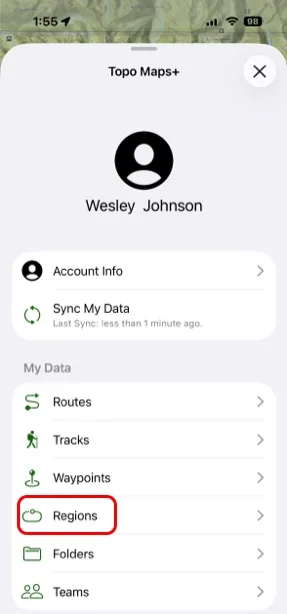
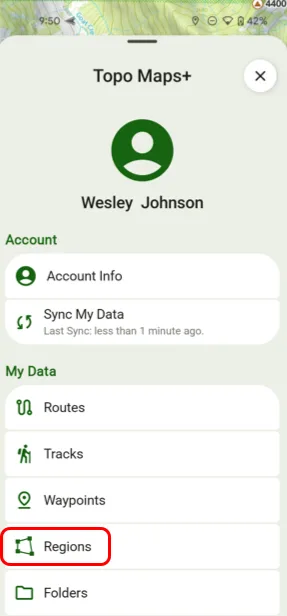
Tap the Account button in the top-right corner.
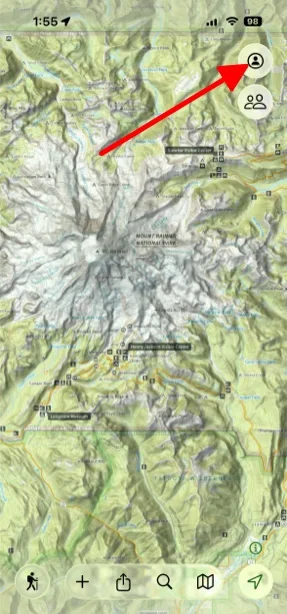
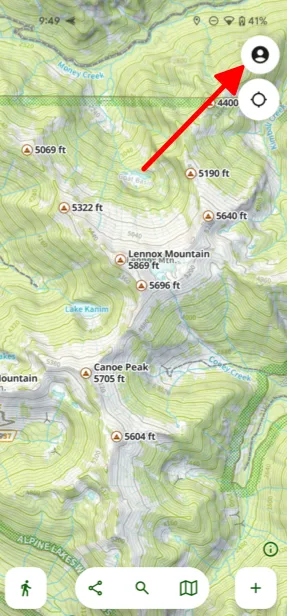
-
Tap Regions to see all of your saved regions.
Updated October 7, 2026
More in Routes, Waypoints & Regions
Still need help?
We’re a small team and we read every message. Email support@topomaps.co and tell us which device you’re on.