
Splitting & Joining Routes
This feature isn’t available in the Android app yet.
Splitting and joining let you reshape routes into exactly what you need. Your original routes are kept: a split leaves you with three routes (the original and its two halves), and a join leaves you with three as well (the two originals and the joined route). For other edits to a single route, see Editing Routes.
How to split a route
-
Select a route to open its info card, then tap More.
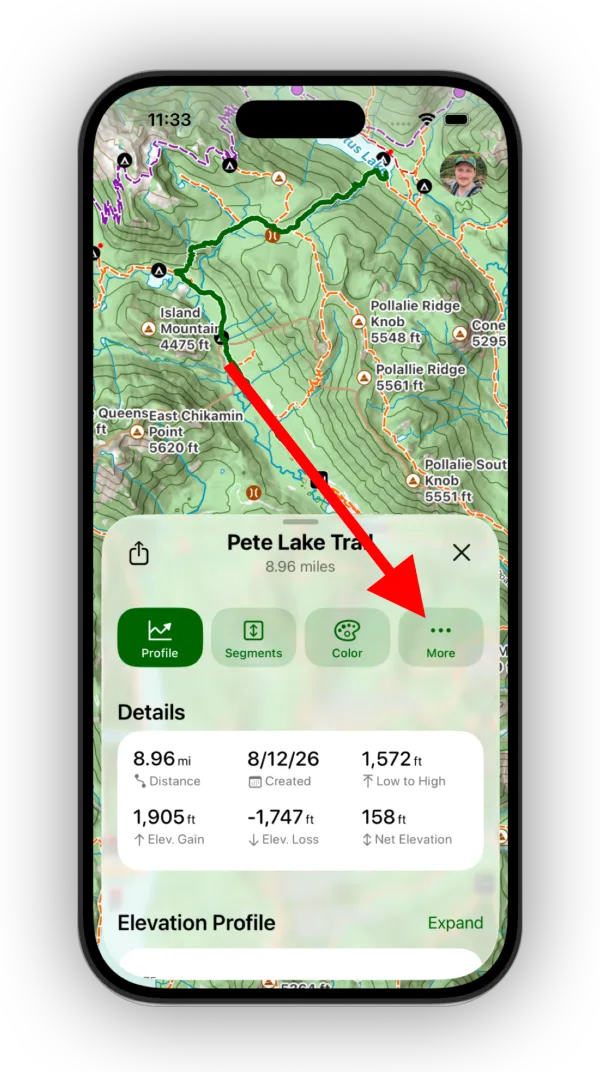
Shown on iPhone — Android looks slightly different. -
Tap Create New Route.
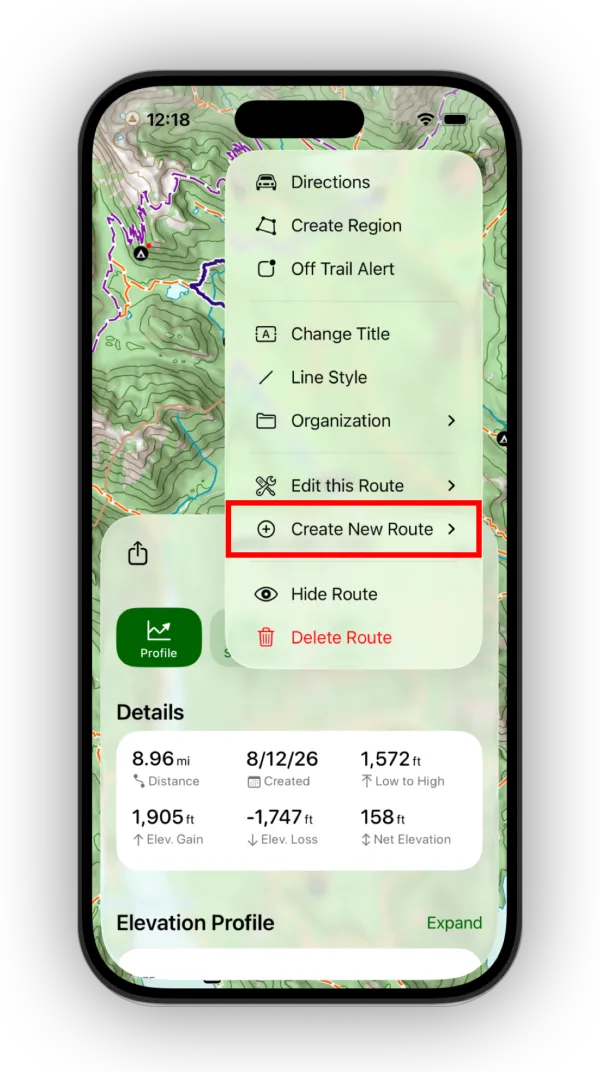
Shown on iPhone — Android looks slightly different. -
Tap Split Route.
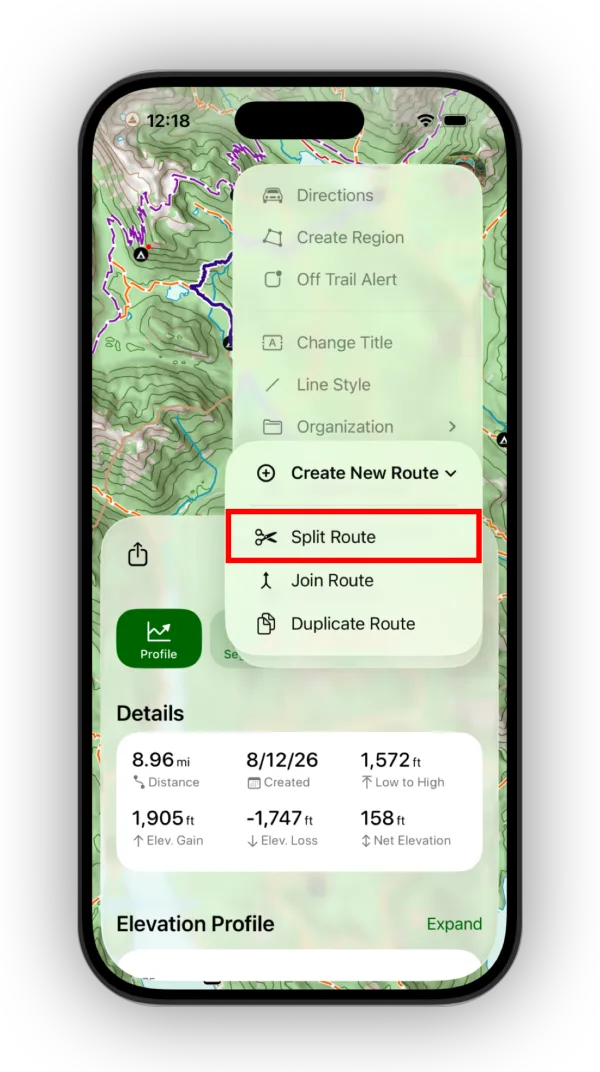
Shown on iPhone — Android looks slightly different. -
Move the crosshairs to where you want to split the route, then tap Split.
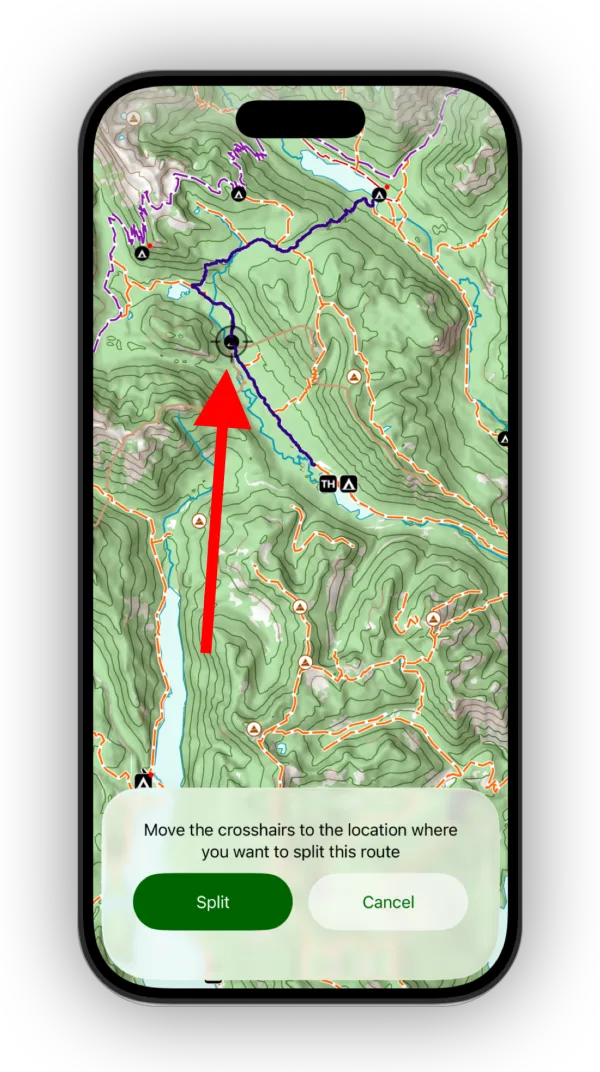
Shown on iPhone — Android looks slightly different. -
Check the result and tap Looks Good, or Undo Split to try again.
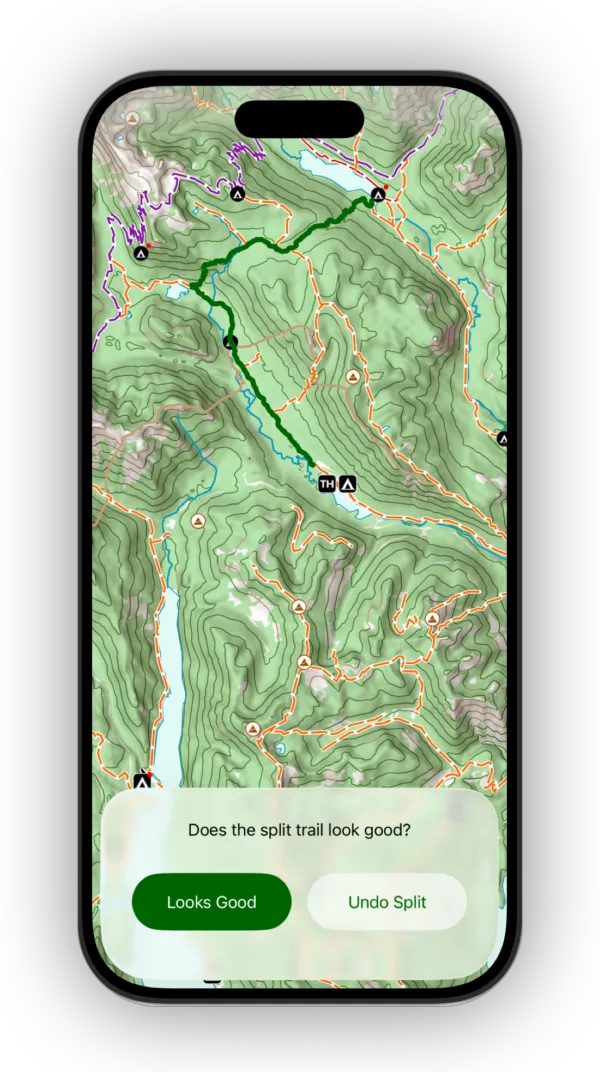
Shown on iPhone — Android looks slightly different.
How to join routes
-
Select a route, tap More, then Create New Route.
-
Tap Join Route.
-
Tap the route you want to join this route to.
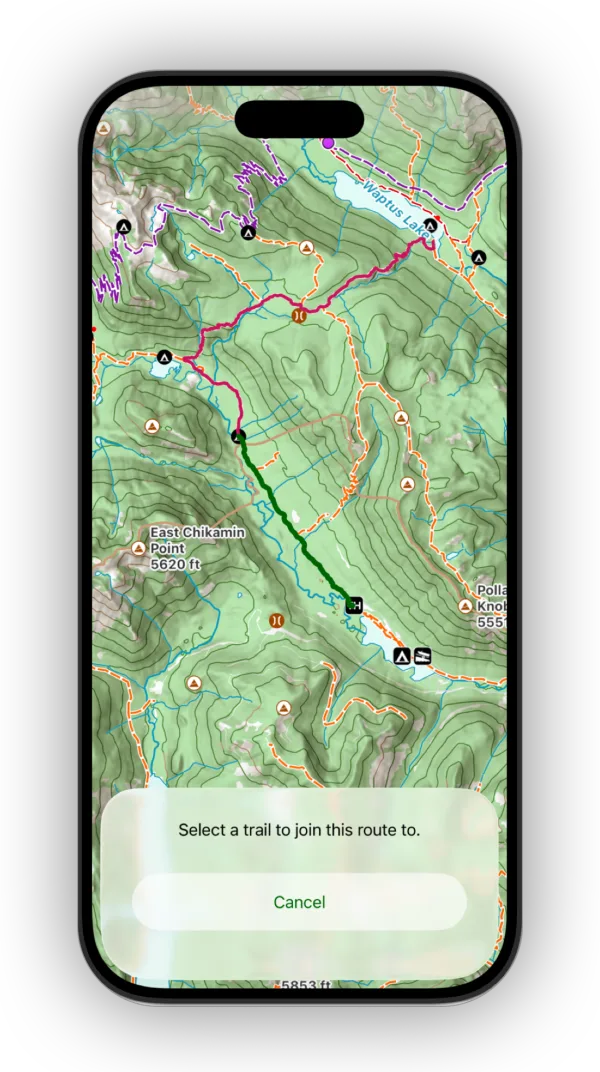
Shown on iPhone — Android looks slightly different. -
Check the result and tap Looks Good, or Undo Join to try again.

Shown on iPhone — Android looks slightly different.
Updated October 7, 2026
More in Routes, Waypoints & Regions
Still need help?
We’re a small team and we read every message. Email support@topomaps.co and tell us which device you’re on.