
Intro to the Mac App
Mac
Topo Maps+ for Mac is built for planning trips on a big screen, with keyboard shortcuts to make it faster. When you're done, sync your data to take it with you on your phone. Haven't downloaded the app yet?
The main screen
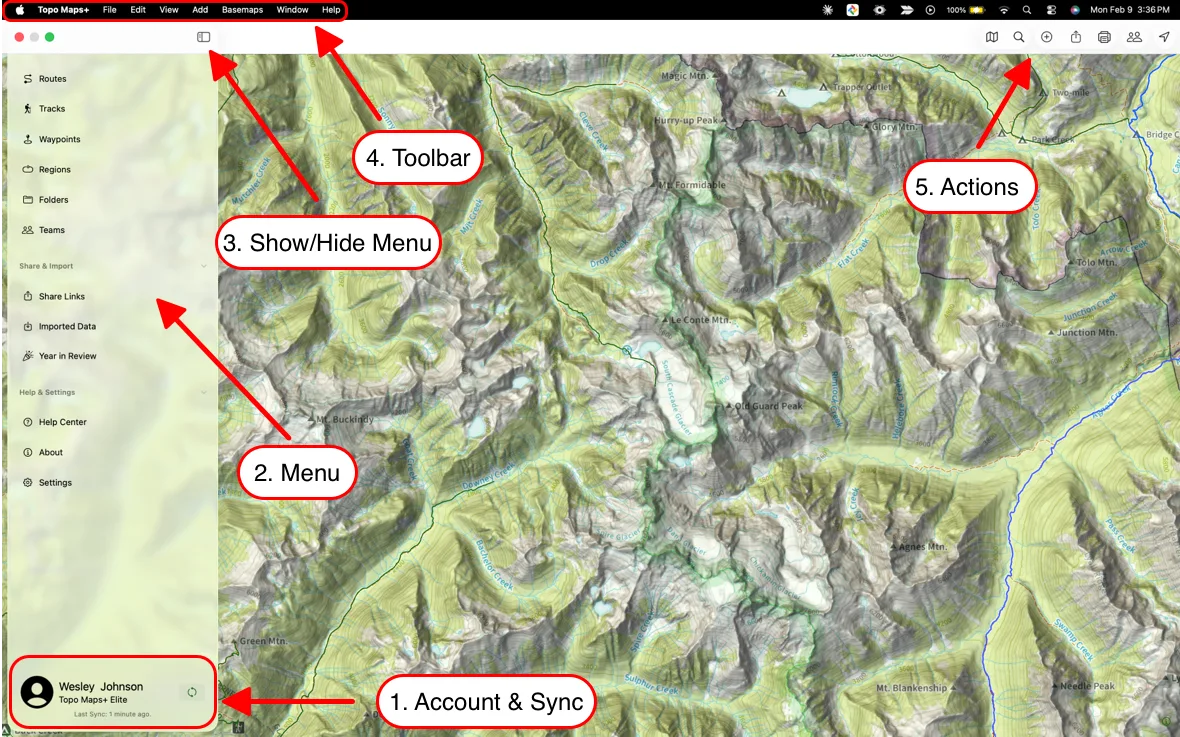
- Account & Sync: click to see your account settings. Click the circular arrows to sync your data.
- Menu: view your saved Routes, Tracks, Waypoints, Regions, Folders, and any Teams you're part of. You can also open the Help Center and change your settings from here.
- Show/Hide Menu: hide the menu for a full-screen map.
- Menu bar: many of these commands have keyboard shortcuts.
- Topo Maps+: basic app info.
- File: import, export, share, print, and more.
- Edit: standard text editing.
- View: viewing options for the app.
- Add: another way to add a Route, Waypoint, or Region.
- Basemaps: your favorite basemaps (the favorites you pick in the maps menu), with the keyboard shortcut for each one.
- Window: minimize, maximize, and arrange the window.
- Help: search for a command in the menu bar.
- Actions in the top-right corner:
- The + button adds data to the map.
- The Share button shares and exports data and maps.
- The location button shows your location on the map.
- The search button runs a search.
- The print button prints a map.
- The folded map button opens the map menu. See Map Activity Style.
Updated October 7, 2026
More in Getting Started
Still need help?
We’re a small team and we read every message. Email support@topomaps.co and tell us which device you’re on.