
Exporting Data on the Web App
On your phone? Exporting GPX & KML Files
There are a few ways to export data files from the Topo Maps+ web app, depending on whether you want one item, a selection from your library, or everything visible on the map.
How to export from your saved data
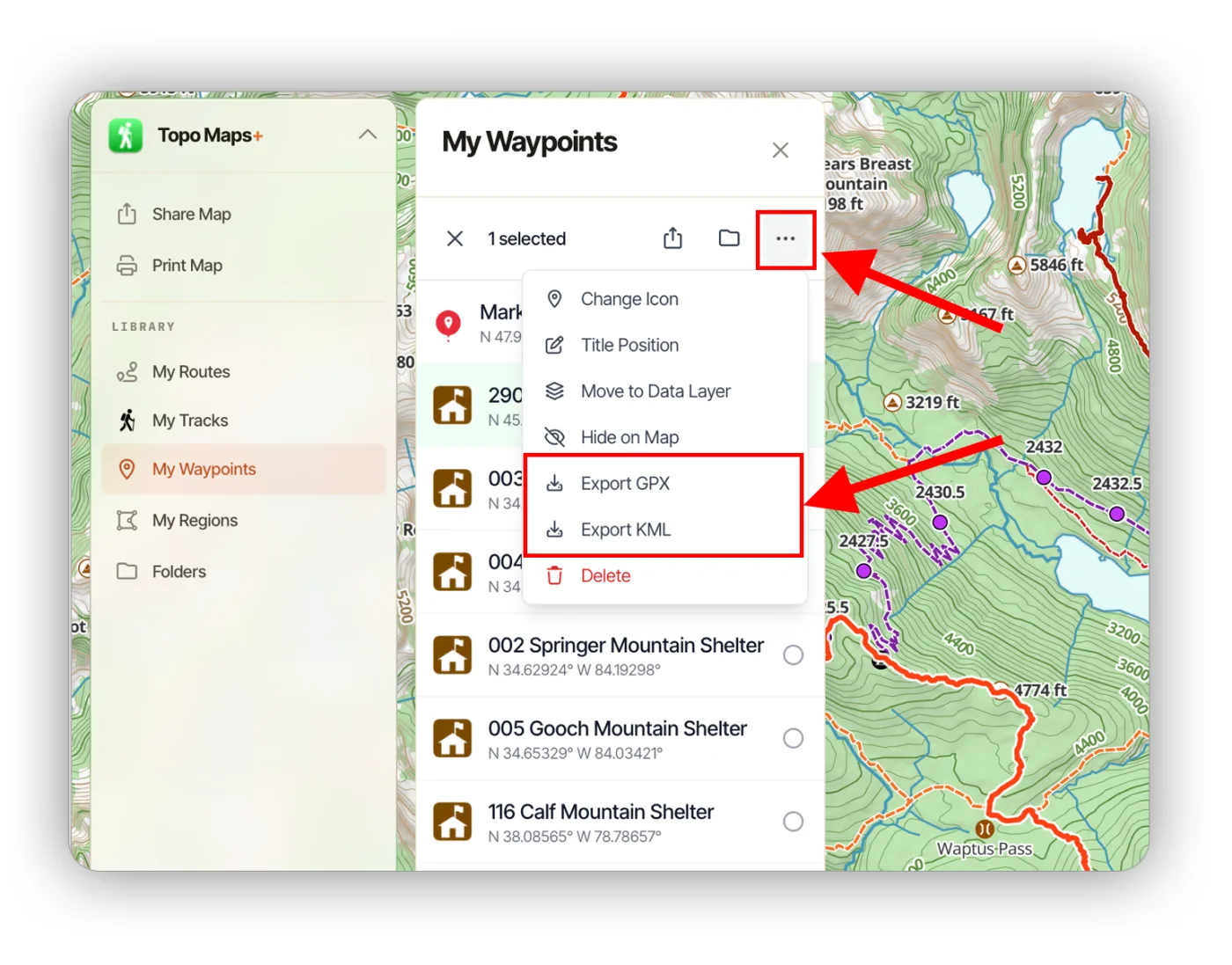
When you're viewing your saved data (for example, My Waypoints), check the items you want, then click the More (…) button and choose Export GPX or Export KML.
How to export a single item from the map
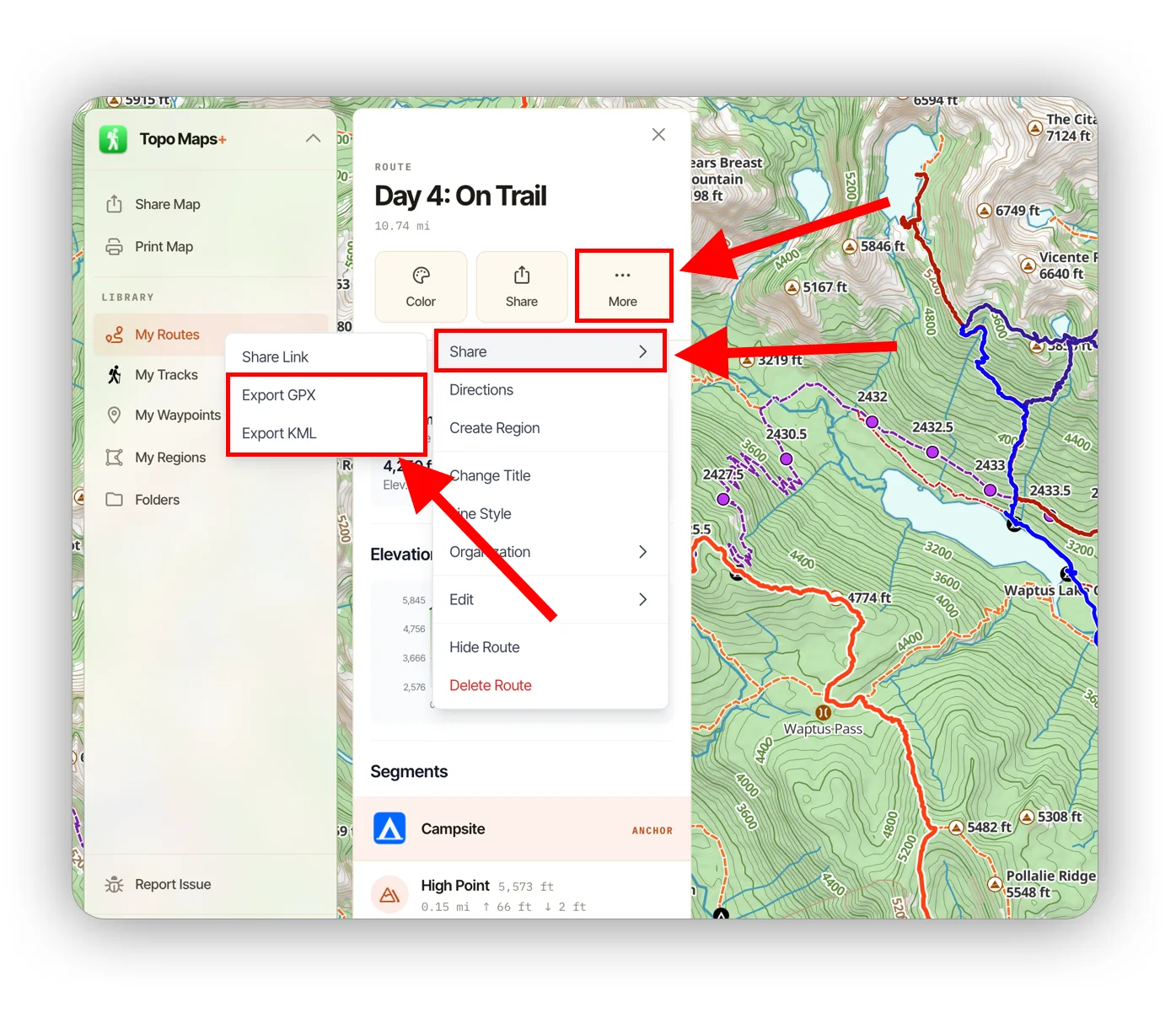
Click the item on the map, then click More > Share and choose Export GPX or Export KML.
How to export everything on the map
You can also export several items at once based on what's shown on the map.
-
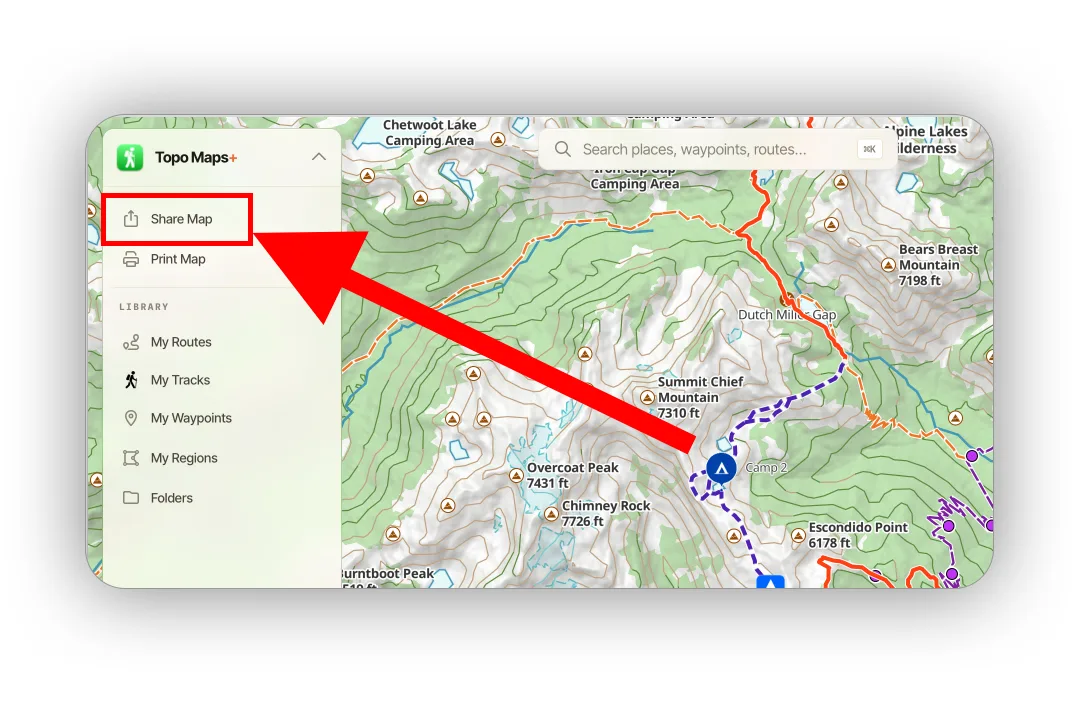
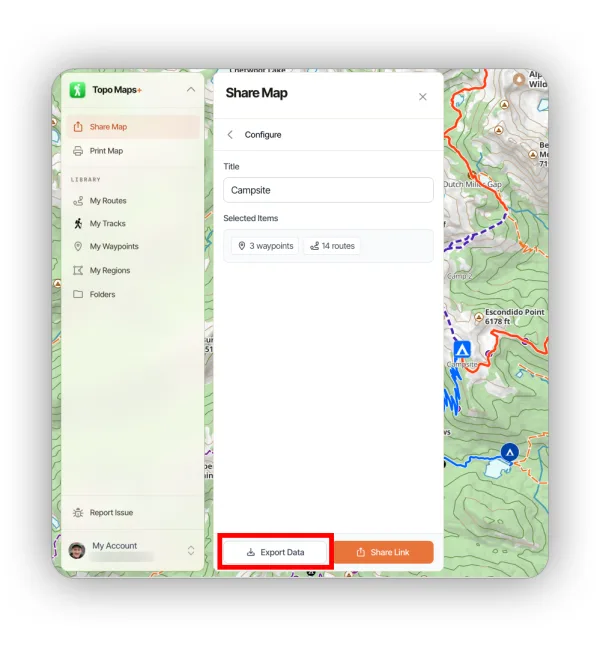
Click Share Map in the sidebar.
-
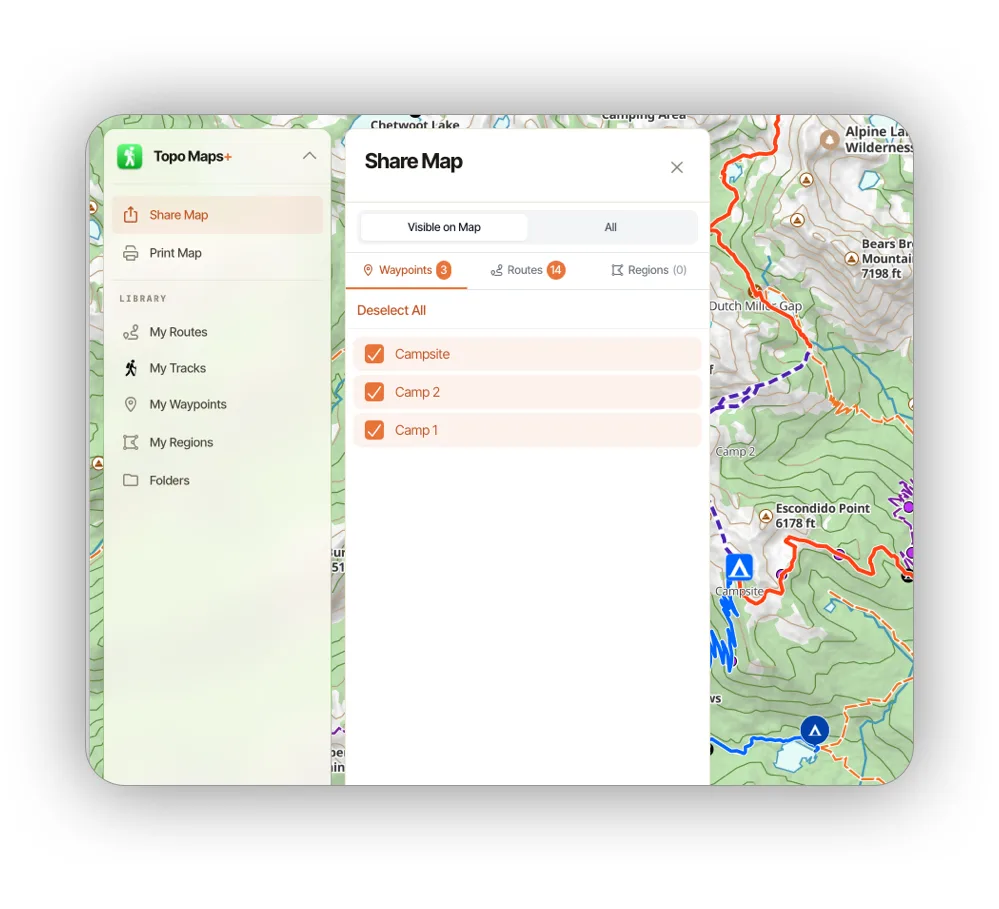
Select the data you want to include. Use Visible on Map or All, and the Waypoints, Routes, and Regions tabs, to find items.
-
Give the export a title and click Export Data.
-
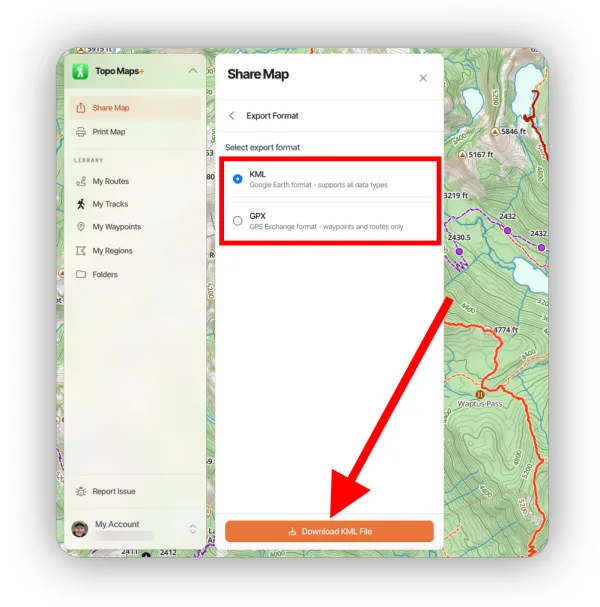
Select KML or GPX, then click the download button.
Updated October 7, 2026
More in Web App
Still need help?
We’re a small team and we read every message. Email support@topomaps.co and tell us which device you’re on.