
Importing GeoPDFs on the Web App
On your phone? Importing GeoPDFs
You can import external maps saved as GeoPDF™ files and add them to the map as overlays. The file must be geo-tagged.
How to import a GeoPDF
-
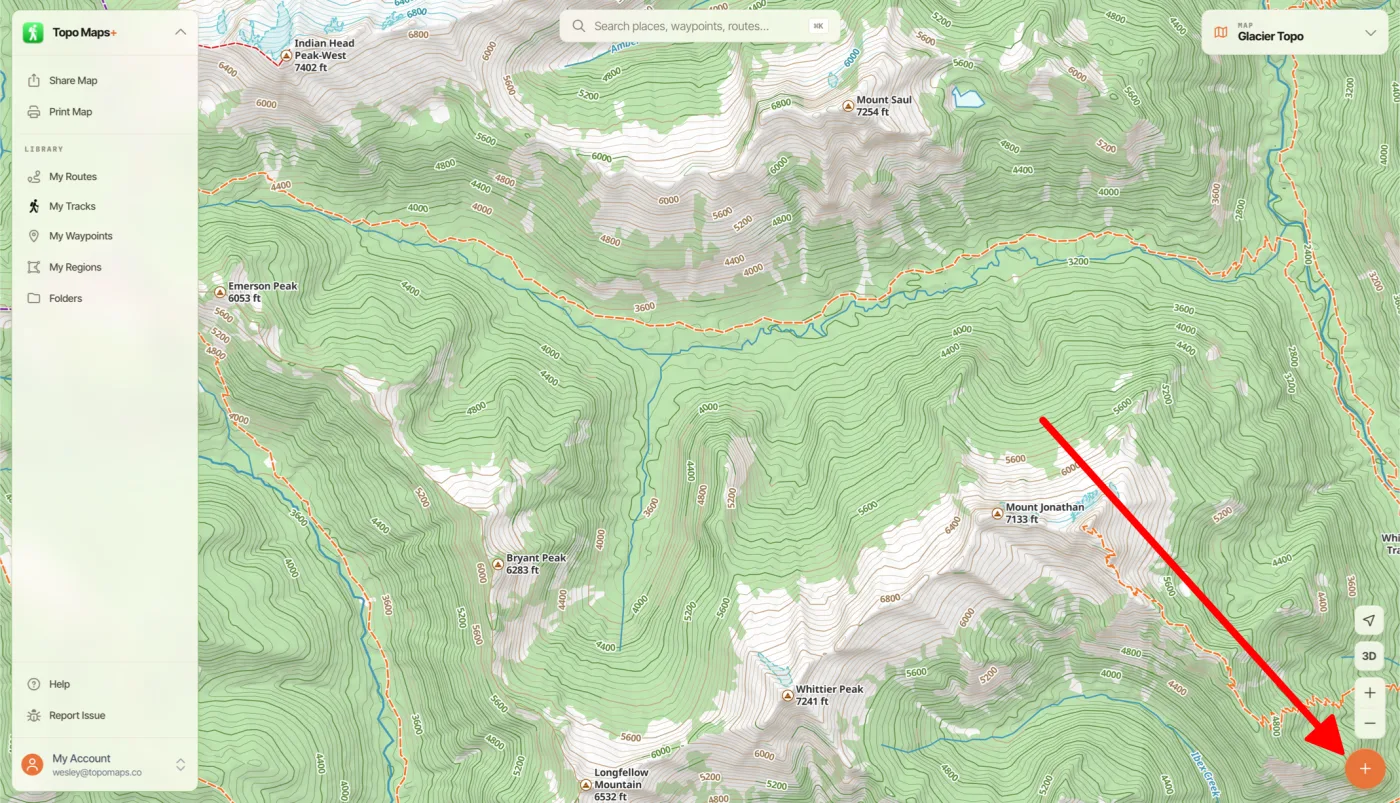
Click the orange + button in the bottom-right corner of the screen.
-
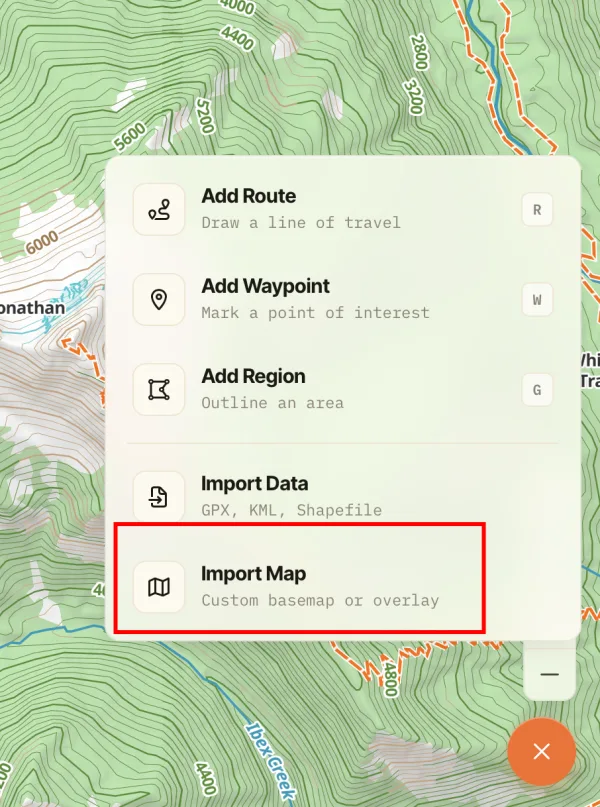
Click Import Map.
-
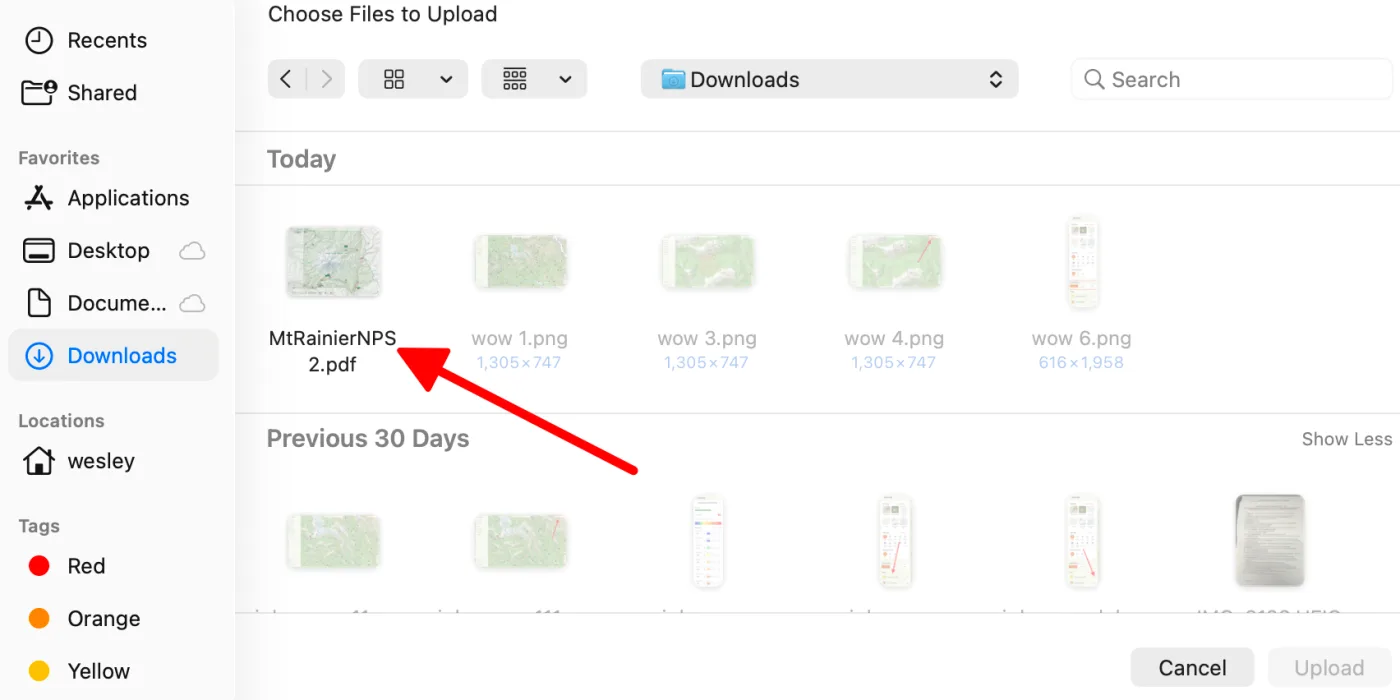
Click the box to select a file, or drag the file into it.
-
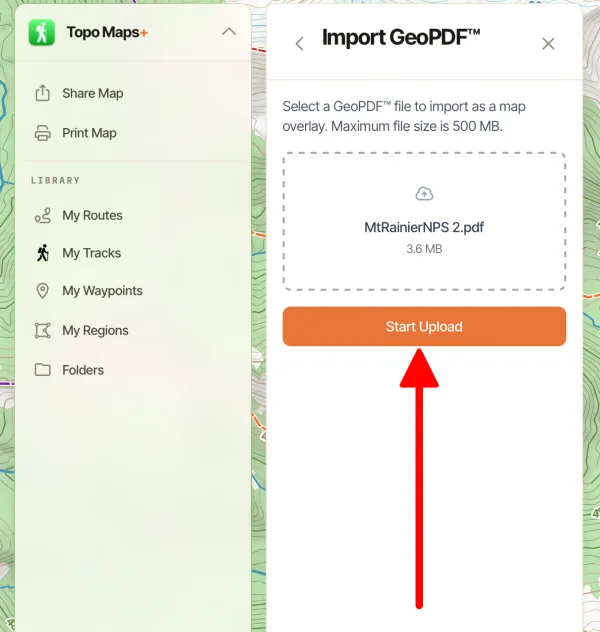
Click Start Upload.
-
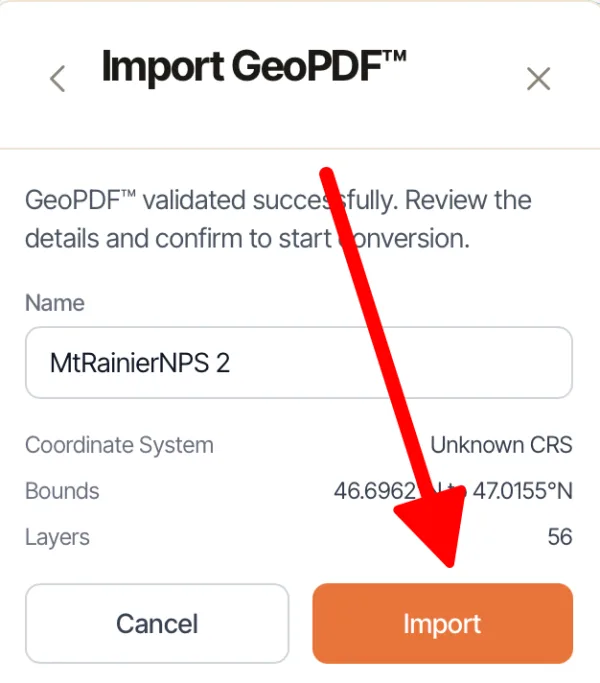
Topo Maps+ validates the file to make sure it's a complete, valid GeoPDF. Once it passes, review the name and details and click Import.
-
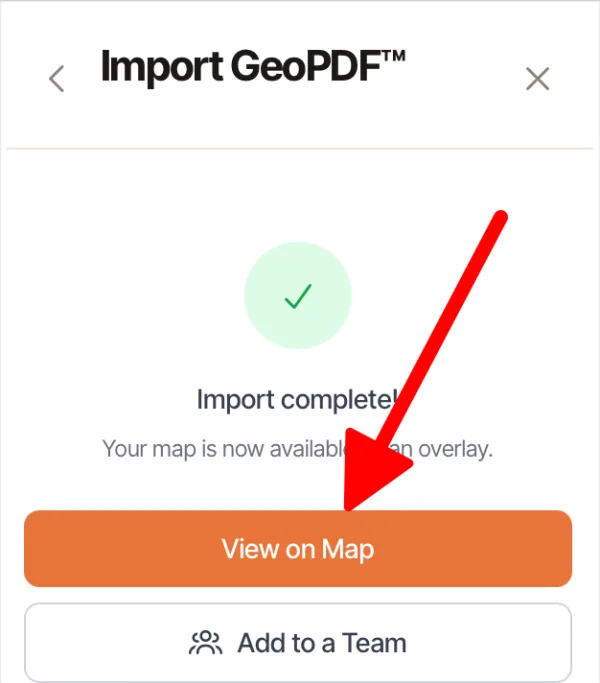
When the import is complete, click View on Map to center the map on your imported map.
How to manage an imported map
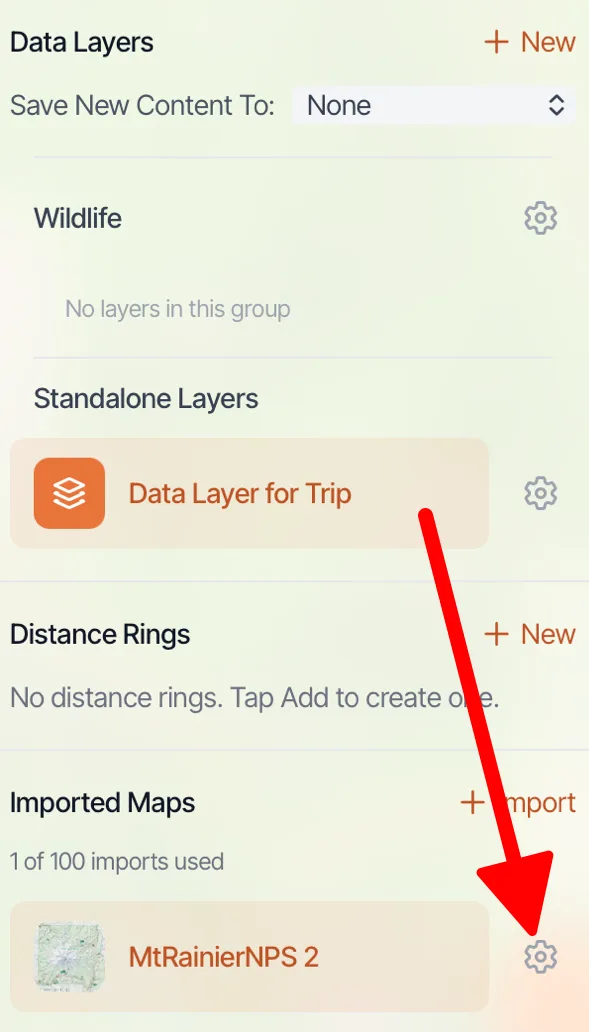
Open the map dashboard and scroll to Imported Maps at the bottom. Click the settings icon next to an imported map to edit it.
Updated October 7, 2026
More in Web App
Still need help?
We’re a small team and we read every message. Email support@topomaps.co and tell us which device you’re on.