
Photo Overlay
Topo Maps+ can read the location from geotagged photos on your device and show them on the map. If you take lots of pictures, this gives you a breadcrumb trail of your trip just by snapping photos as you go.
How to turn on the Photo overlay
-
Tap the Maps button in the toolbar.
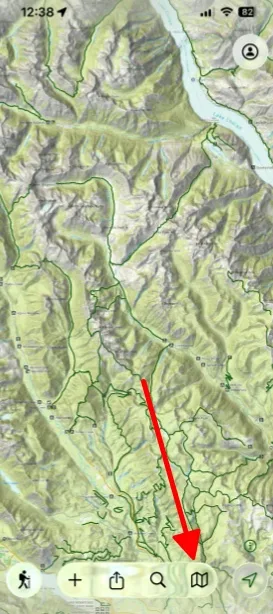
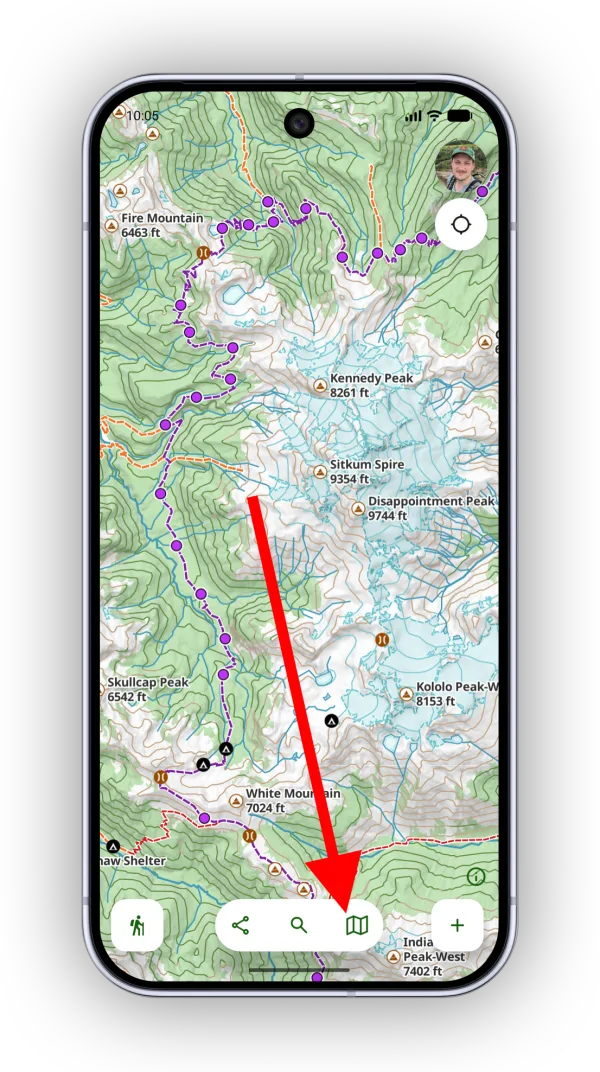
-
Under My Data, tap Photos.
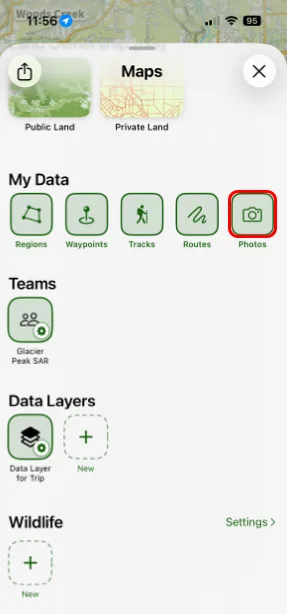
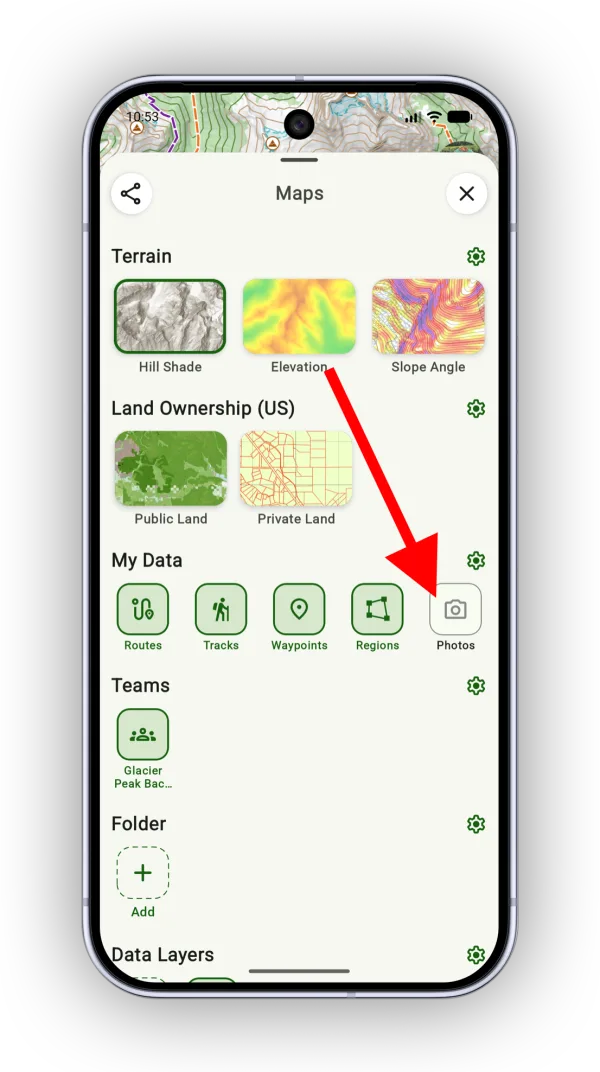
-
When your device asks, give Topo Maps+ permission to access your photos. You can allow all of your photos or just a selection, and change this later in your device's Settings app.
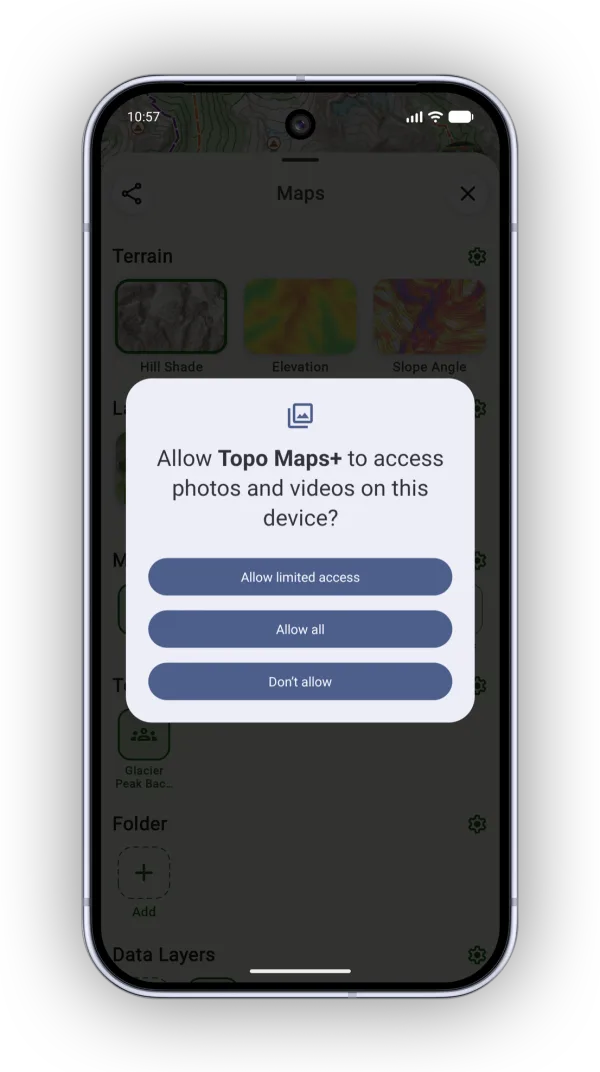
Shown on Android — iPhone looks slightly different.
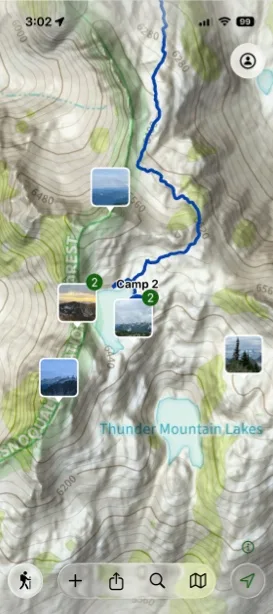
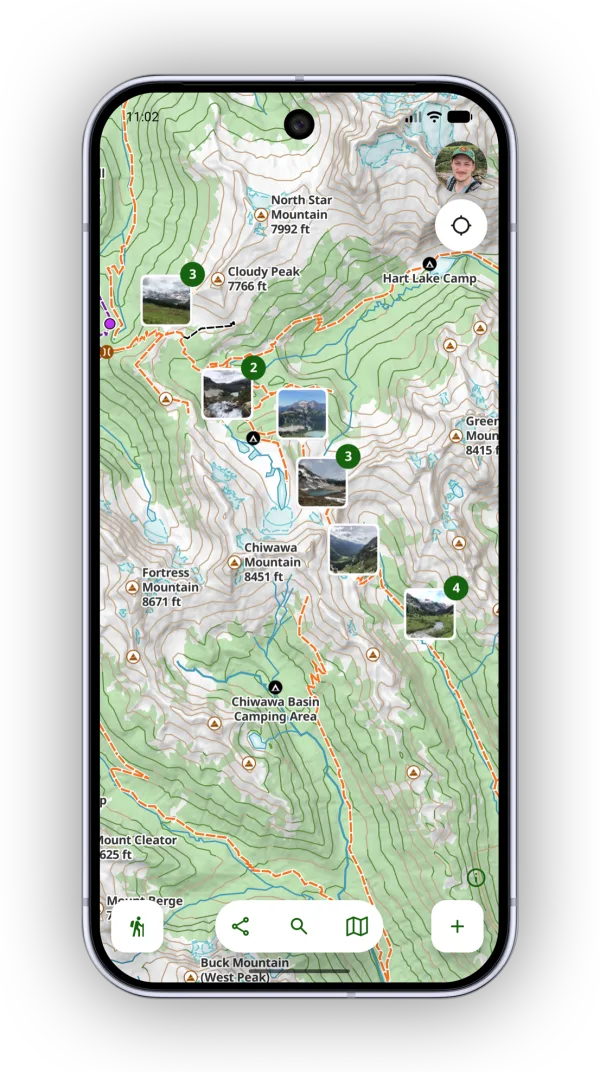
By default, photos appear on the map as thumbnails:
How to change how photos look
-
In the Maps panel, tap the settings icon next to My Data.
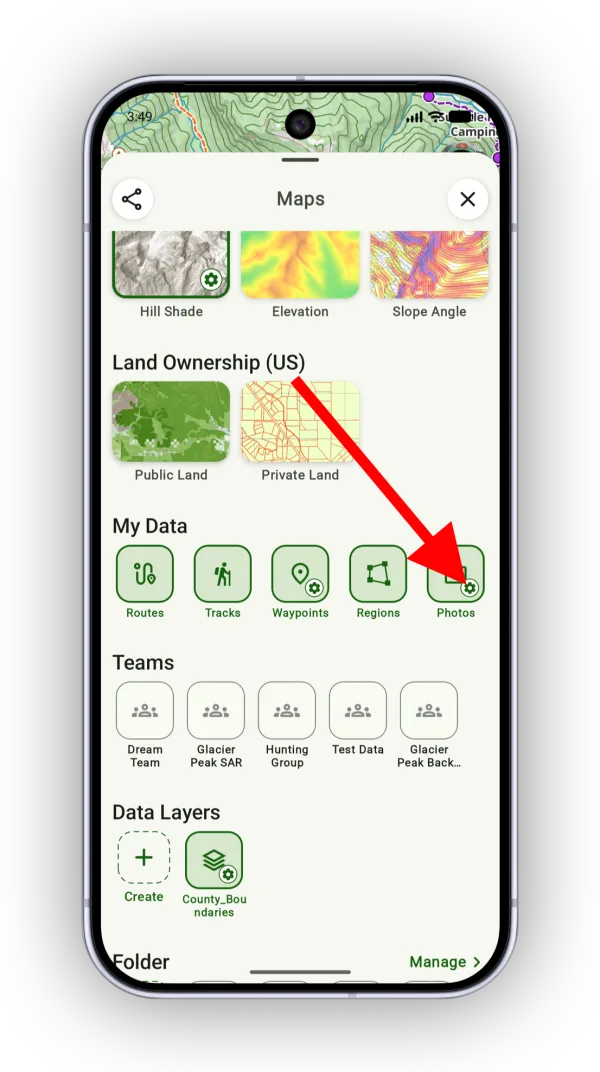
Shown on Android — iPhone looks slightly different. -
Choose your options:
- Show Thumbnails: switch between photo thumbnails and a simple camera icon.
- Icon Color: when showing camera icons, pick the color they use.
- Cluster Photos: let nearby photos group into clusters as you zoom out, or keep them all separate.
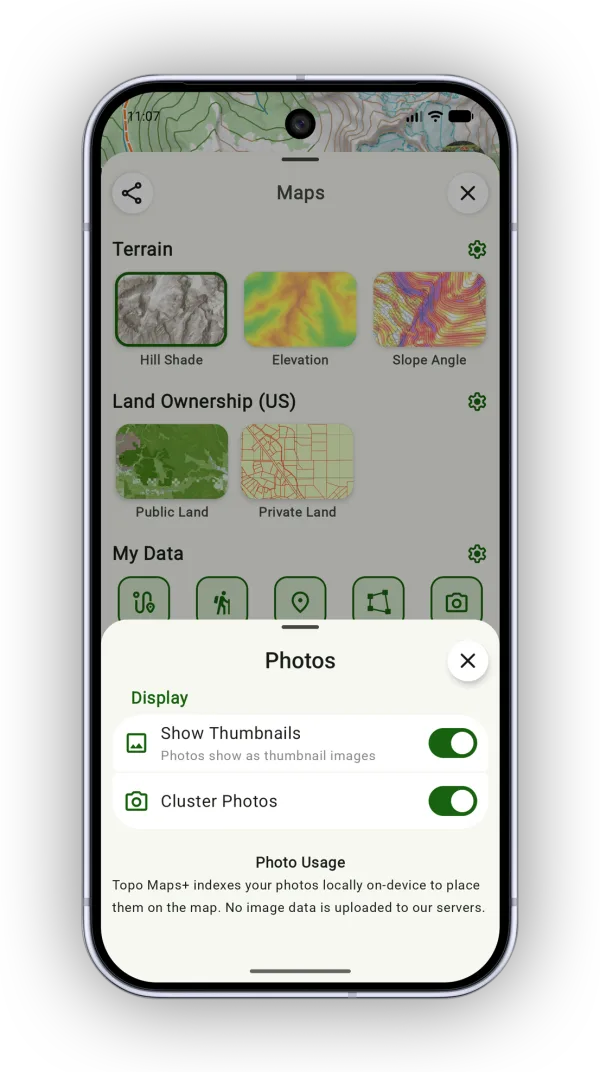
Shown on Android — iPhone looks slightly different.
Viewing a photo
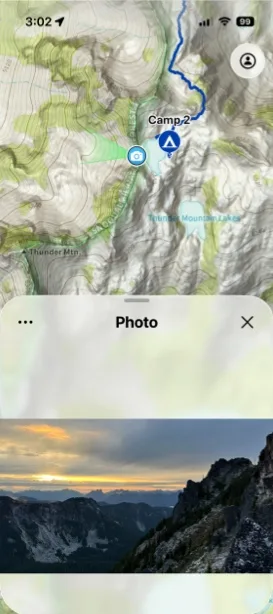
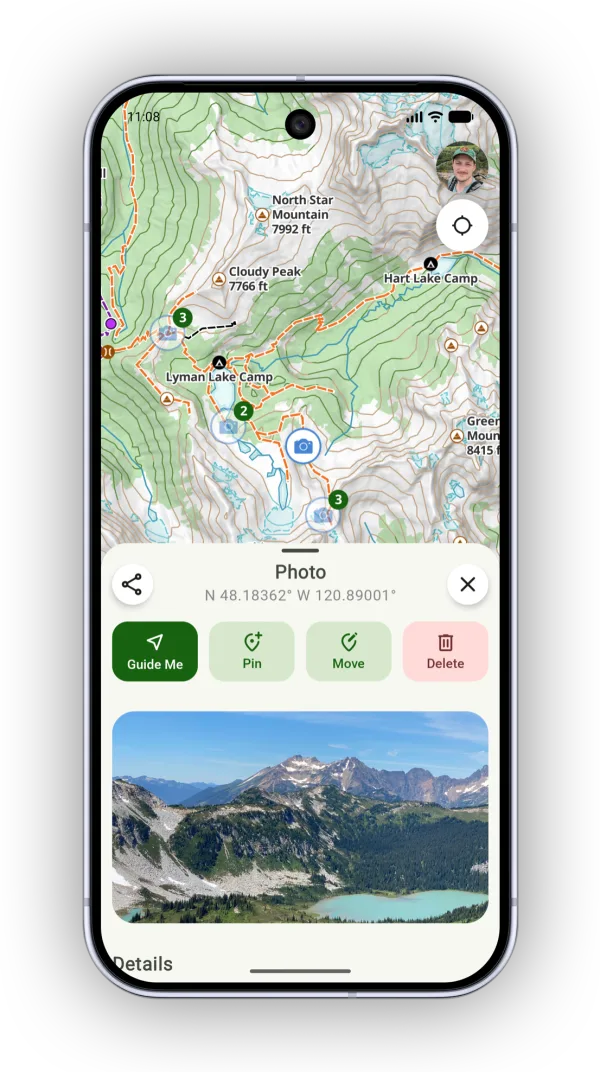
Tap a photo on the map to see it larger, along with its details.
Updated October 7, 2026
More in Maps & Overlays
Still need help?
We’re a small team and we read every message. Email support@topomaps.co and tell us which device you’re on.