
My Data Overlays
Using the web app? My Data Overlay on the Web App
The data you create (waypoints, routes, tracks, and regions) appears on the map as overlays you can turn on and off. If you only want to see your waypoints, for example, turn off everything else.
This also helps when you're on a team: if team data overlaps your personal data, turn off your own overlays so you only see the team's.
How to show or hide your data
-
Tap the Maps button in the toolbar.
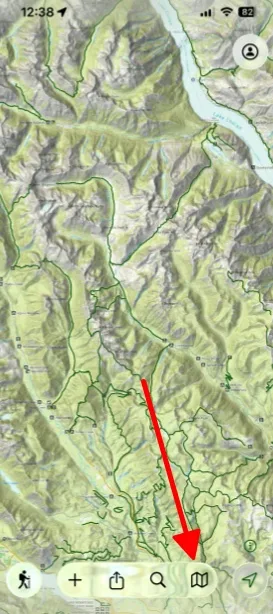
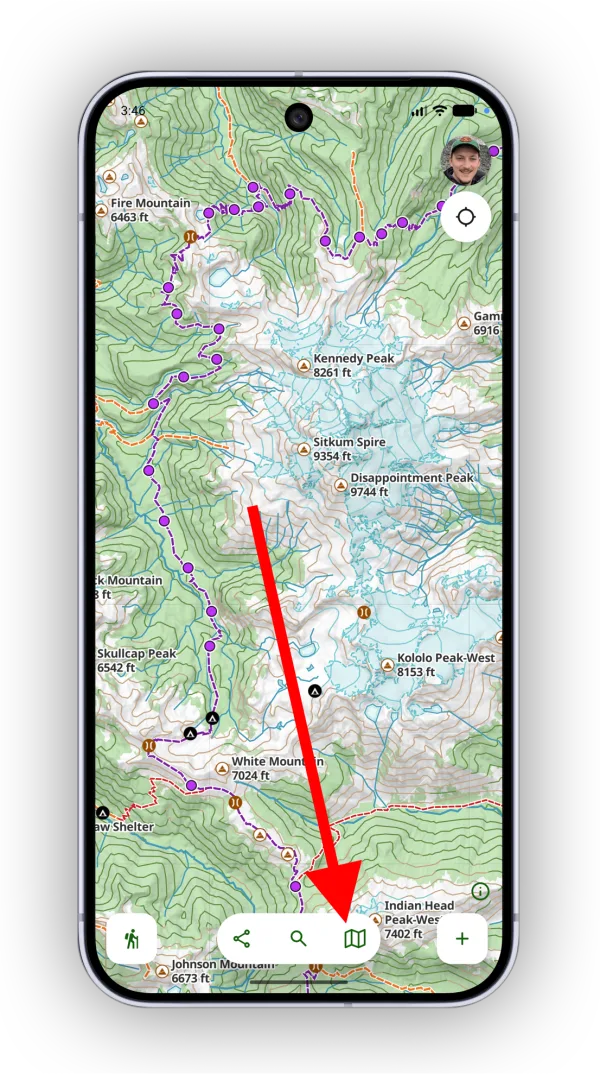
-
Scroll down to the My Data section.
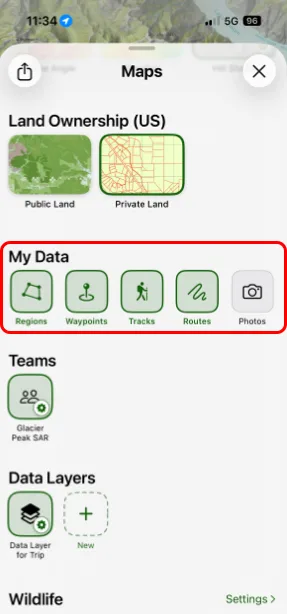
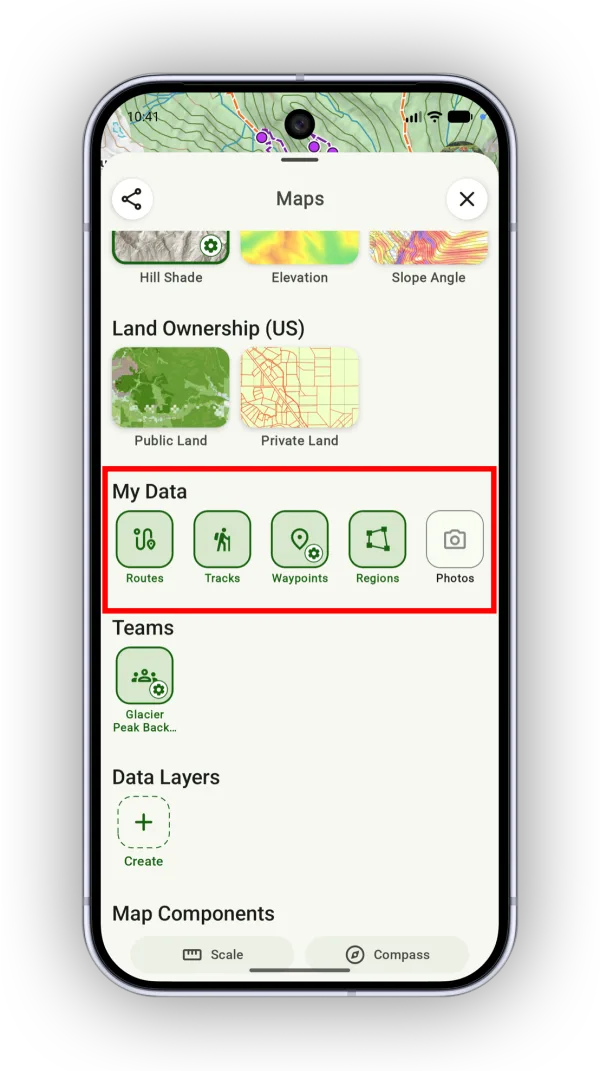
-
Tap Routes, Tracks, Waypoints, Regions, or Photos to turn each one on or off.
To show your photos on the map, see Photo Overlay.
Updated October 7, 2026
More in Maps & Overlays
Still need help?
We’re a small team and we read every message. Email support@topomaps.co and tell us which device you’re on.